API Keys
Create and manage Flexim API keys, understand General and Topic Suggestions access, copy credentials safely, and revoke unused keys.
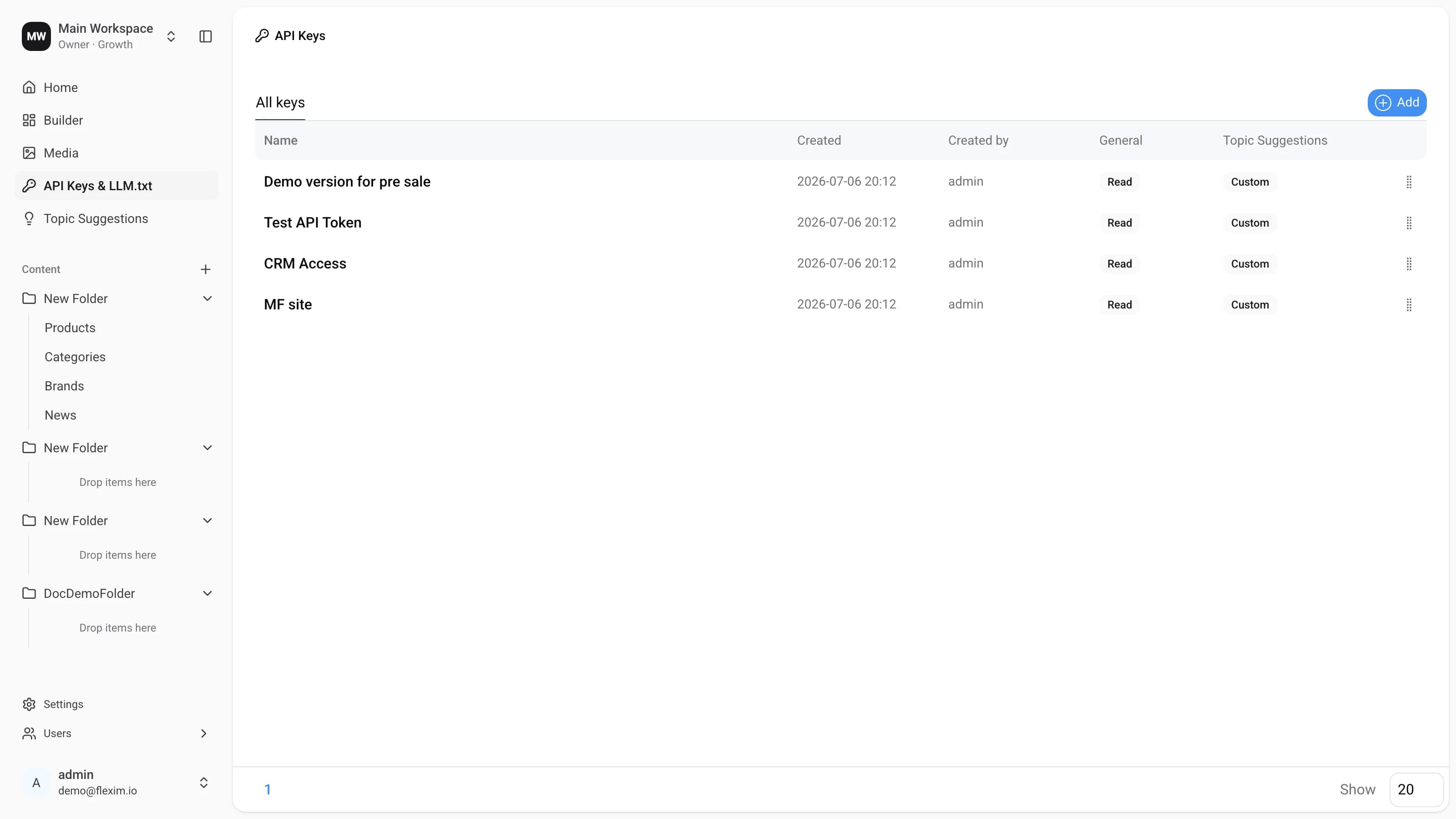
An API key is a unique token that grants access to your workspace content through the application API. Open API Keys & LLM.txt in the left menu to see every key in the workspace. Each row shows the key name, when and by whom it was created, and the access it was granted — the General and Topic Suggestions columns.
Generating a key
-
When no keys exist yet, the list shows an empty state. Create your first key by clicking the
Addbutton in the top-right corner.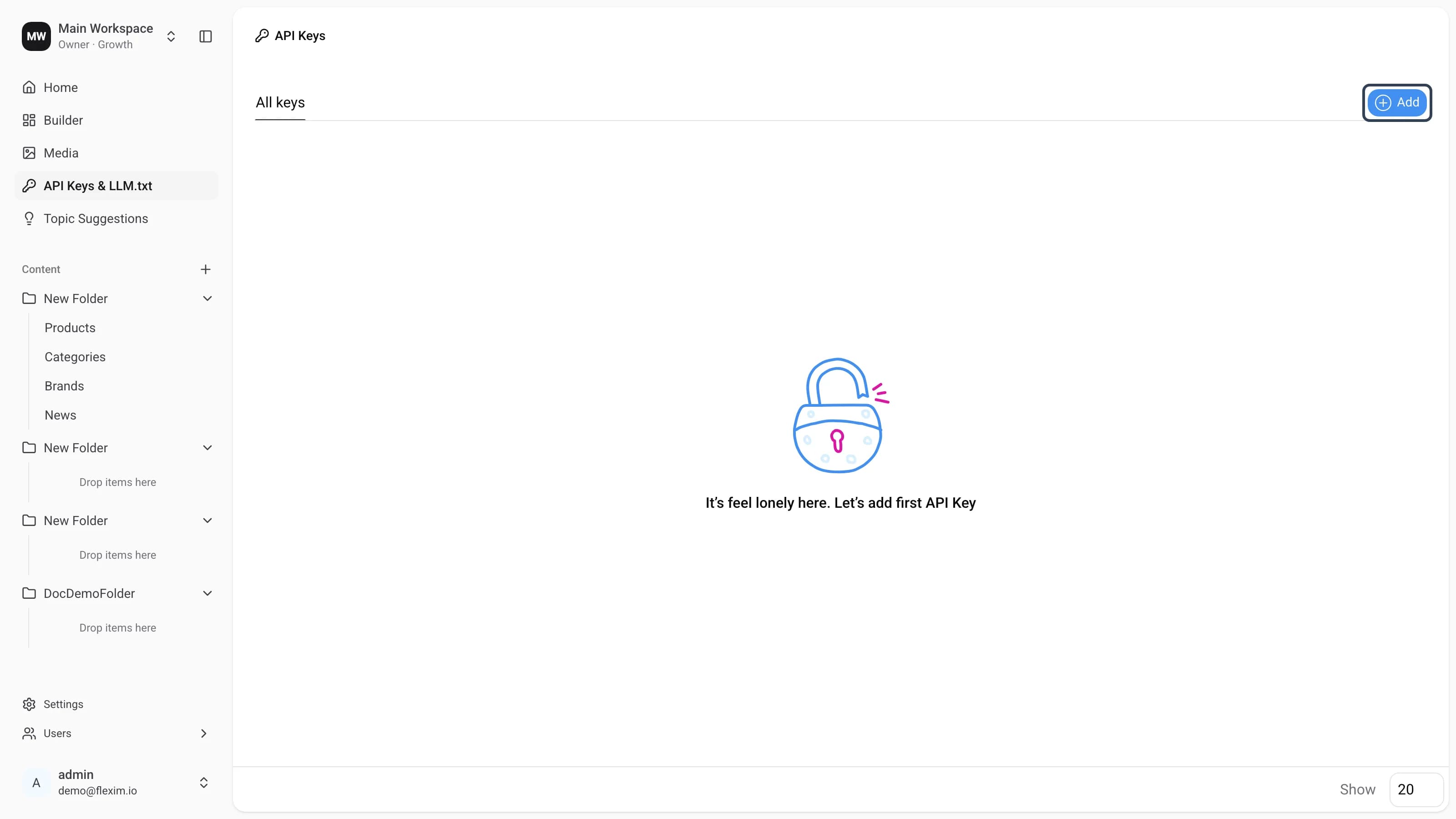
-
A request is sent to the server to generate the key. While it runs, the button switches to the
Addingstate.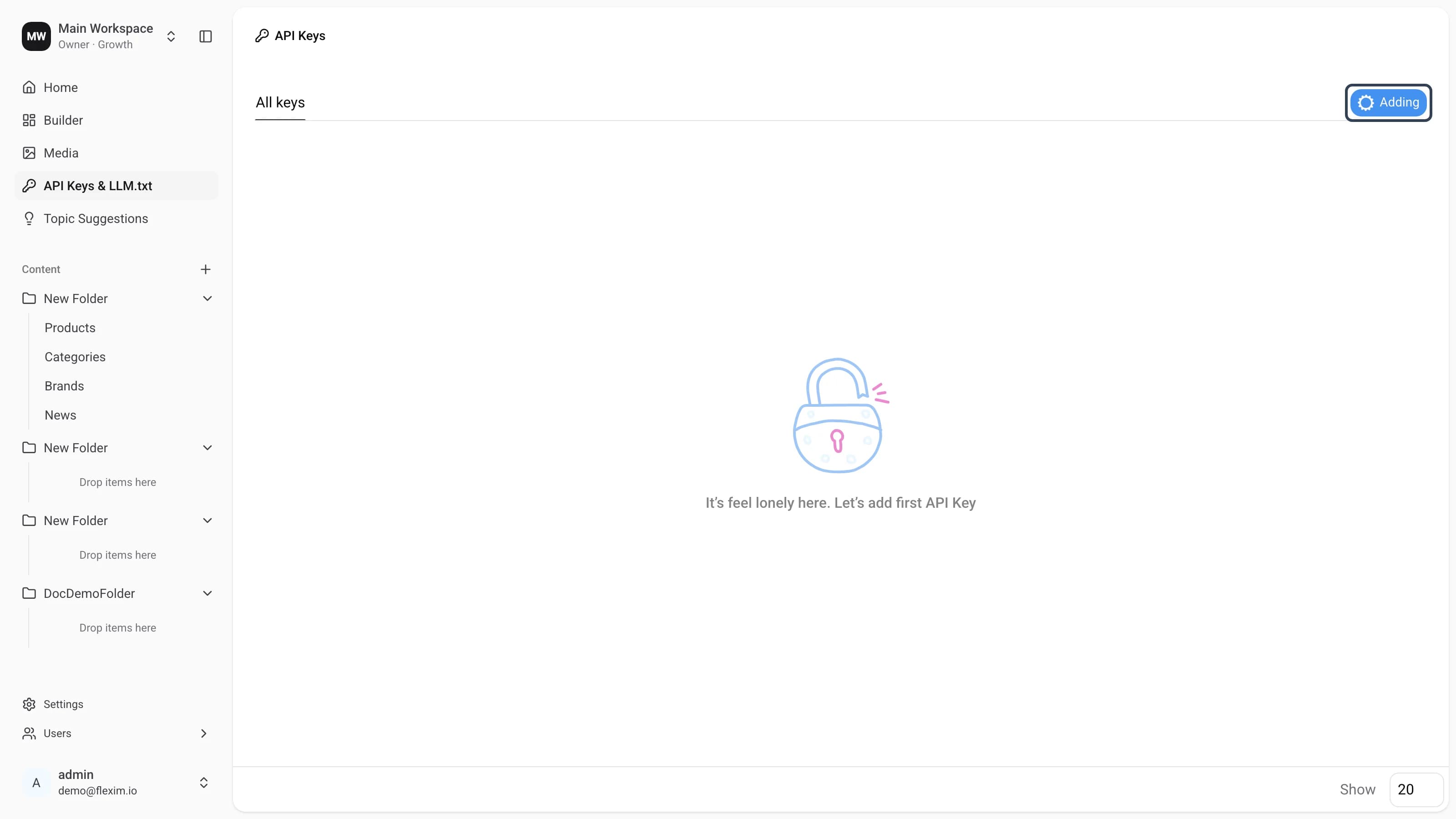
-
Once the key is generated, the New Key panel opens on the right and a new row appears in the list with the default name
Secret API Key. The panel contains theNamefield (placeholderSecret Key), the access toggles, and the generatedKey, which you can copy with the button next to it.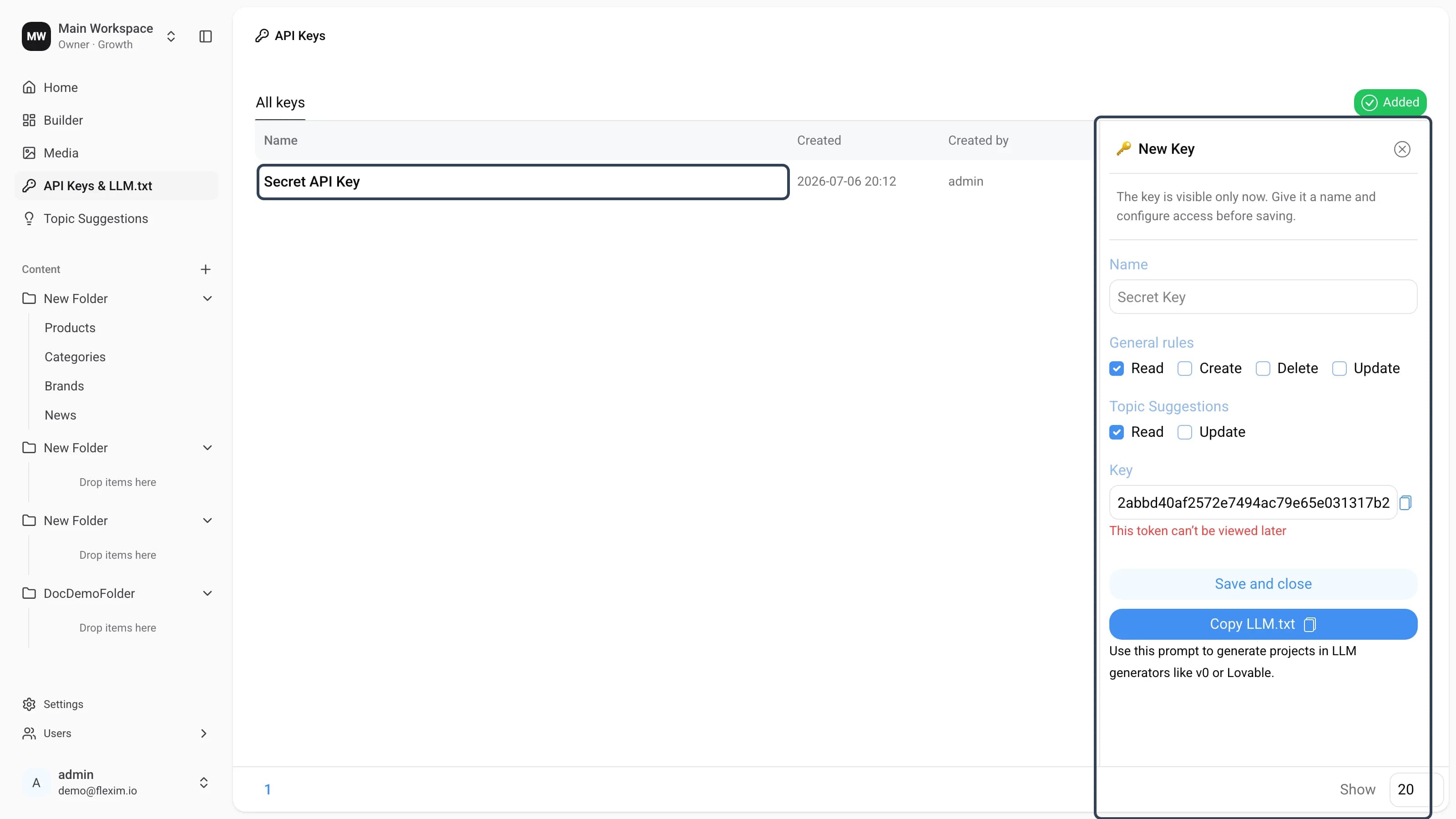
-
Type a name in the
Namefield, choose the access this key should have (see below), and clickSave and close. The name you enter replaces the defaultSecret API Key.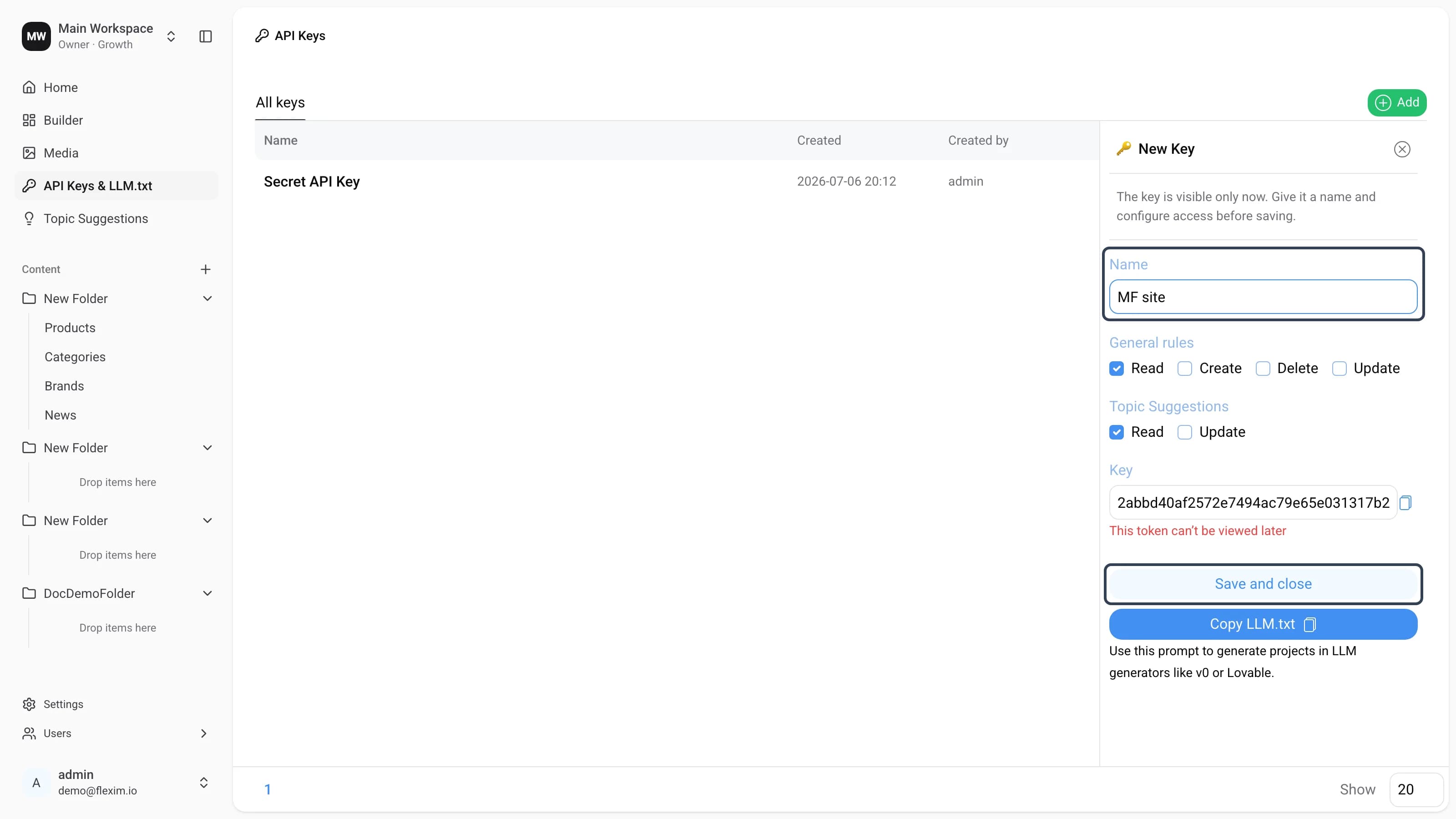
The key is shown only once
The generated token is visible only while the New Key panel is open. As soon as you click
Save and close— or close the panel, refresh the page, etc. — the token can no longer be viewed. Copy it before you leave the panel. If you lose it, revoke the key and create a new one. -
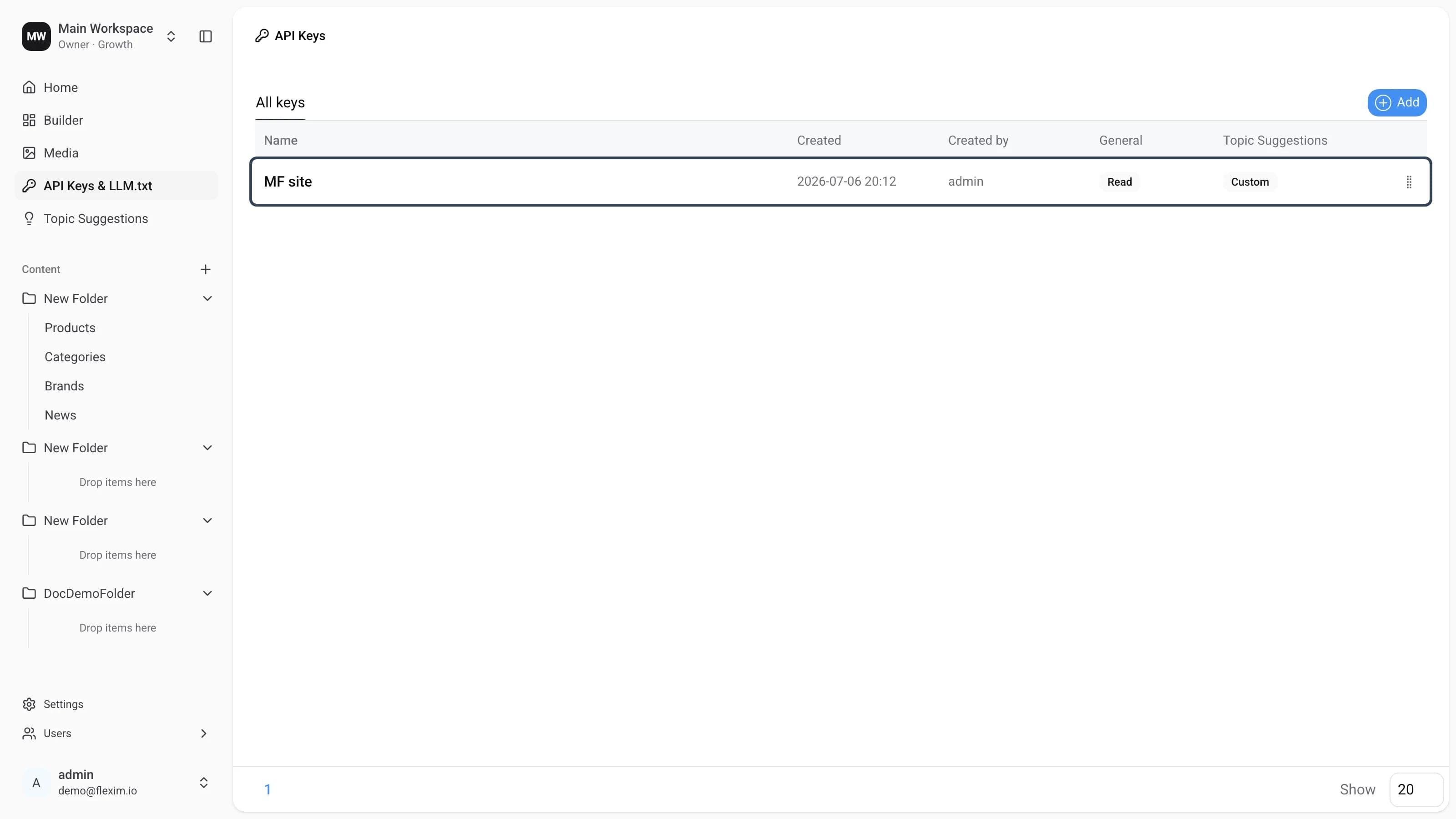
After saving, the row displays the name you chose along with the creation date, the author, and the access columns.
Configuring access
Every key carries an explicit access scope that you set in the New Key panel before saving:
- General rules — what the key may do with your content:
Read,Create,Delete, andUpdate. - Topic Suggestions — access to the Topic Suggestions data:
ReadandUpdate.
The list summarizes each scope in the General and Topic Suggestions columns (for example, Read, Full, or Custom), so you can tell at a glance how much access a key was granted.
Copy LLM.txt
The New Key panel also has a Copy LLM.txt button. It copies a ready-made prompt — including the key — that describes your workspace API, so you can paste it straight into LLM app generators like v0 or Lovable to scaffold a project against your content.
Copy it while the key is visible
Copy LLM.txt embeds the token, so use it before you close the panel — just like the raw key, it can't be retrieved afterwards.
Revoking a key
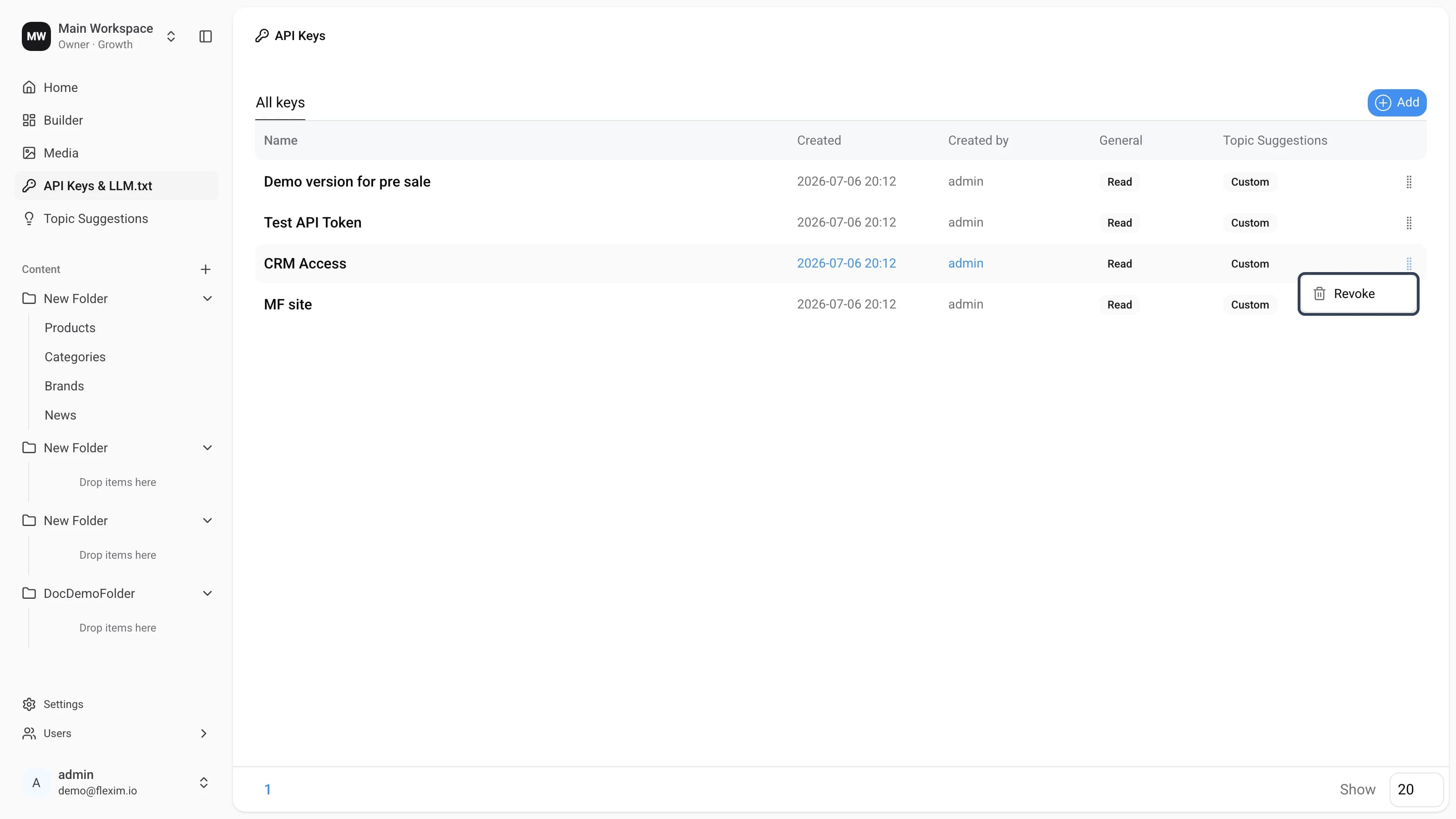
Created keys can't be edited, but you can revoke one to remove it from the list. Open the context menu at the right end of the row and select Revoke.
Key names
New keys are named Secret API Key by default. You can give a key your own name in the Name field of the New Key panel while it is being created — the name can't be changed after the key is saved.
Who can see keys
Users can see and work only with the API keys they created themselves. An Admin can see every key in the workspace and revoke any of them when necessary.