Setting up fields
Add and configure Flexim schema fields, choose data types, set requirements and visibility, and manage database keys.
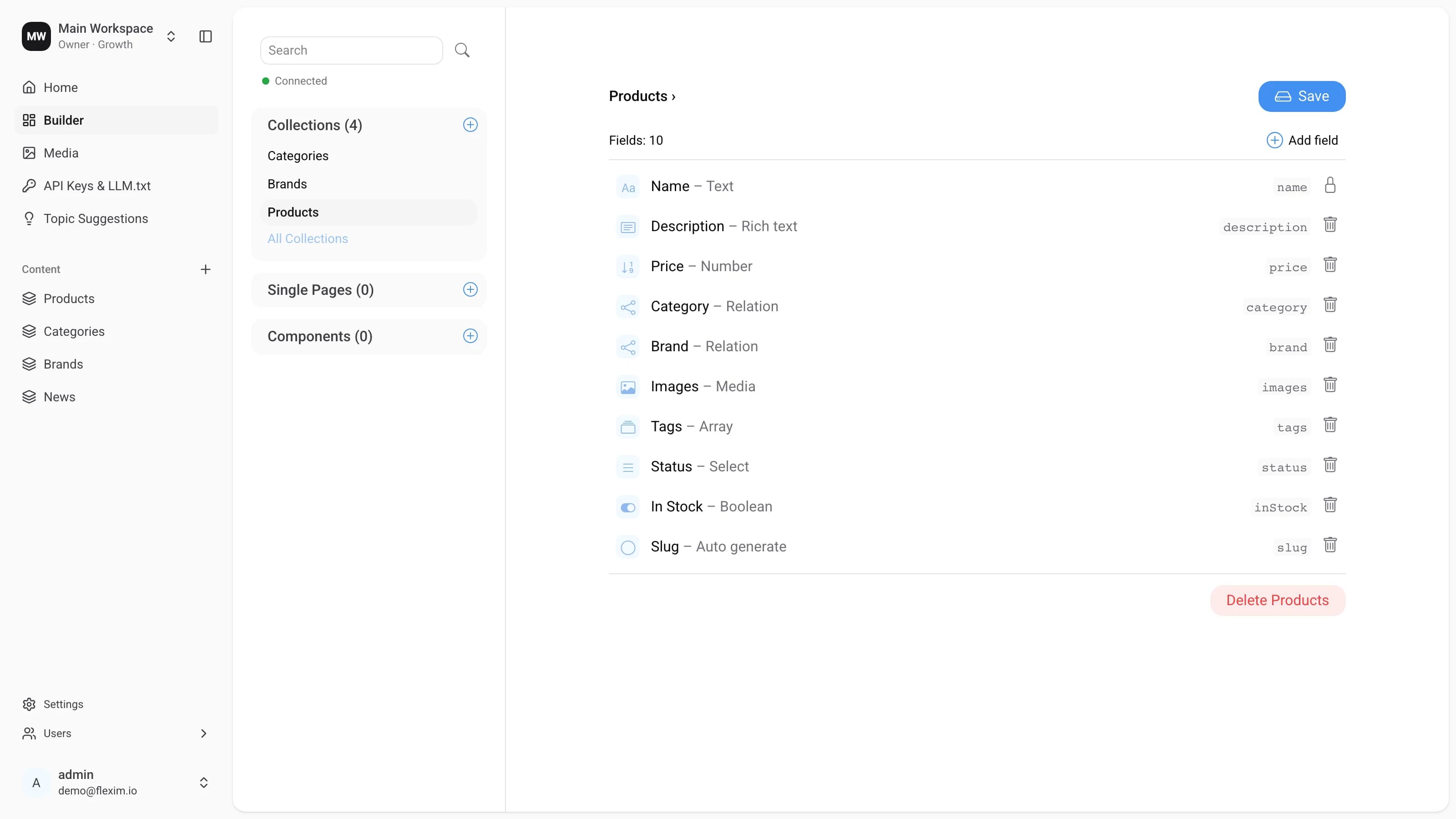
Content-types consist of one or more fields. Each field holds a specific type of data, which is filled in on the Editor page. Fields are configured in the Builder: pick a content-type from the middle panel (Collections, Single Pages, or Components) and its fields open on the right as a compact list — each row shows the field's name, its type, and its database key.
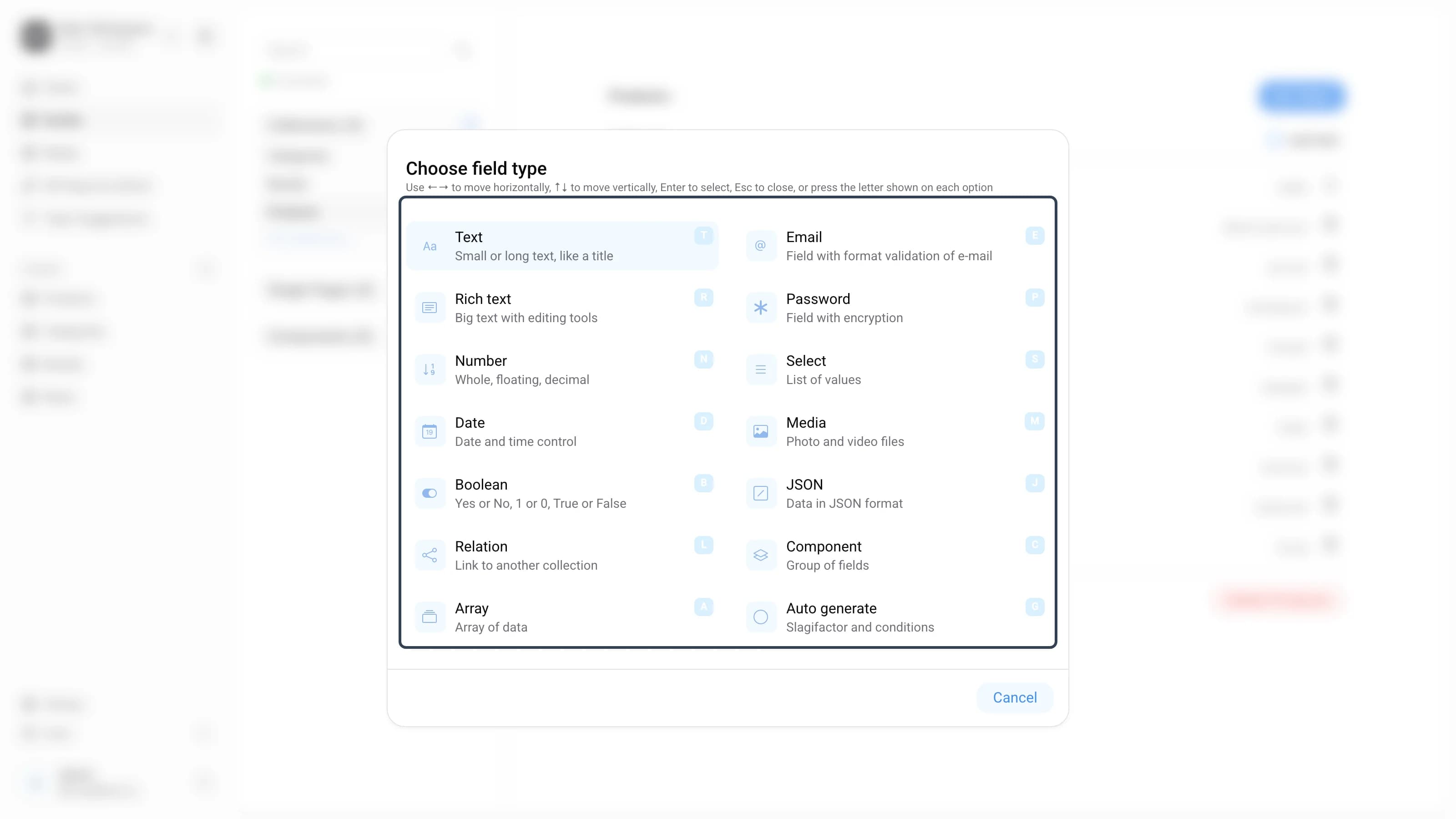
Flexim supports 14 field types. Every type and its options are described in Field types.
How to add a field
You can add a field in two situations:
-
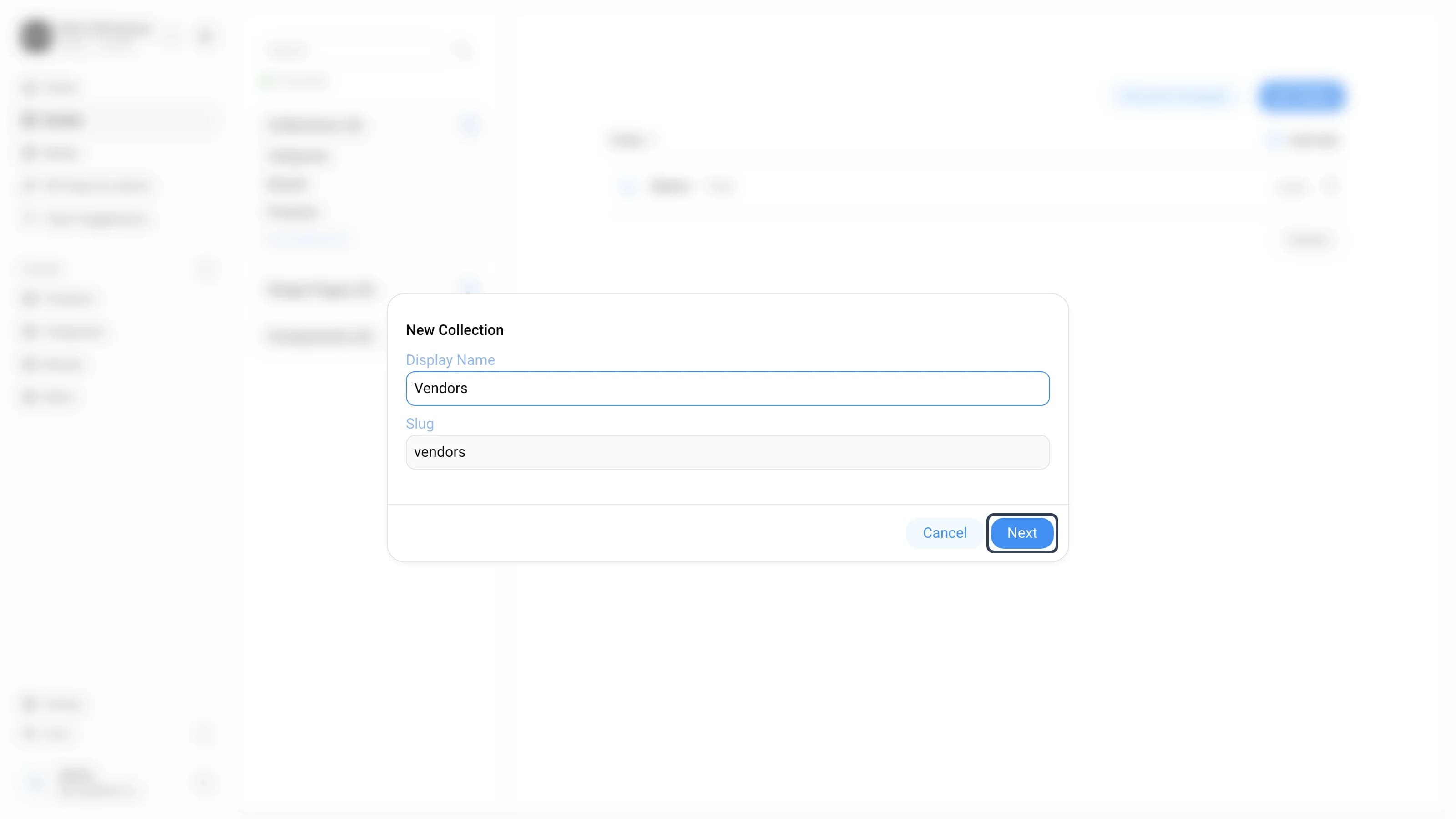
Right after creating a new content-type. When you create a collection, single page, or component, you first name it and press Next — Flexim then walks you straight into adding its first field.
-
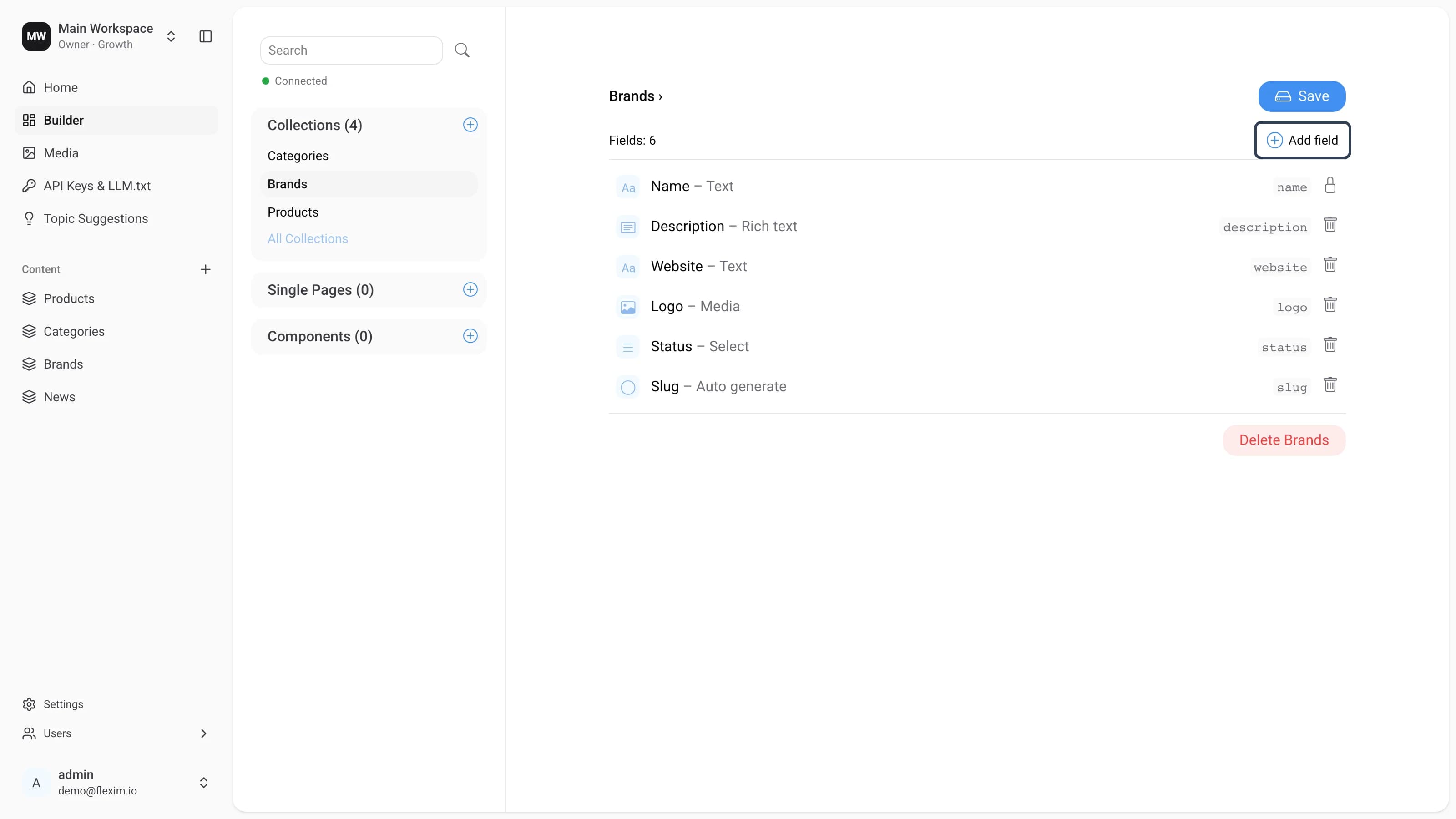
When editing an existing content-type. Select it in the middle panel and its current fields appear on the right, with an Add field button above the list.
Adding a new field
Clicking Add field opens the Choose field type dialog. Pick one of the 14 types — you can also use the arrow keys, press the letter shown on each option, or start typing in the search box to filter. For more detail on each option, see Field types.
Choosing a type opens the field settings dialog, where you configure the field before adding it:
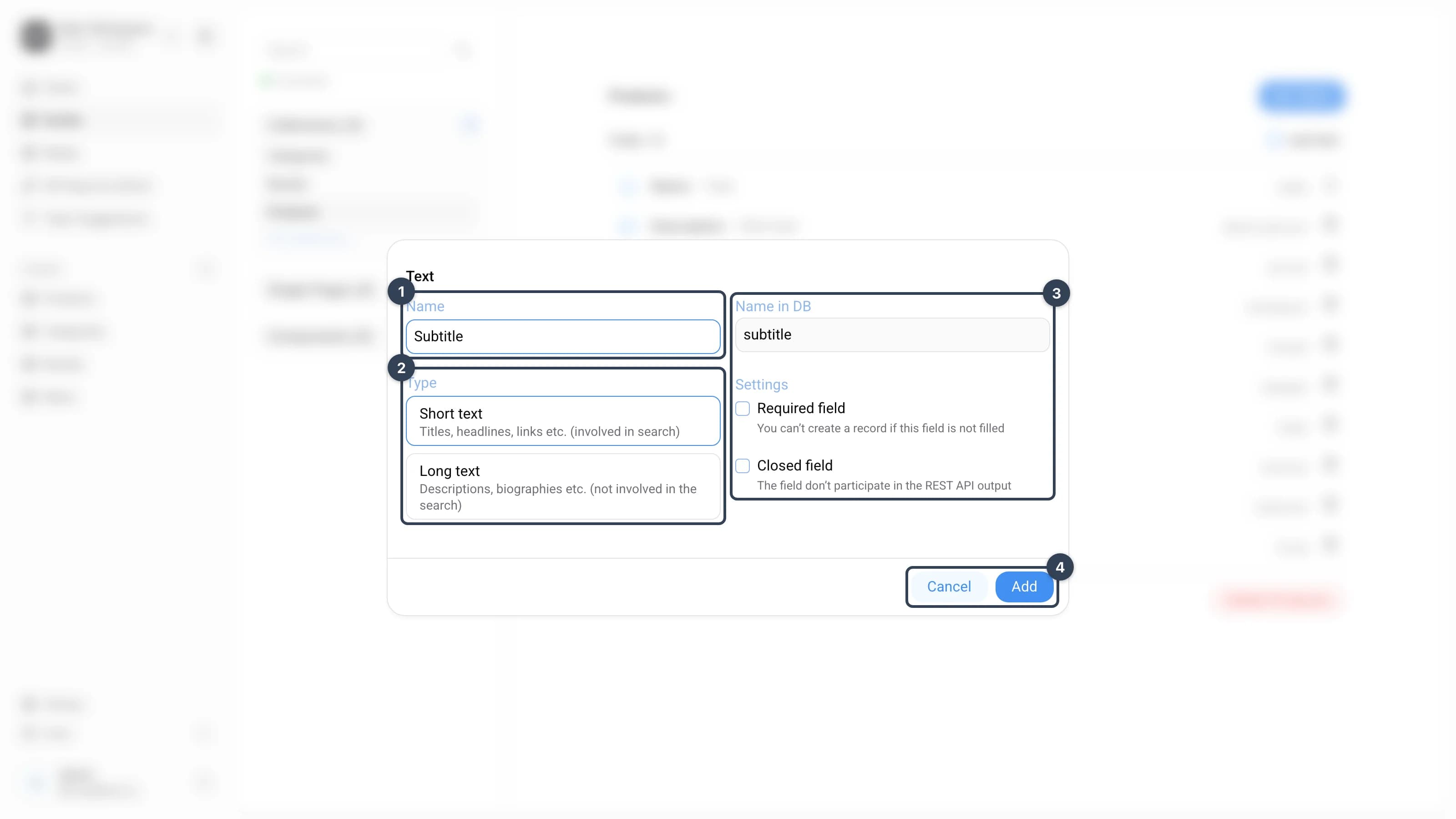
- Name — how the field is labelled in the CMS editor.
- Type — the type-specific options. A Text field, for example, offers Short text (titles, headlines — involved in search) or Long text (descriptions — not involved in search). Other types show their own options here.
- Settings — Name in DB (the field's key in the database and REST API, generated automatically from the name and editable) plus common toggles: Required field blocks saving a record while the field is empty, and Closed field keeps the field out of the REST API output.
- Control buttons — Cancel discards the field, Add appends it to the field list.
Adding or editing a field only updates the list on screen. Nothing is written to the schema until you press Save in the top-right corner. Discard changes reverts every unsaved edit.
Editing a field
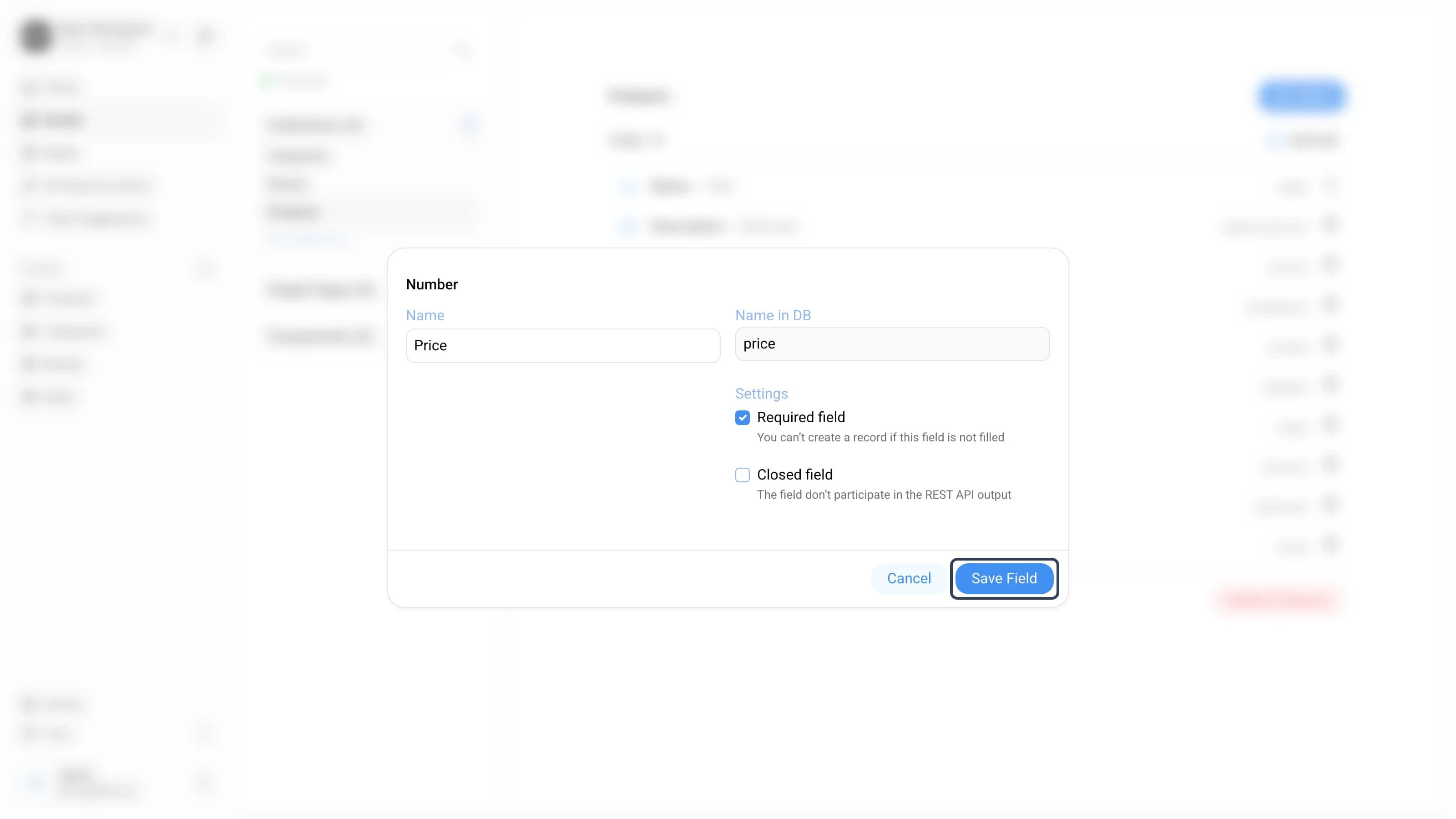
To edit a field, click its row in the list. The same settings dialog reopens with the field's current values — rename it, edit the Name in DB, or toggle Required field / Closed field — and press Save Field to apply your changes to the list. As with new fields, press Save in the top-right corner to persist the schema.
Field states
Fields in the list fall into two groups:
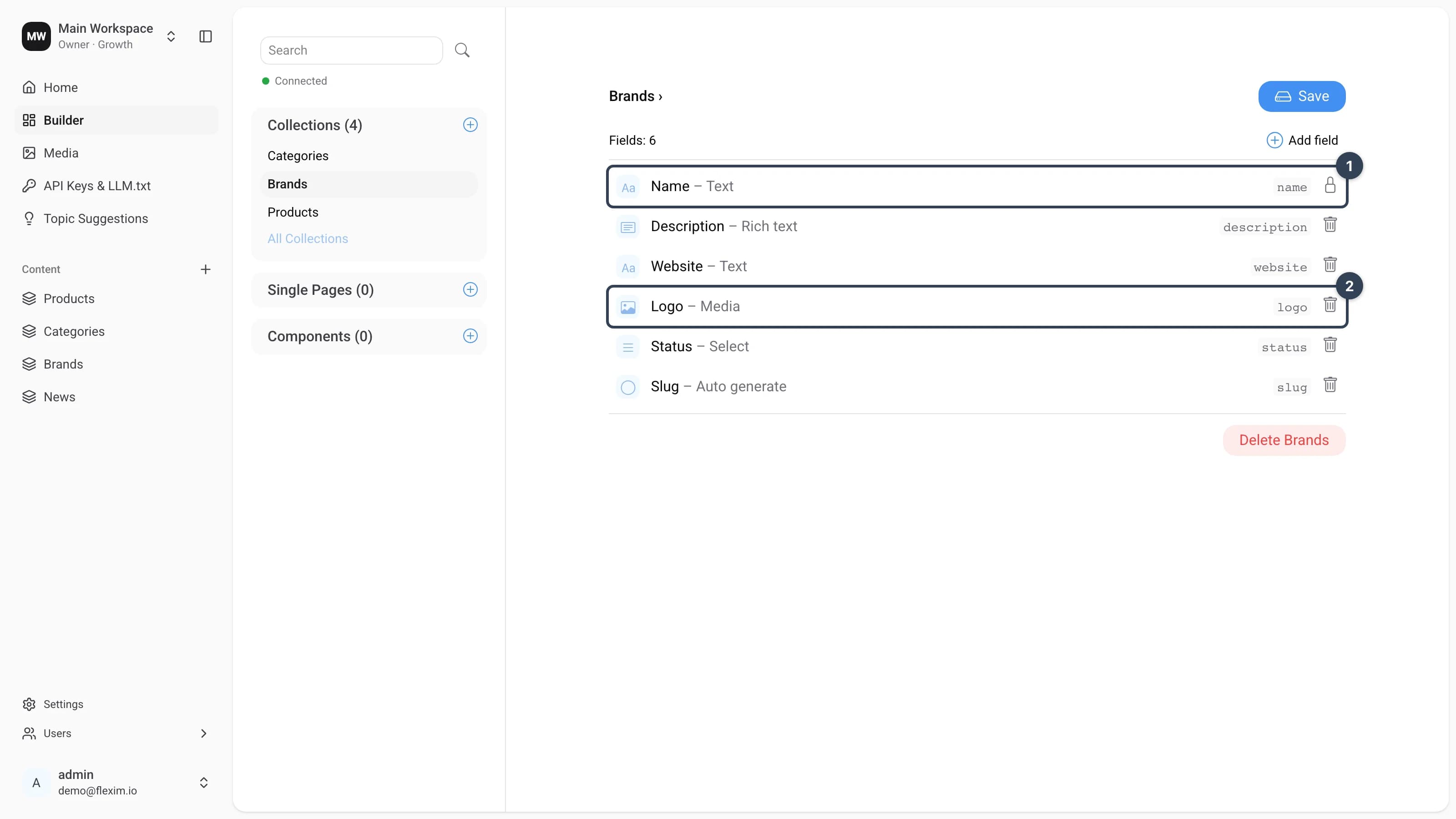
- Pre-set fields — created with the content-type and marked with a lock icon (for example Name). They can't be deleted, which keeps every record identifiable.
- Regular fields — everything you add yourself (for example Logo). They show a trash icon and can be edited or removed at any time.
Read more on this topic