Editor page
Create and edit Flexim content records by completing schema fields, uploading media, saving drafts, and publishing changes.
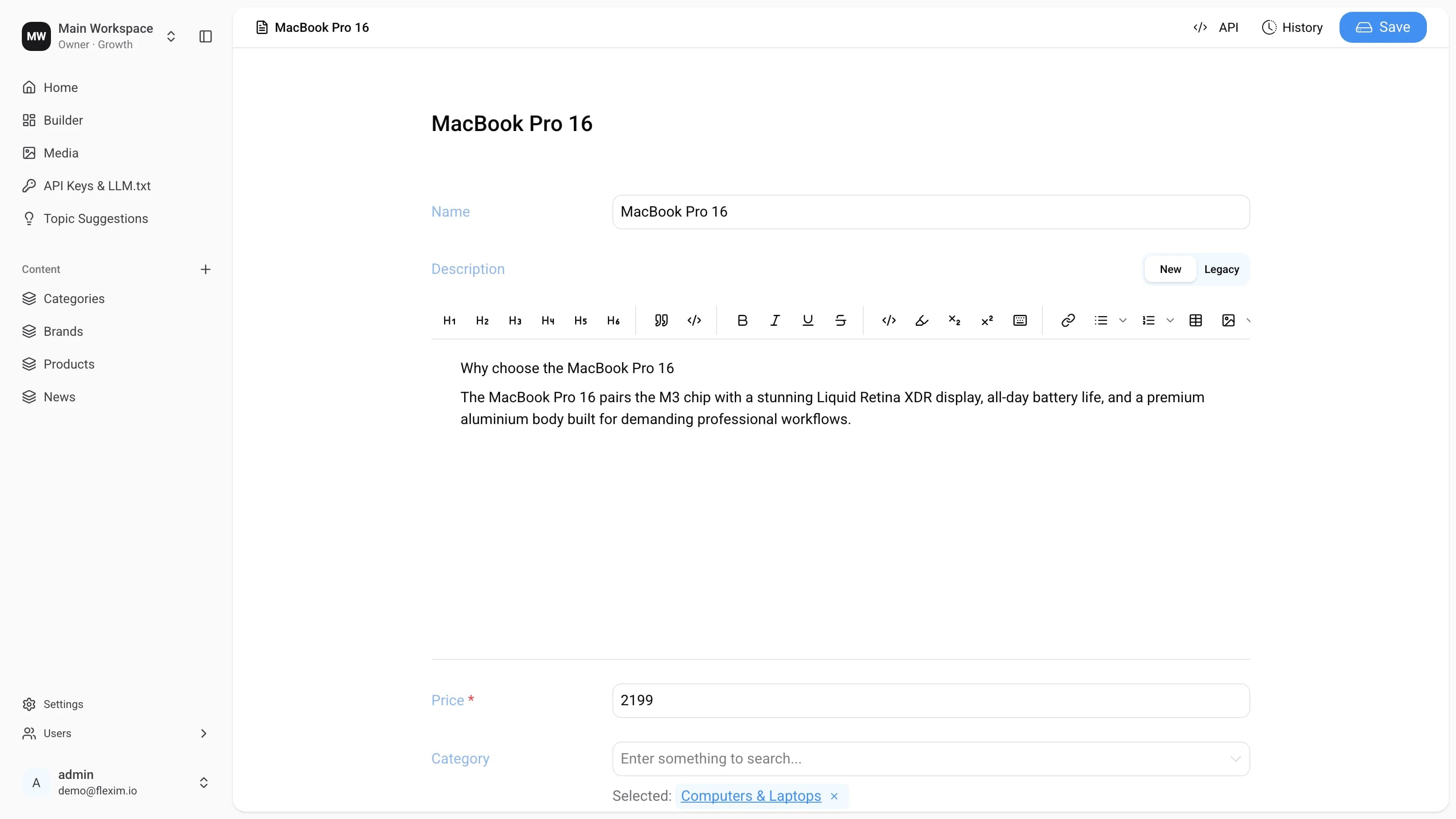
Creating content means filling in the fields that hold it (text, numbers, media, and so on). These are either the preset fields of a collection or the custom fields you added in the Builder (see Setting up fields).
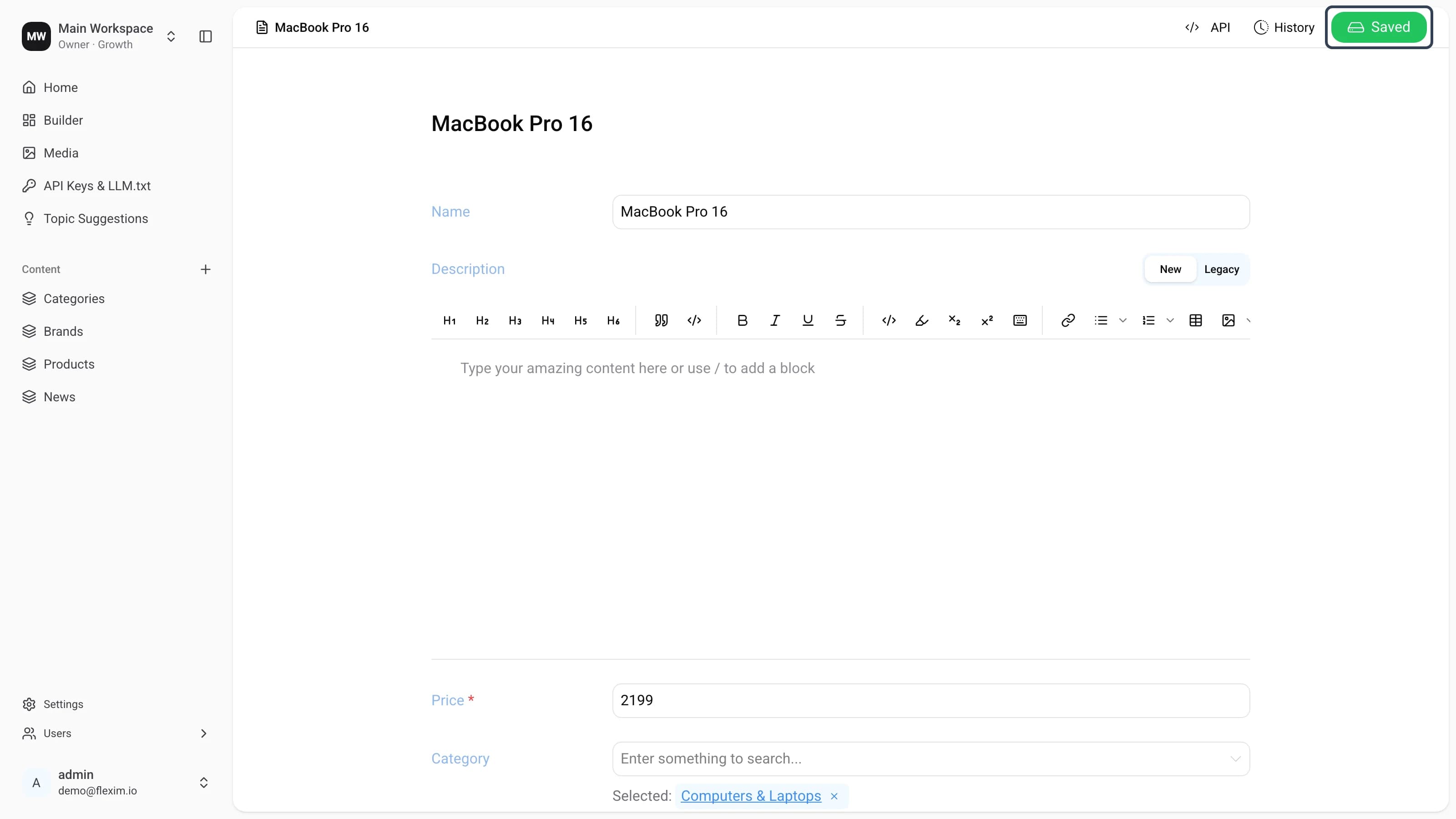
Every record opens in the same editor: a top bar with the record name, the </> API, History and Save controls, and the list of fields below it.
Next, let's take a closer look at the editors for collection records and for single pages.
Editing a collection record
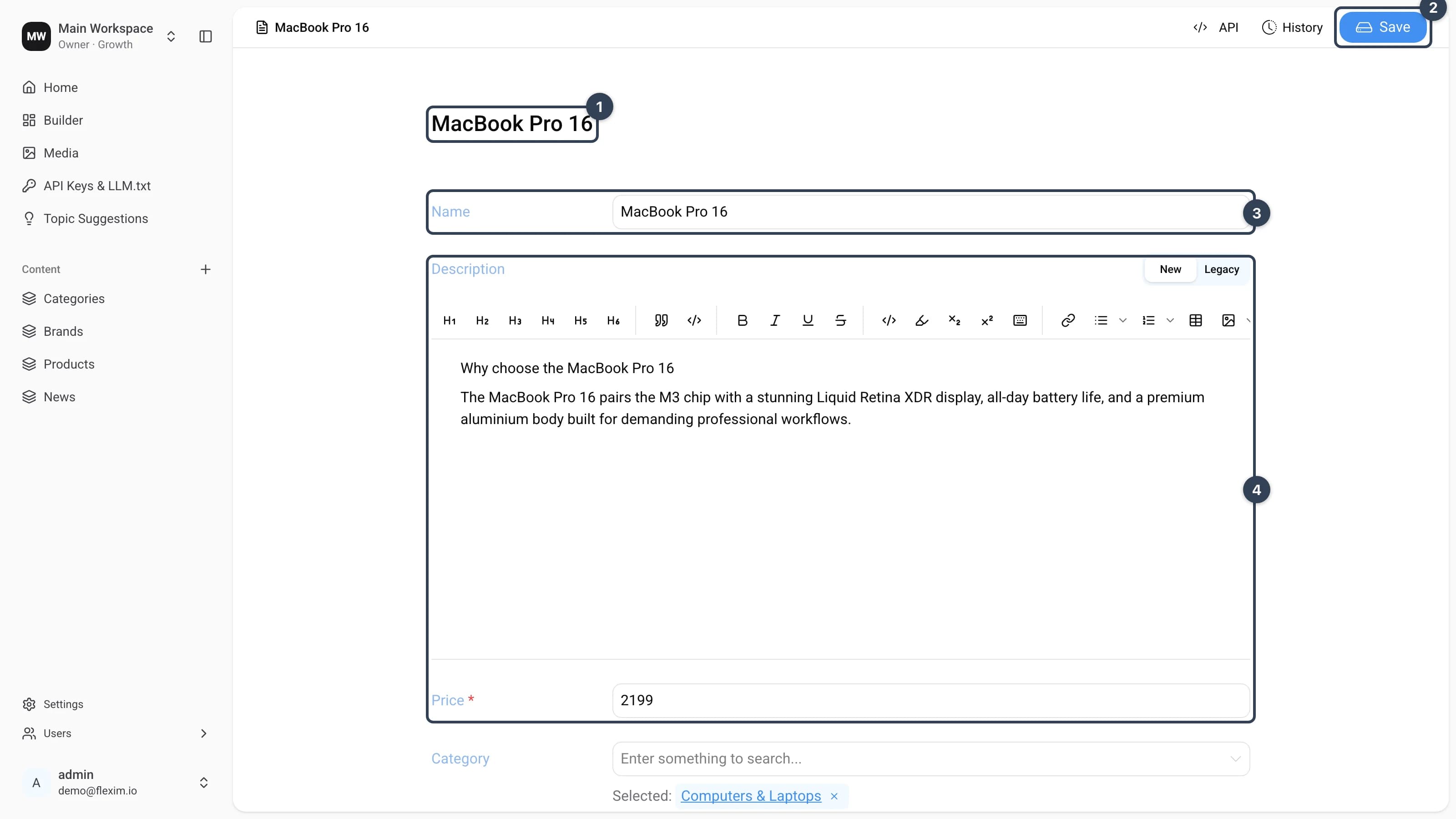
- Record name
Repeats the value of the preset
Namefield. The same name is shown in the top-bar breadcrumb. Savebutton Saves your changes. It turns green and readsSavedwhen the save succeeds.Namefield The preset field that every collection has (it is locked in the Builder and can't be removed). Its value becomes the record name in p.1.- Other fields
All the custom fields you added in the Builder — here
Description,Price, and the rest (see Builder).
Editing a single page
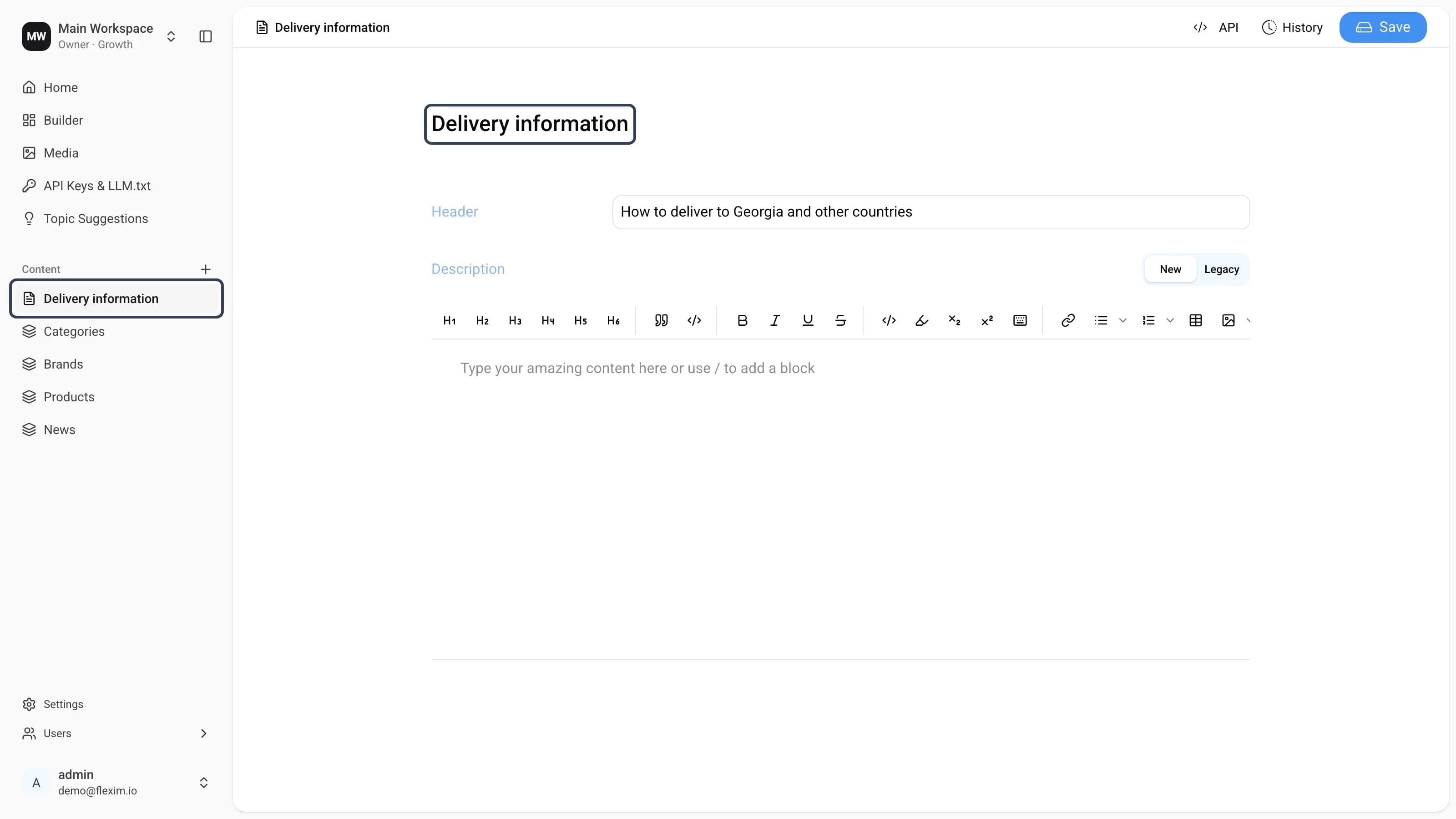
A single page differs from a collection record in two ways: its name is static — it doesn't change while you edit and is shown both in the sidebar and as the page heading — and it has no preset Name field. Every field on a single page is one you defined yourself.
Error while saving
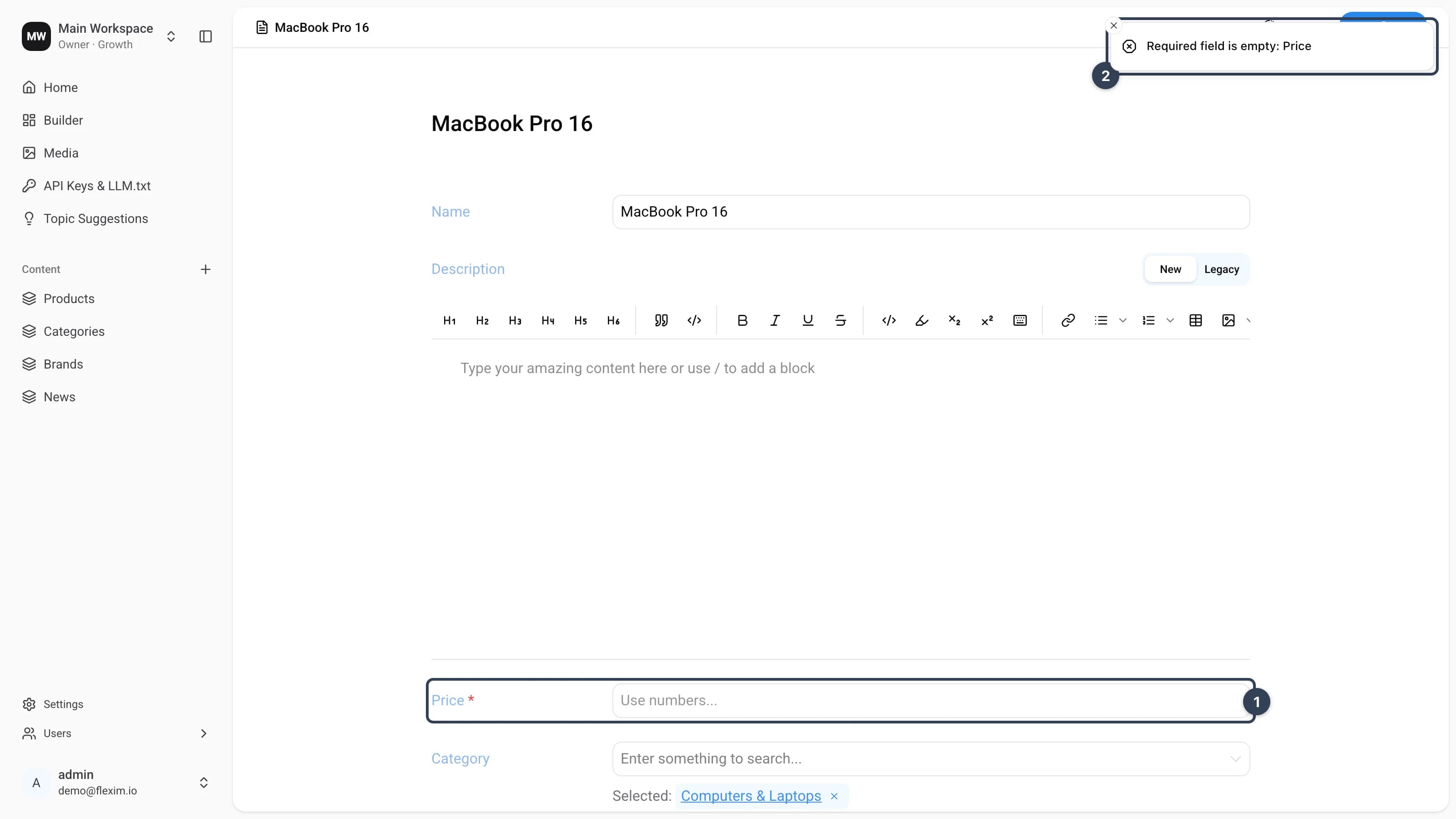
If a required field is left empty, pressing Save won't save the record — instead you'll see an error notification.
- The empty required field
Required fields are marked with a red
*. In our case the requiredPricefield is empty. - The error message
A notification appears in the top-right corner naming the field that's missing (
Required field is empty: Price). Fill it in and save again.
Field validation
Fields with format rules (for example an Email field) are checked the same way — if the value doesn't match the rule, the record won't save until you fix it.
Successful saving
Once every required field is filled correctly, the Save button turns green and reads Saved. This confirms the record was saved.
Filling fields
| Field type | How to fill |
|---|---|
| Text | Type the content into the text field. |
| Rich text | Write and format your content in the block editor: use the toolbar (headings, bold, lists, tables, images, and more) or type / to insert a block. You can switch between the New and Legacy editors. |
| Number | Type a number. The up/down arrows on the right of the field step the value up or down. |
| Date | Click the calendar-and-clock icon to open the date picker, or click the field and enter the date and time manually. |
| Boolean | Toggle the state On or Off by clicking the switch. |
Enter a complete, valid email address — the @ sign and a domain are required. | |
| Password | Enter a password. After you save and reopen the record the field is empty; typing a new value and saving overwrites the old one. |
| Select | Click the dropdown and pick a value, or use the search inside the field to find it. |
| Relation | Type at least one character to search for the record you want to link to, then pick it from the dropdown. |
| Media | Click Upload image, choose a file from your device, and optionally add an Alt text. |
| Array | Enter the values separated by the delimiter set for the field, or add them as separate blocks. |
| JSON | Enter valid data in JSON format. |
| Autogenerate | Depending on the field's setup in the Builder you'll see either a slug of the selected field or the result of combining two fields. These fields are read-only. |
| Component | Fill in the group of fields for a single component. For a multi-component, add as many components as you need and fill each one in. |
Read next topic — Navigation