Collection
Understand Flexim collections, browse repeated records, configure visible columns, and open individual records for editing.
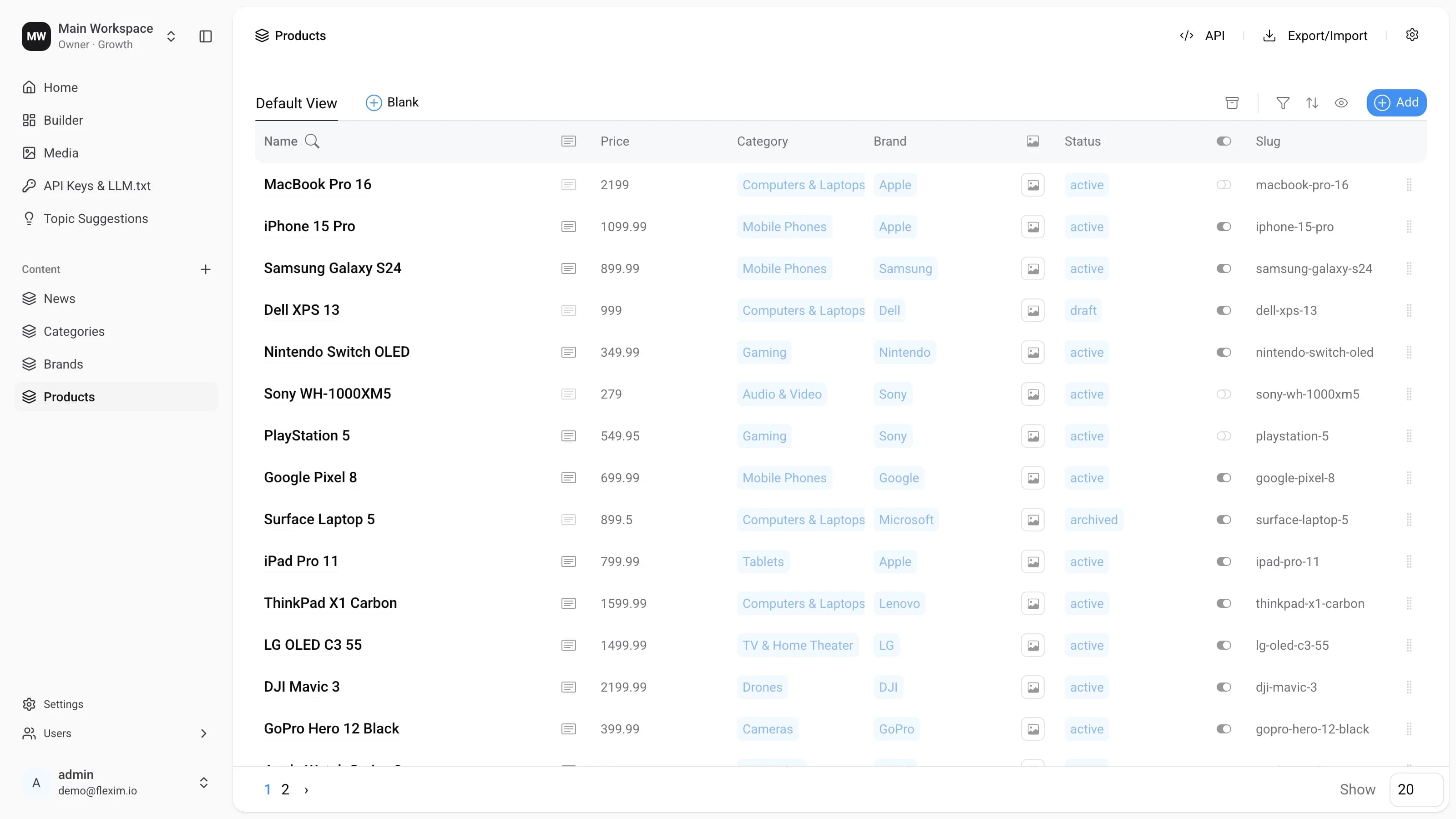
Collection - is a group of records with the same fields. For example, a blog with different articles, products in an online store, a list of authors i.e. any content that is repeated.
Main Elements
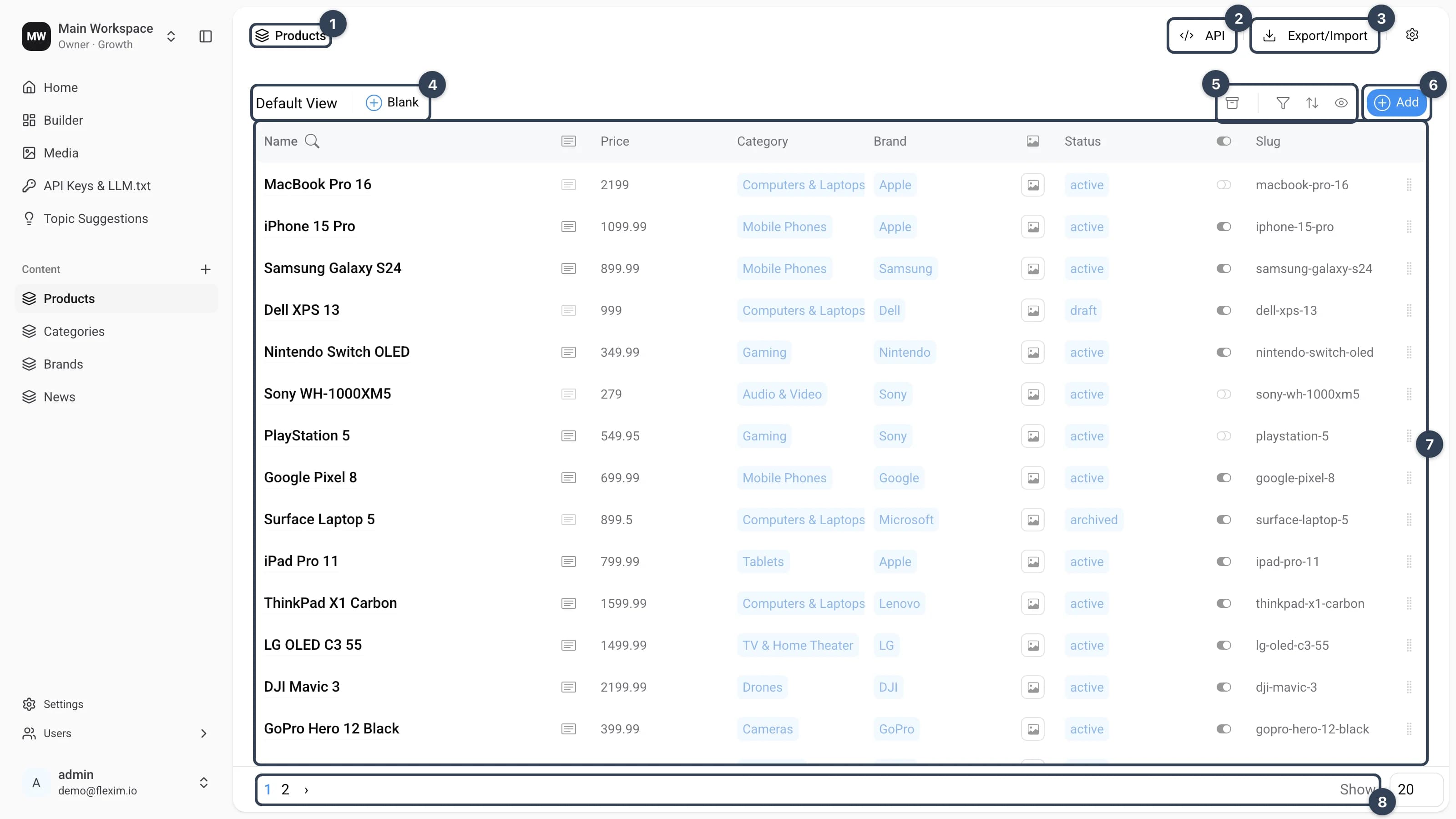
- Collection Name
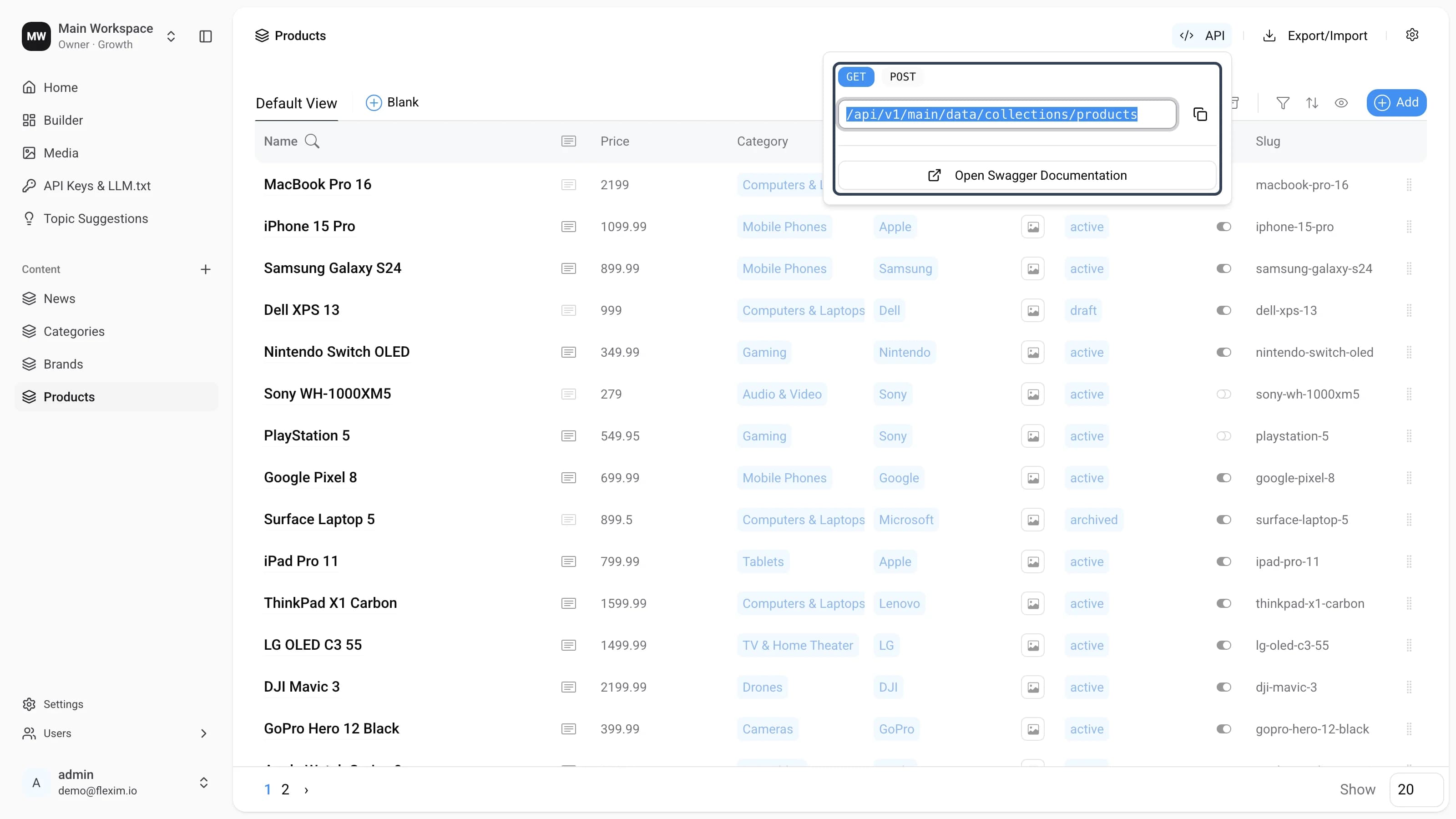
- API Button Click to see the Endpoints available for the current collection.
- Export/Import Click opens a modal where you can export or import an xlsx file, after setting it up (read more in Export/Import ).
- Views list You can save a configured view for future use and create new ones (see Saving views).
- View settings Open the Archive to browse recently deleted records, and set up Filter, Sorting, Visibility.
- Add Button Click adds a new record to the collection by opening Editor page.
- Records List All created (filtered or found) records in the collection.
- Pagination Shows the number of items on pages and how many pages of content are available.
Records List
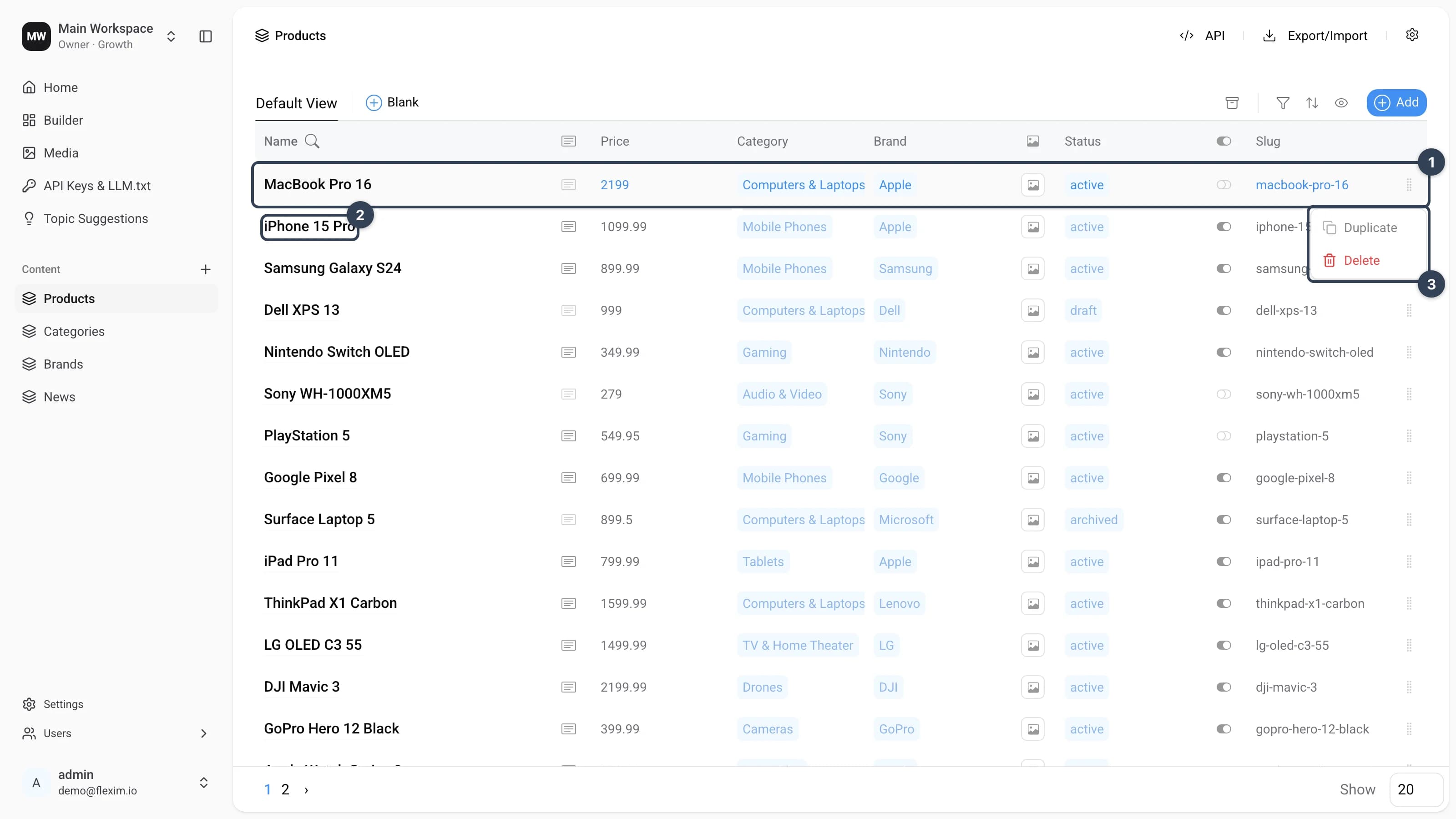
Let's take a closer look at the records in the collections:
- Each row is a separate record. You can display part of its content on the collection screen through Visibility.
- Clicking on the record name opens the editing mode (see Editor page), where we can see all the contents of the record and make the necessary changes.
- Clicking on the grip icon (the handle at the right edge of the row) opens a context menu where you can Duplicate or Delete the record. Duplicate creates a full copy of the record.
Record structure
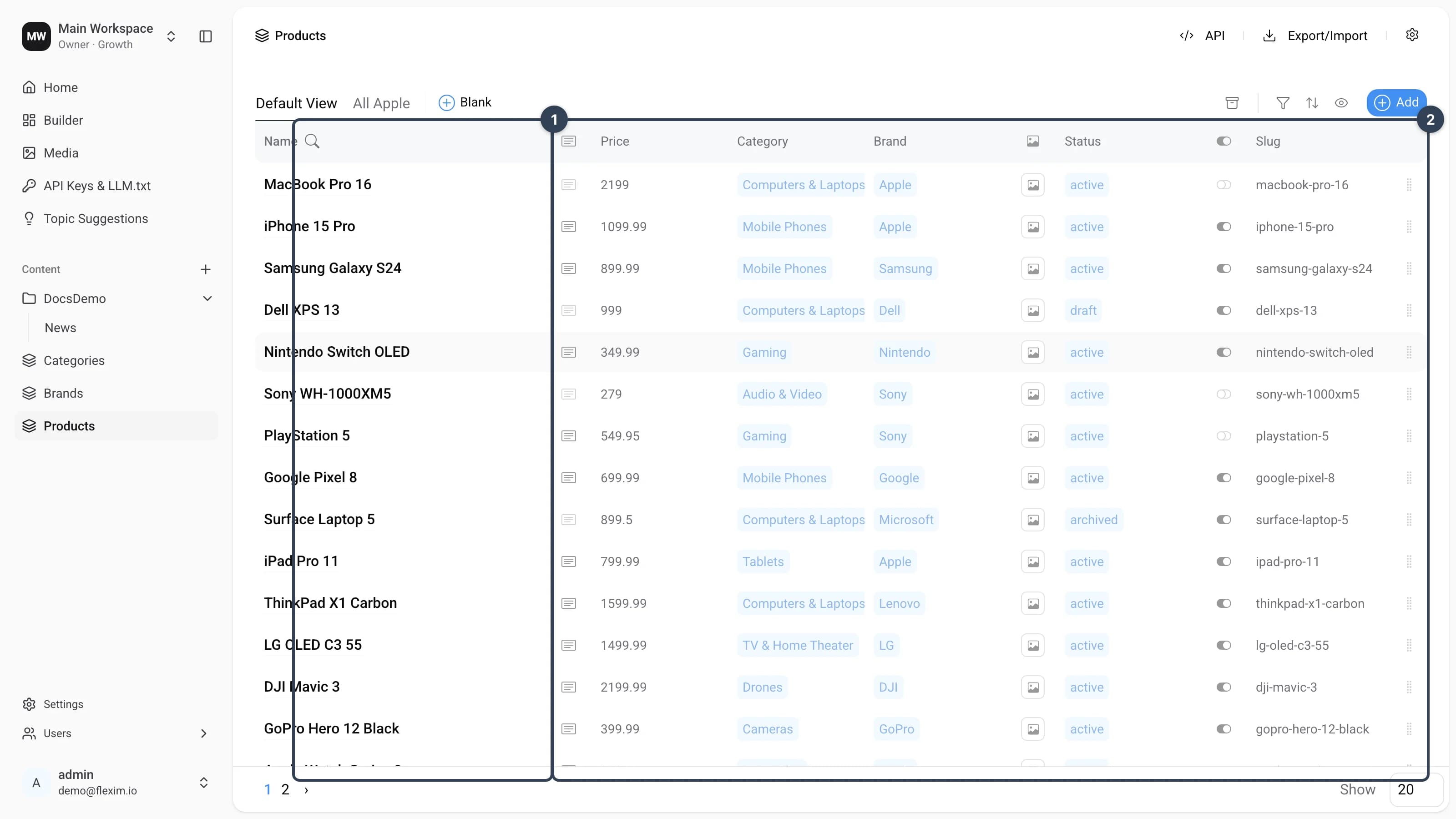
The record row consists of two parts:
- Record Name (Name) This field is created by default when you create a collection (see Builder).
- Additional Fields Besides Name, the table displays up to 8 more fields. You can configure which fields appear and their order in Visibility.
Field limit
The collection table shows up to 8 fields in addition to Name. Use Visibility to choose which ones are shown.
Creating a New Record
When you click the Add button, it switches to editing mode, where you can write the content of the new record (read more in Editor page).
Searching record
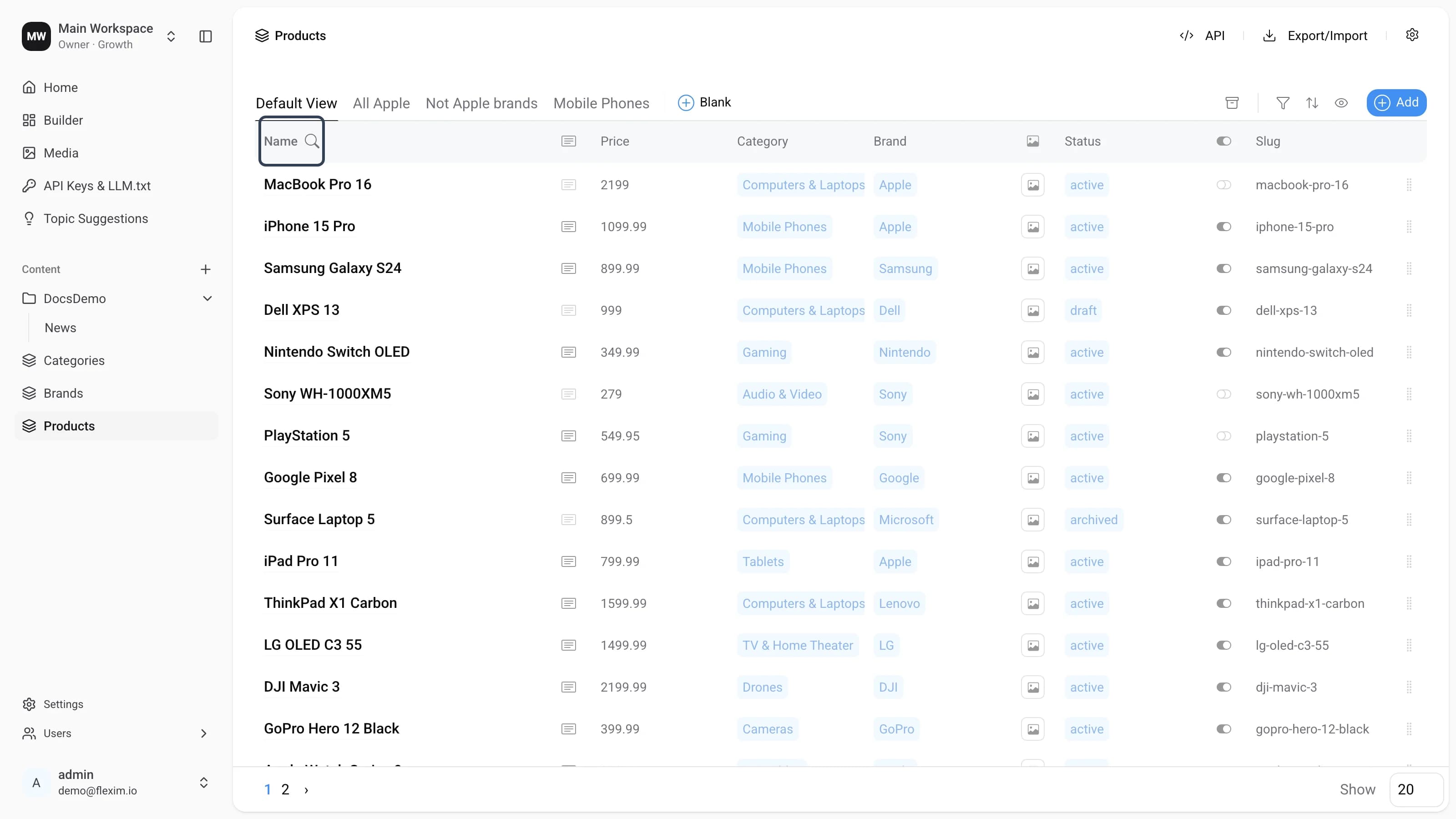
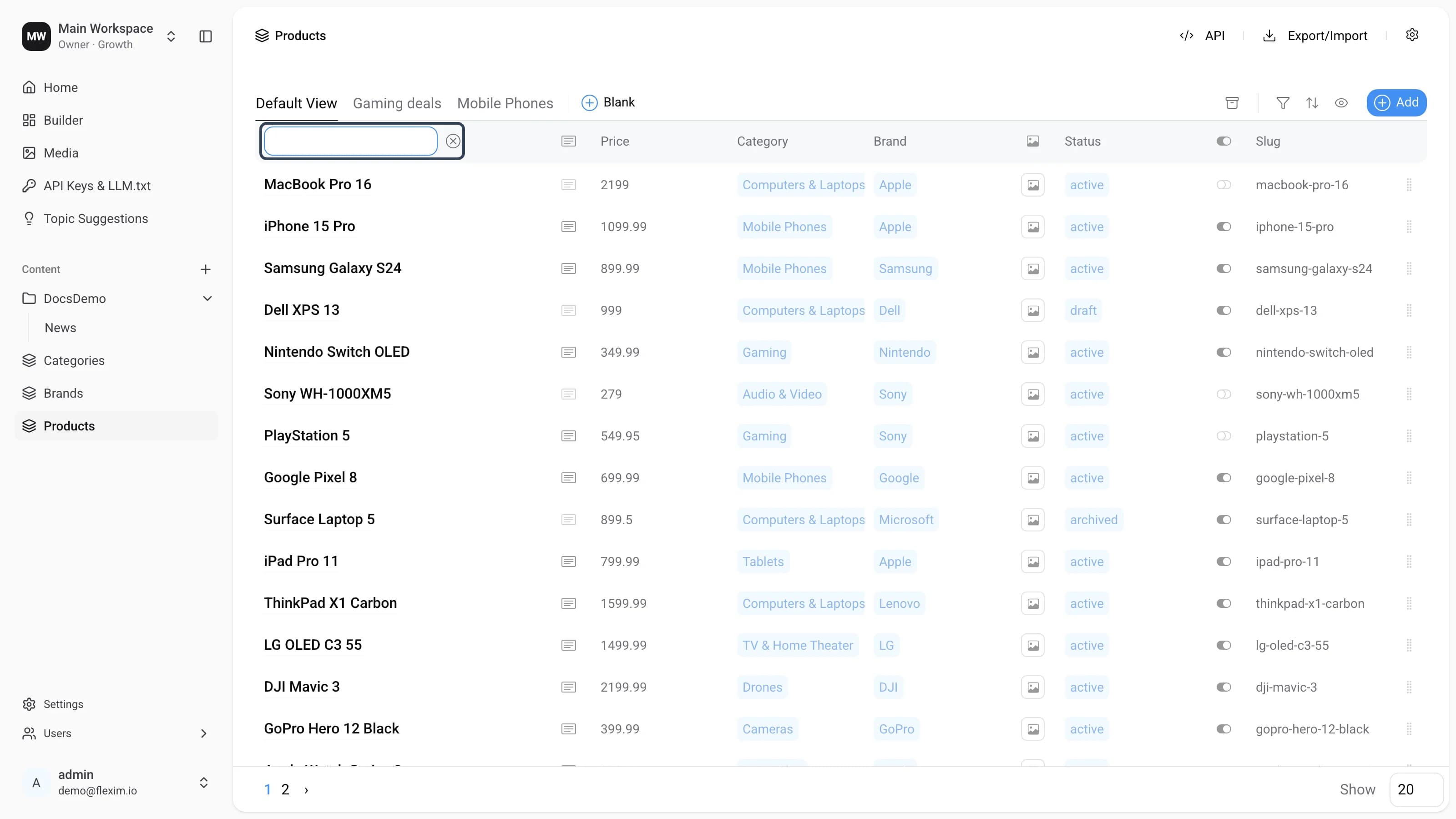
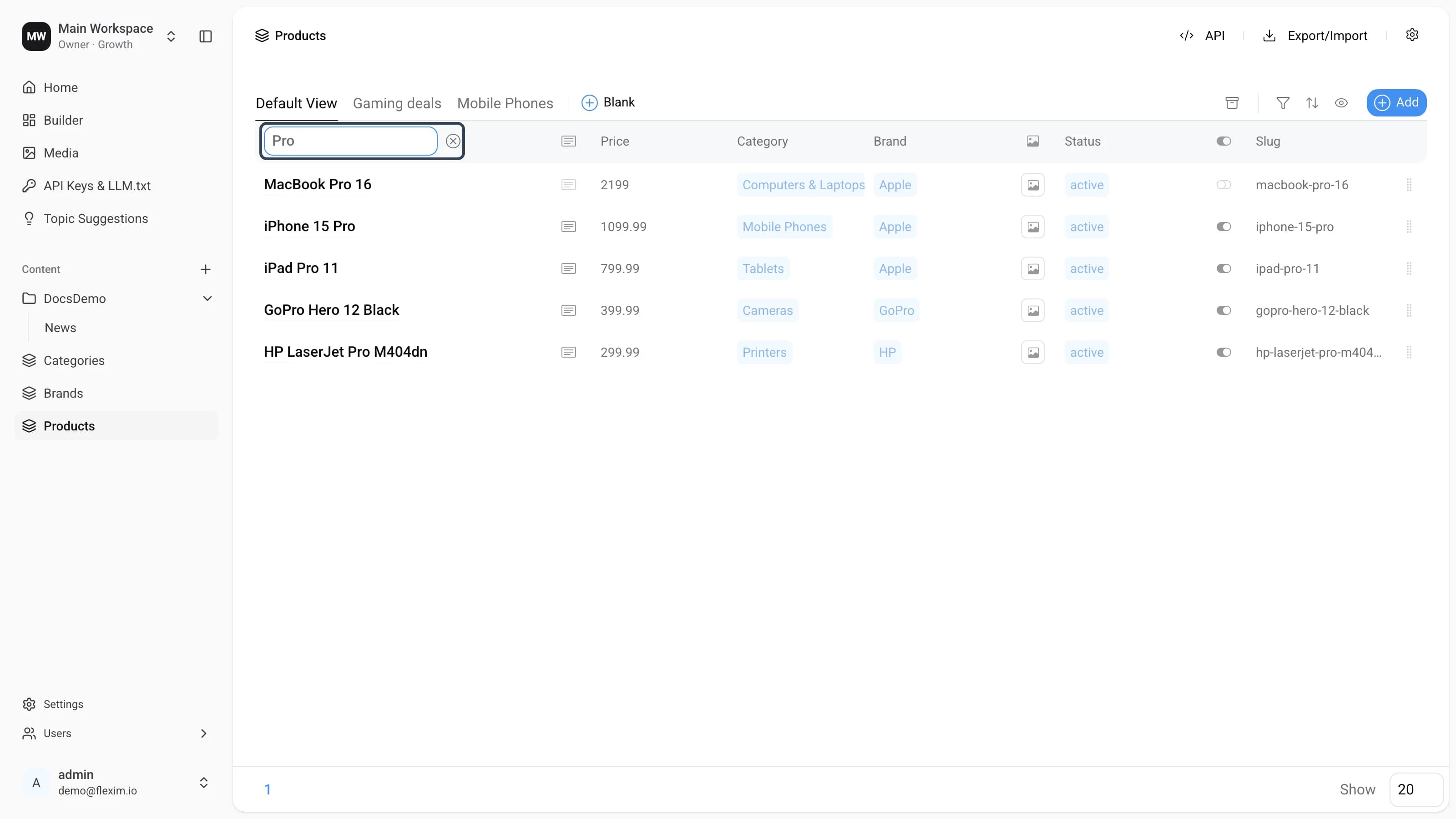
In collections, you can search for a needed record by name (Name field).
-
To do this, click on the magnifying glass icon
-
Write the needed word in the opened input
-
Search results are filtered as you type.
-
If nothing matches your query, the list is empty. Click the
xnext to the field to clear the query and close the search.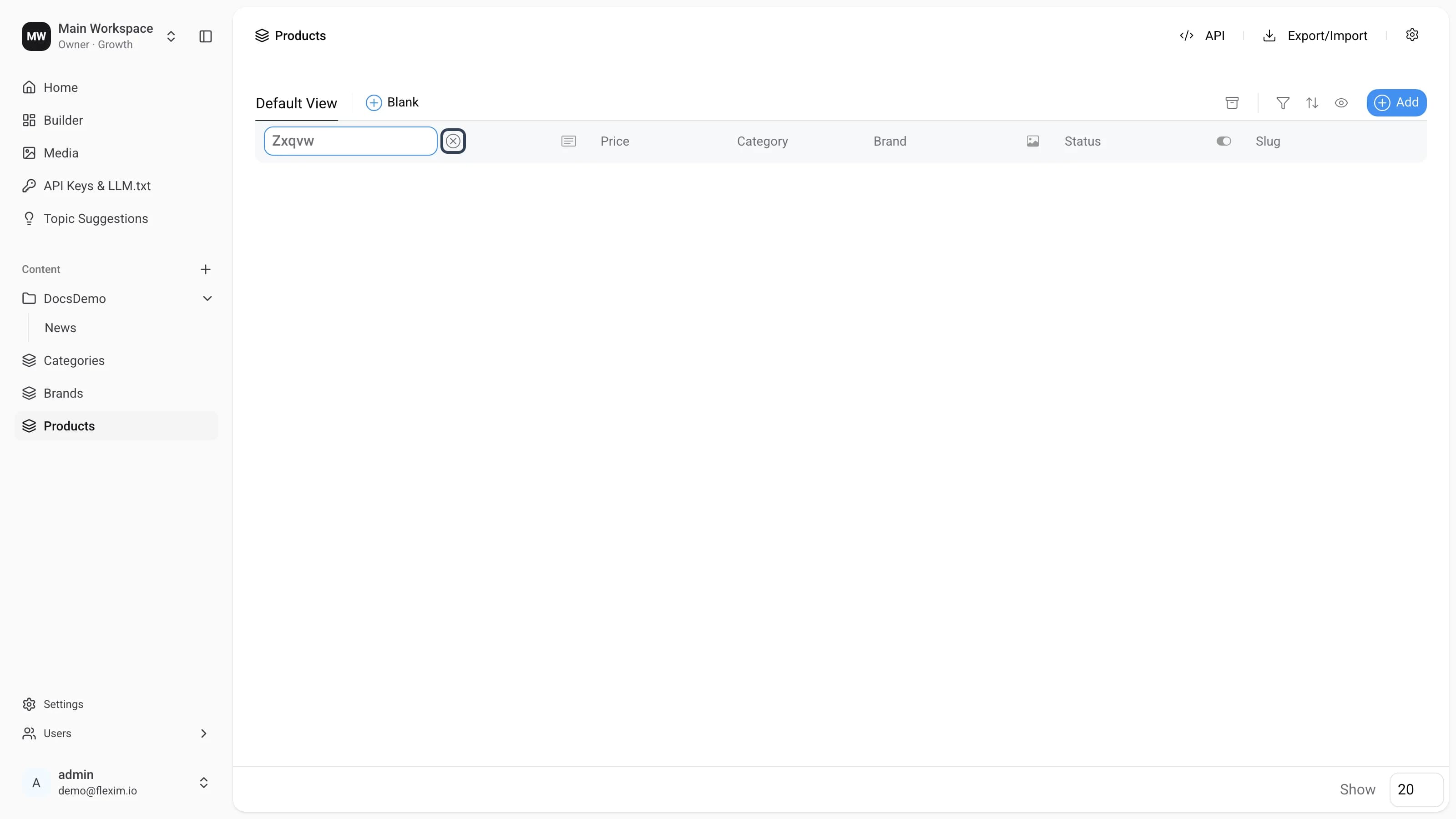
Pagination
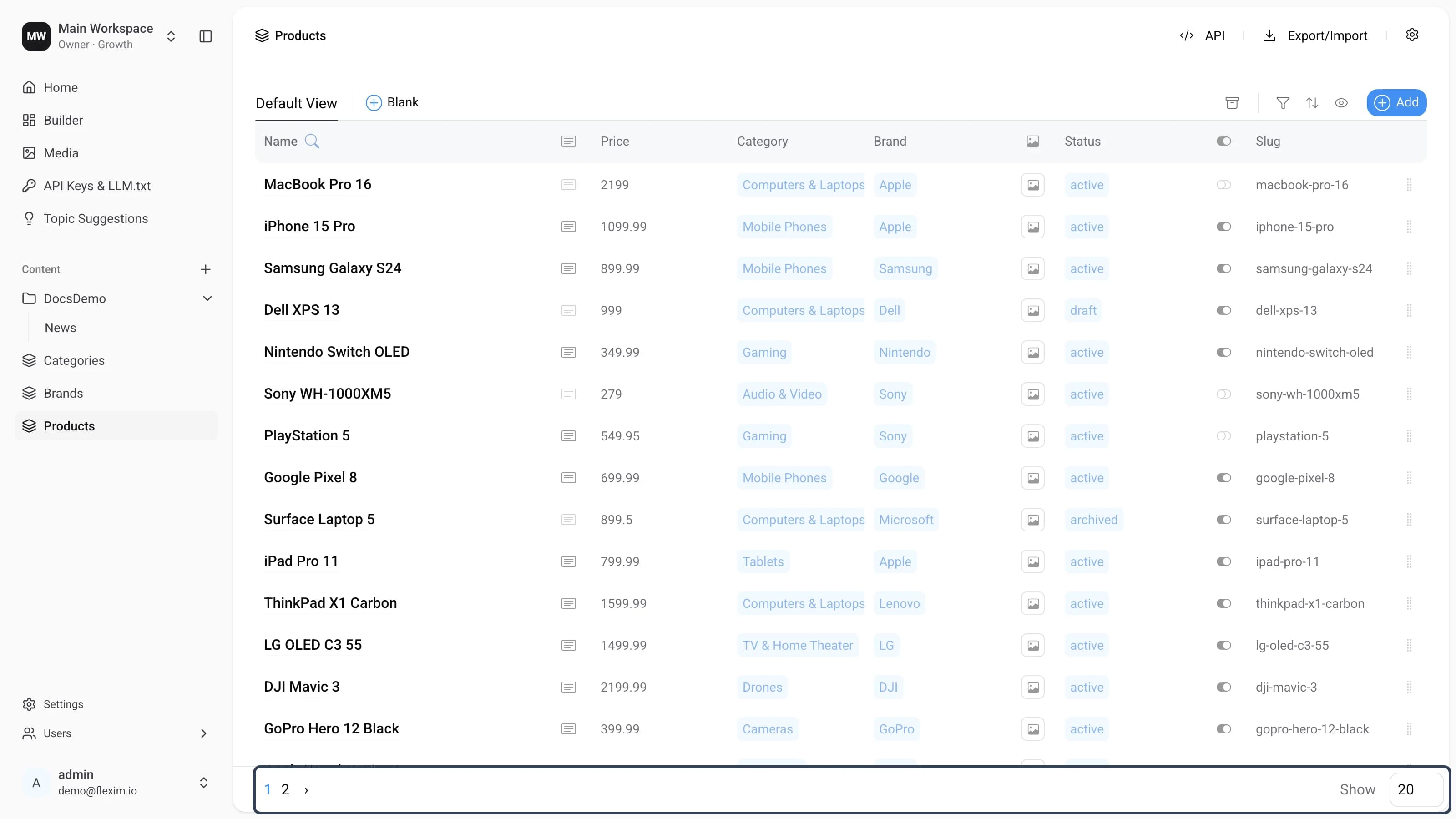
Pagination is displayed when there is at least one record in the collection. By default, 20 records can be displayed on one page. This value can be changed through the Show input. It should not be more than 200. If you specify the value 300, the value in the input will change to 200.
When the page is refreshed, the pagination resets back to 20.
Scrolling
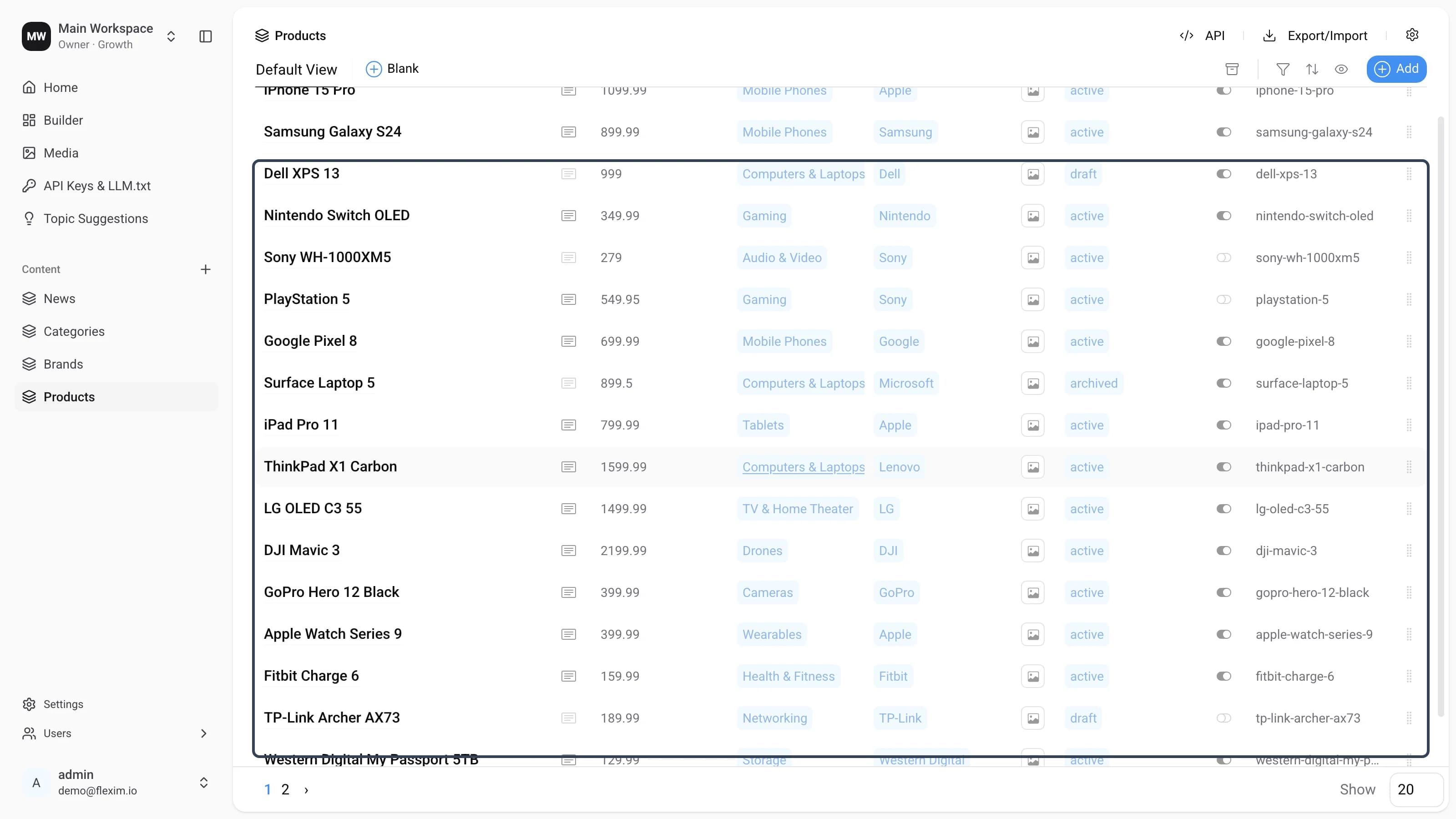
If the number of records does not fit on the screen, a scroll bar appears on the right and the record list starts to scroll vertically in the designated area.
API Endpoints
When you click the API button, a popover opens with the collection's REST endpoint. Switch between the GET and POST tabs to see each method's URL, copy it with the copy button, or click Open Swagger Documentation for the full API reference.
Edge Cases
Tooltips
Some field types — Rich text, Media, and Boolean — show an icon in the column header instead of a text label. Hover over the icon and the field name appears as a tooltip.
The same applies to standard field names that are too long for the column: hover over the header to see the full name.

Empty Collection
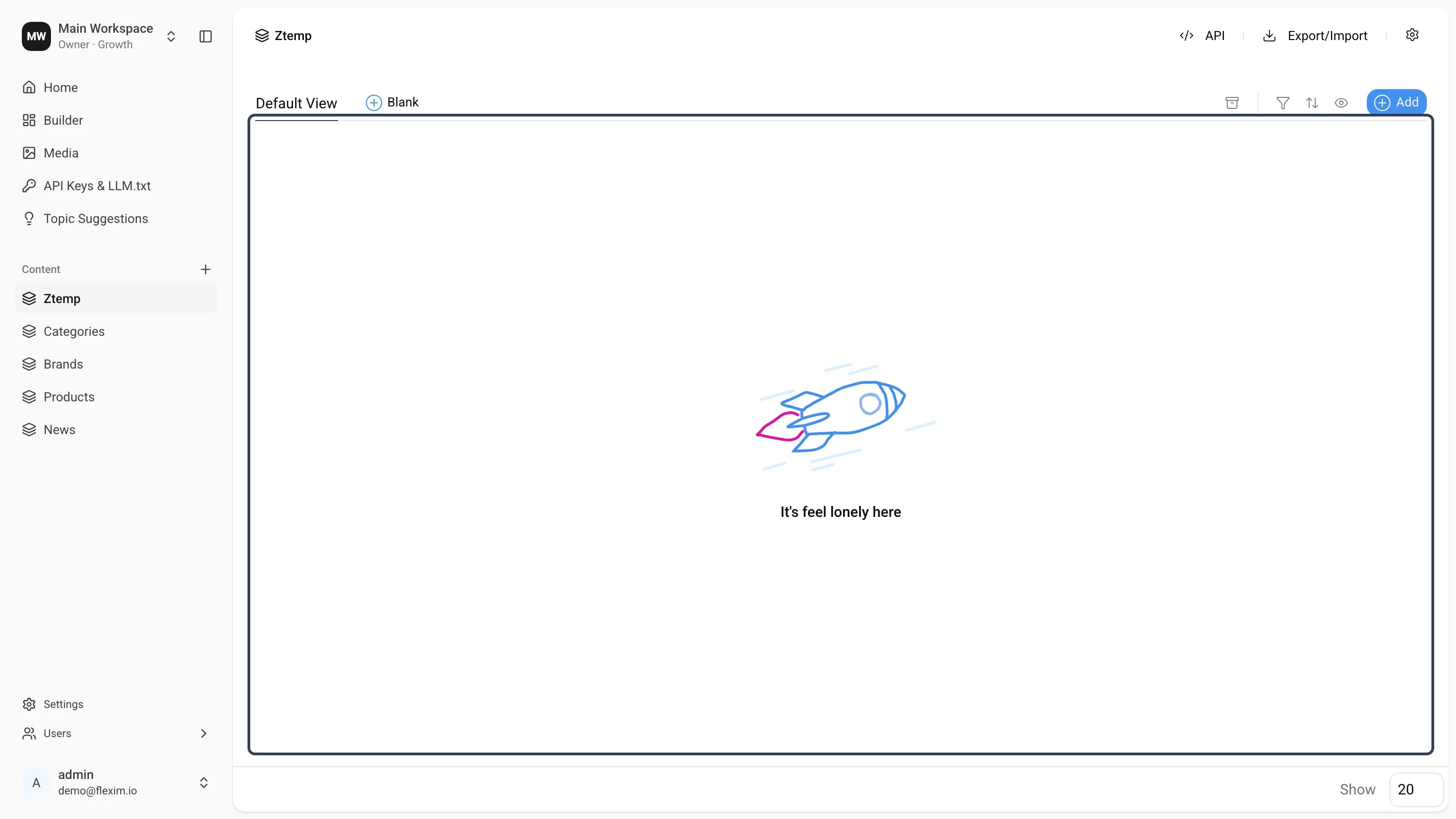
When you open a collection that has no records, a placeholder appears in place of the table. It disappears as soon as you add the first record.
Related
Read more in Export/Import and Saving views.