Navigation constructor
Build Flexim content navigation by grouping collections and pages into folders, reordering items, renaming, and removing them.
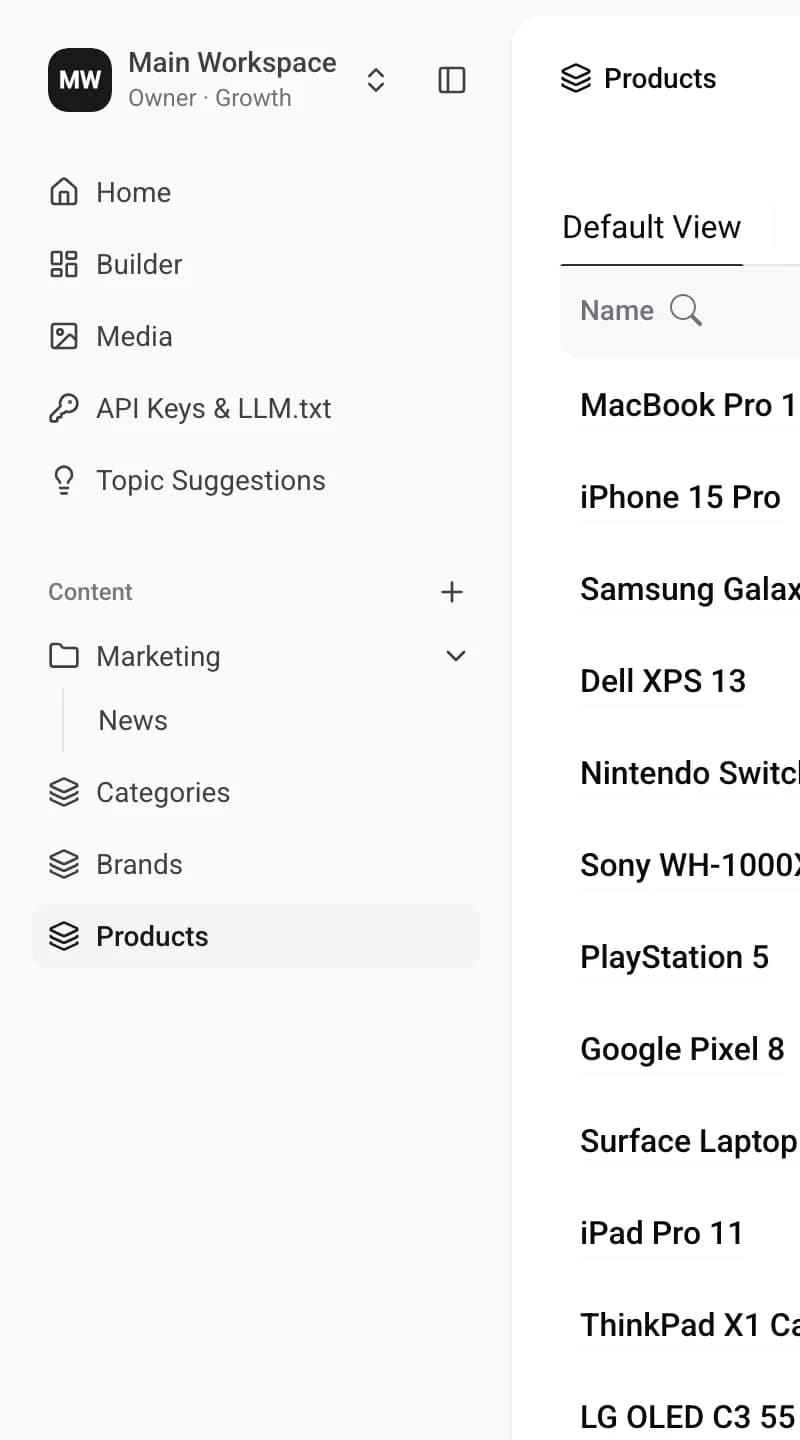
The navigation is the Content section of the left sidebar — the list of folders, collections and pages that make up your site's menu. Here you can group items into folders, drag them in and out, rename folders, and remove the ones you no longer need.
Main elements
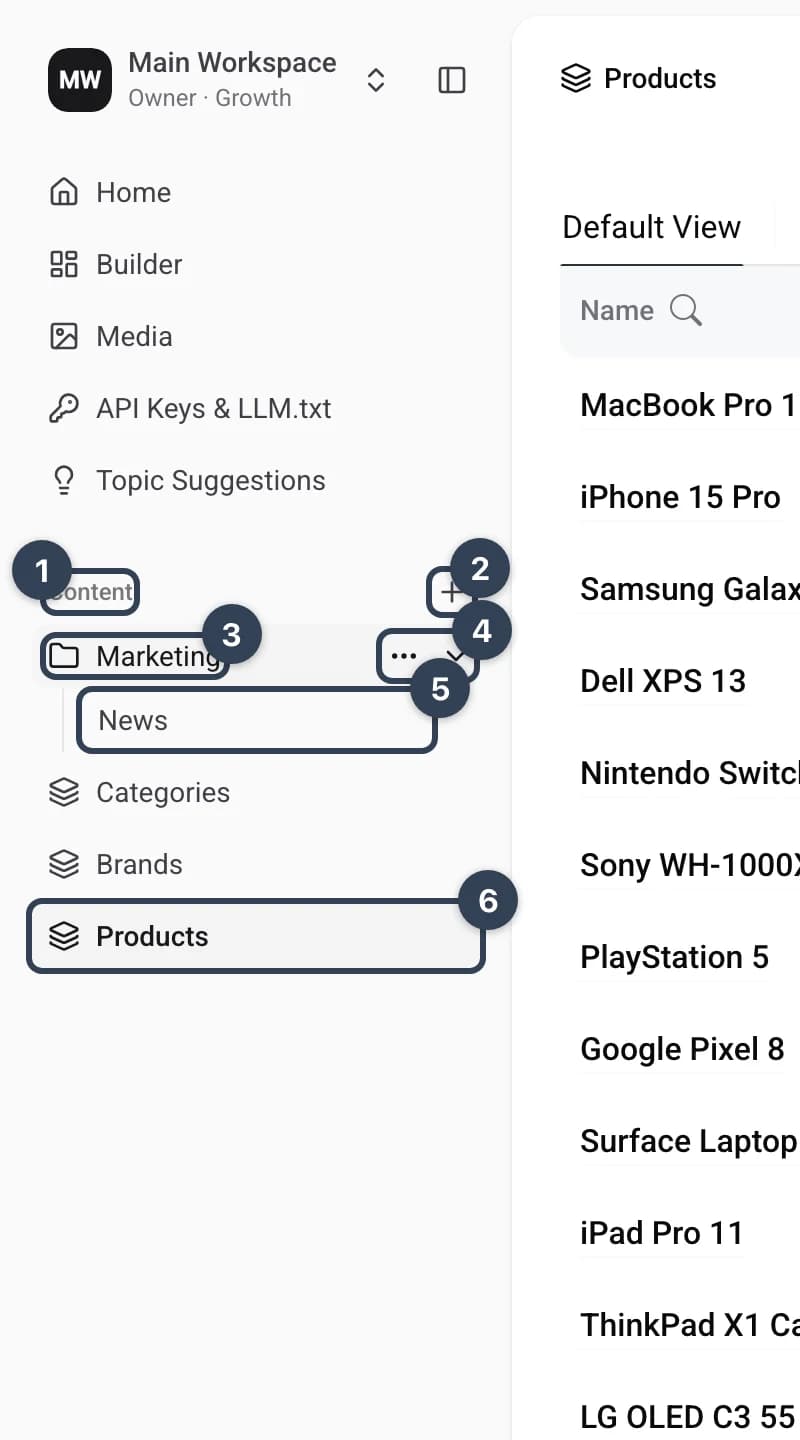
- Content navigation The list of everything shown in your menu: folders, collections and single pages.
Add folderbutton The+next to the Content heading creates a new folder.- Folder A container you can drop items into to structure the menu.
- Folder actions
Appear when you hover over a folder: the
⋯menu (Rename,Delete) and the chevron that expands or collapses the folder. - Item inside a folder A collection or page nested in a folder.
- Content item A top-level collection or single page. Drag it onto a folder to move it inside.
Creating and deleting folders, renaming them, and moving items all take effect right away — there is no separate Save button in the navigation.
Adding a folder
-
Click the
+button next to the Content heading.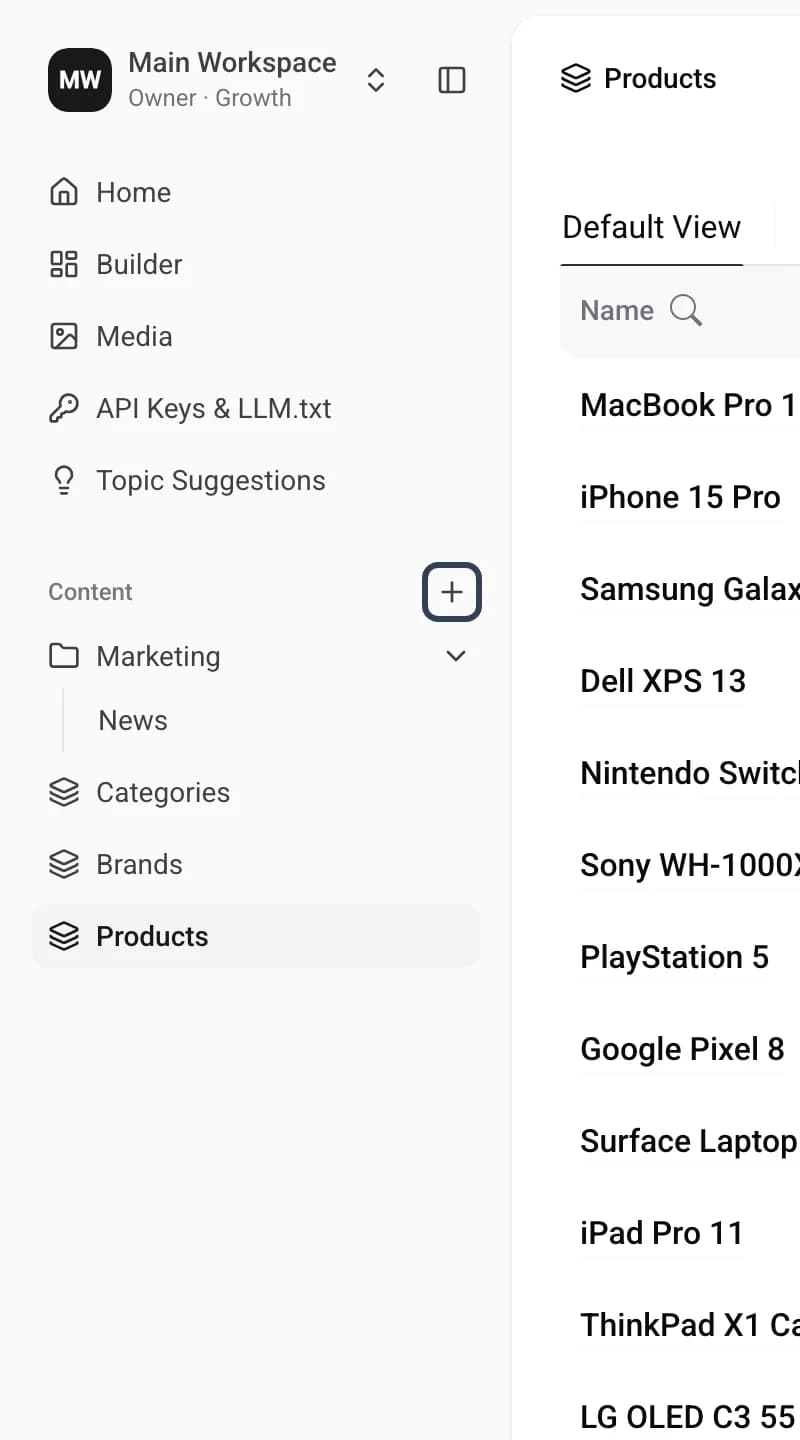
-
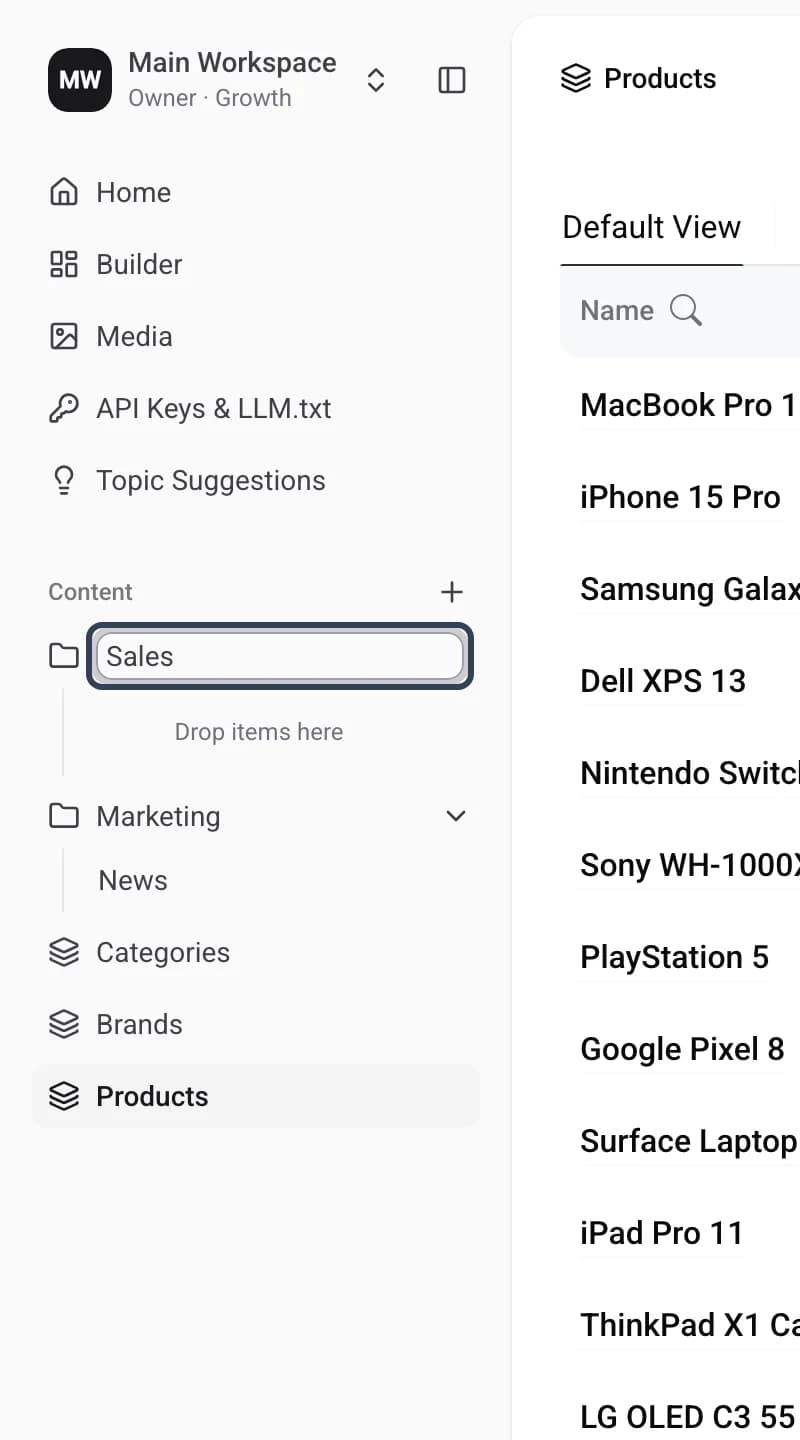
A new folder appears with its name ready to edit. Type a name and press Enter.
-
Done! The folder has been created. To rename it later, open its
⋯menu and chooseRename.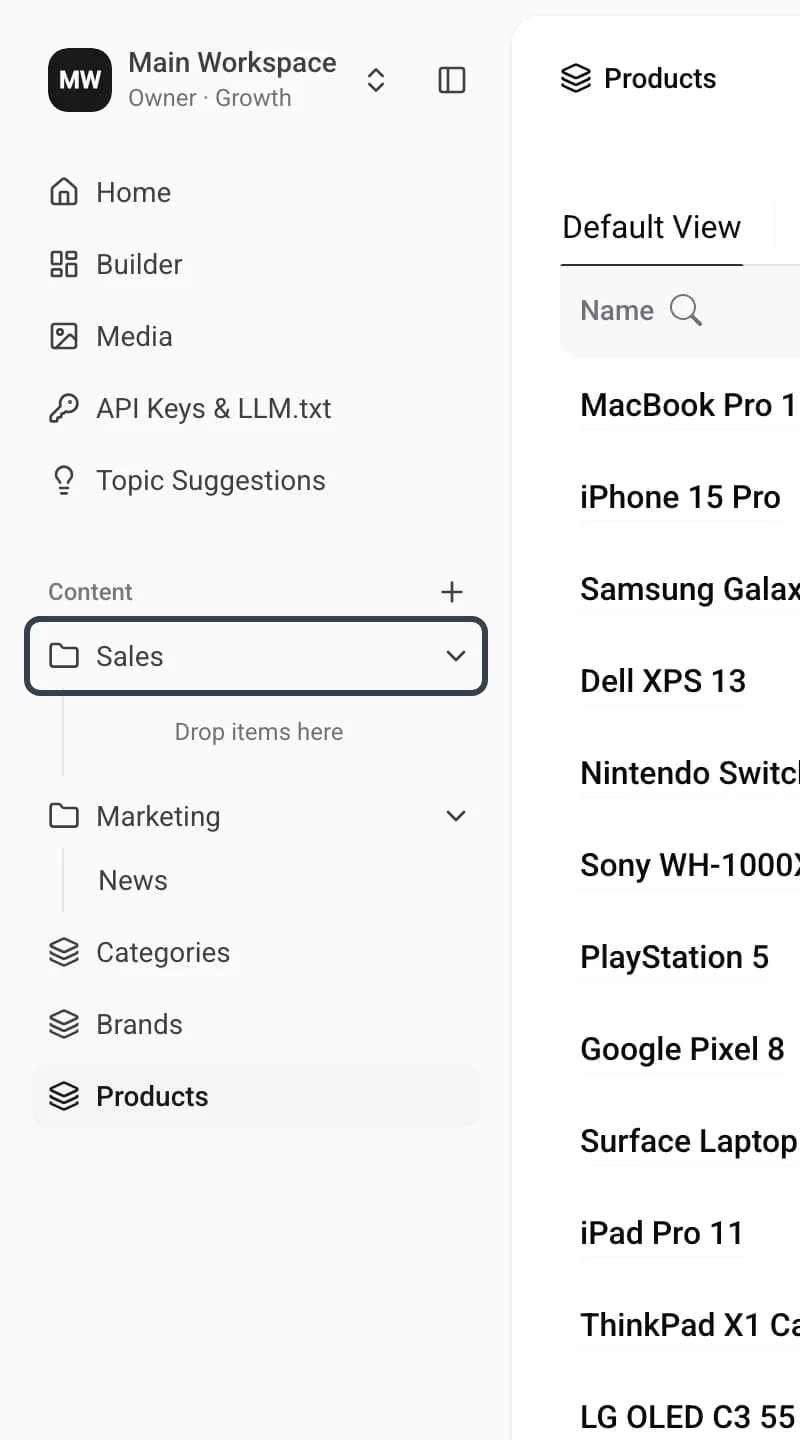
Organizing items
To place a collection or page inside a folder, drag it onto the folder — an empty folder shows a Drop items here area. To take an item back out, drag it below the folder onto the main list.
Deleting a folder
-
Hover over the folder, open its
⋯menu and clickDelete.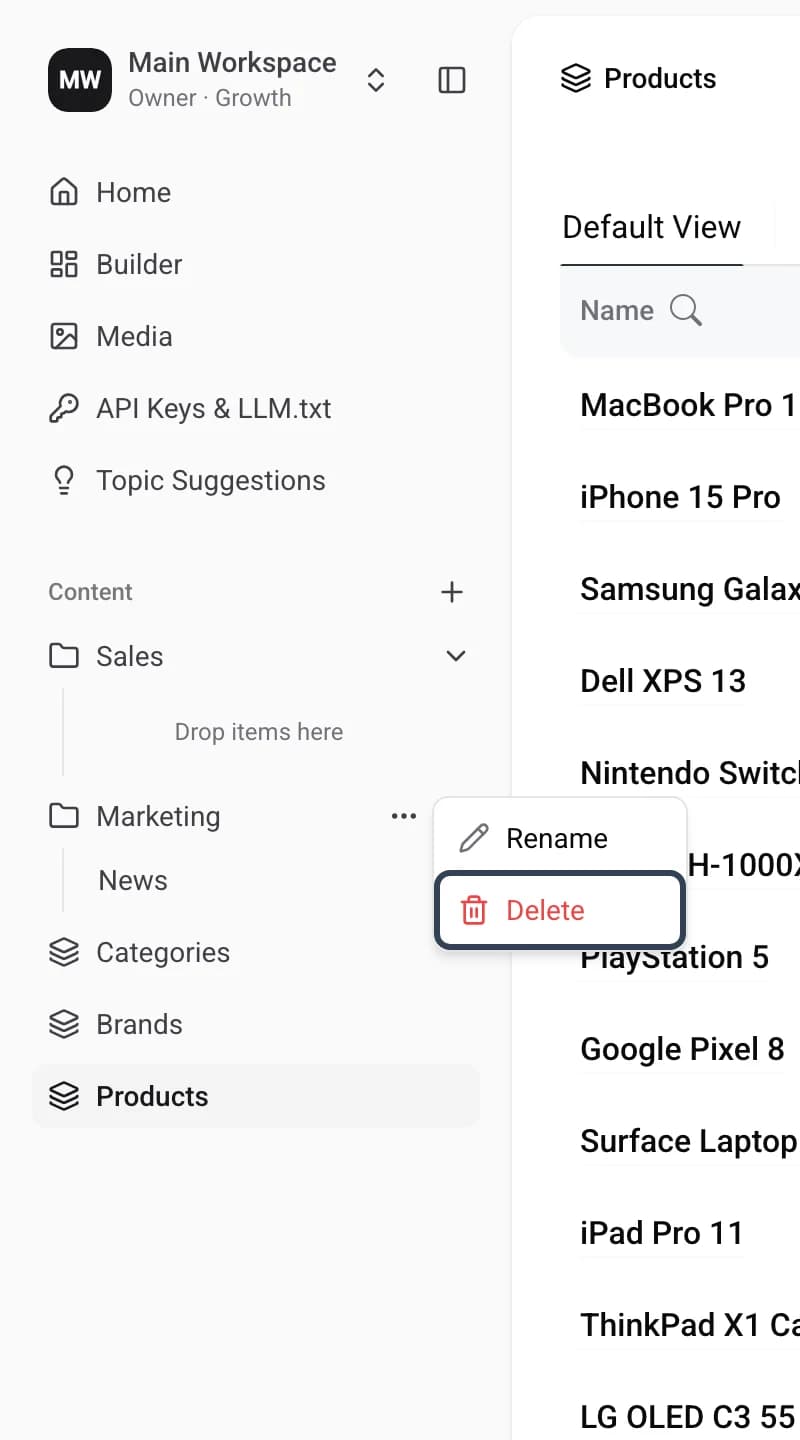
-
The menu asks you to confirm. Click
Confirmto delete the folder, orCancelto keep it.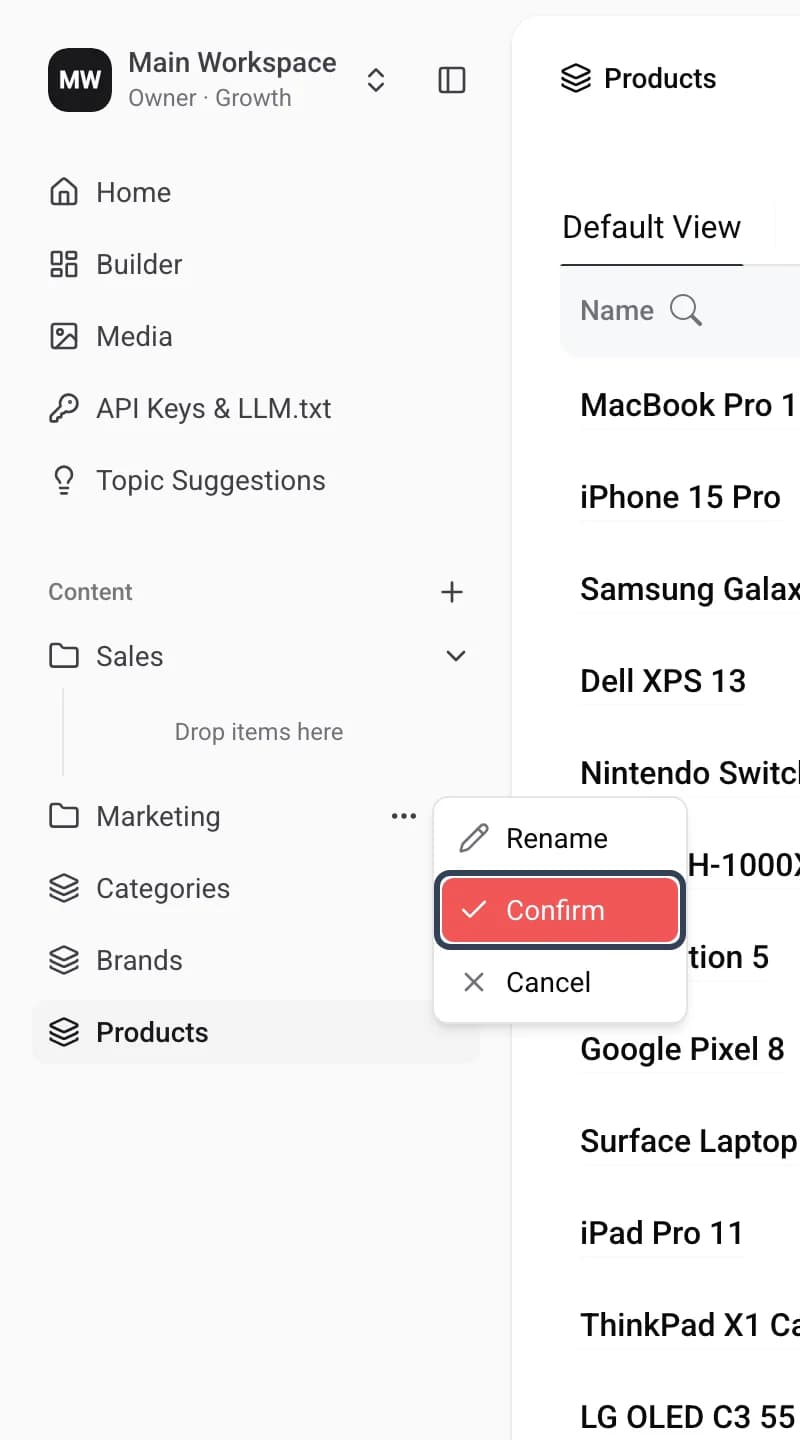
-
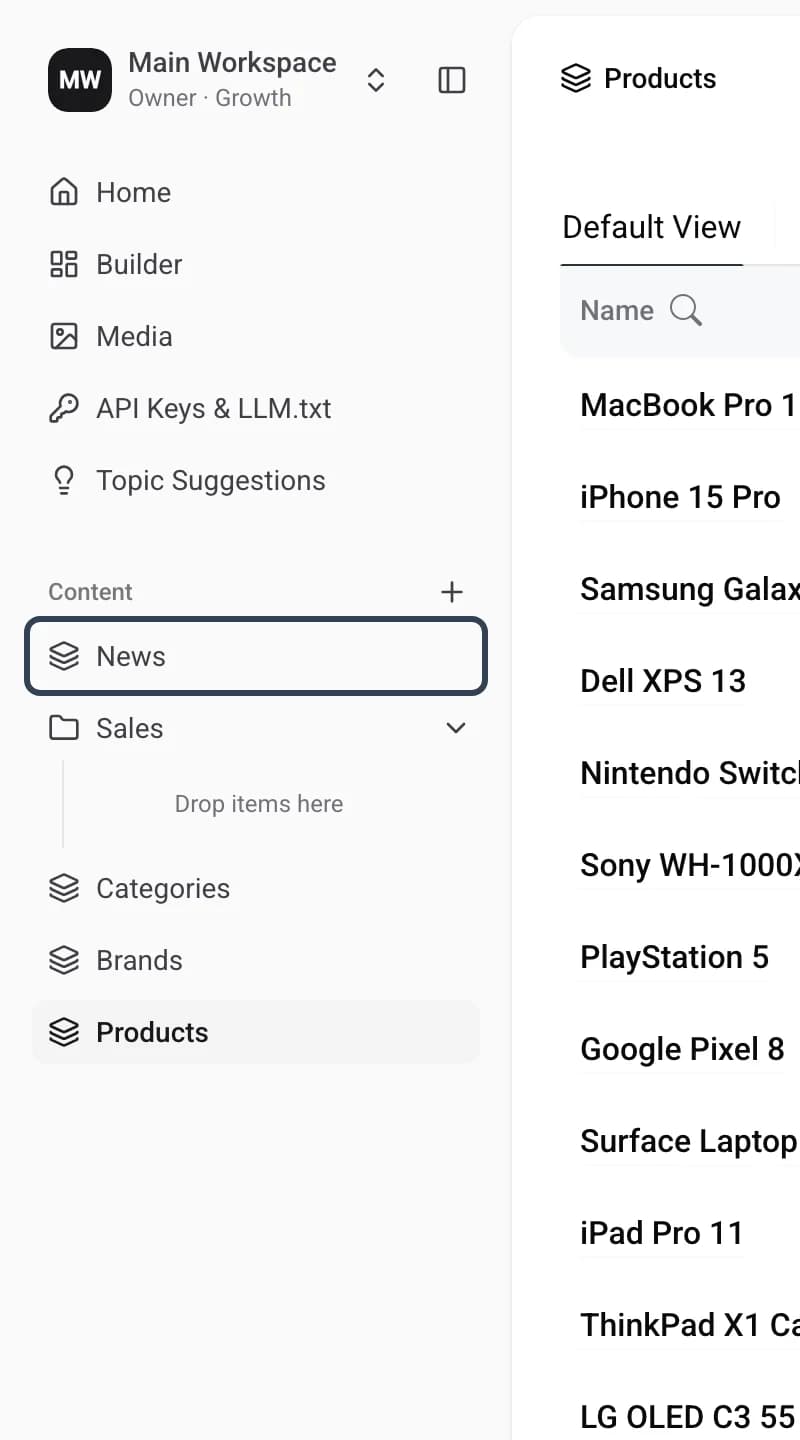
The folder is deleted, and any items that were inside it move back to the main navigation list.
Read more on this topic
Read next topic — Media