Image editor
Crop, rotate, zoom, and save images with the built-in Flexim editor while keeping media changes inside the content workflow.
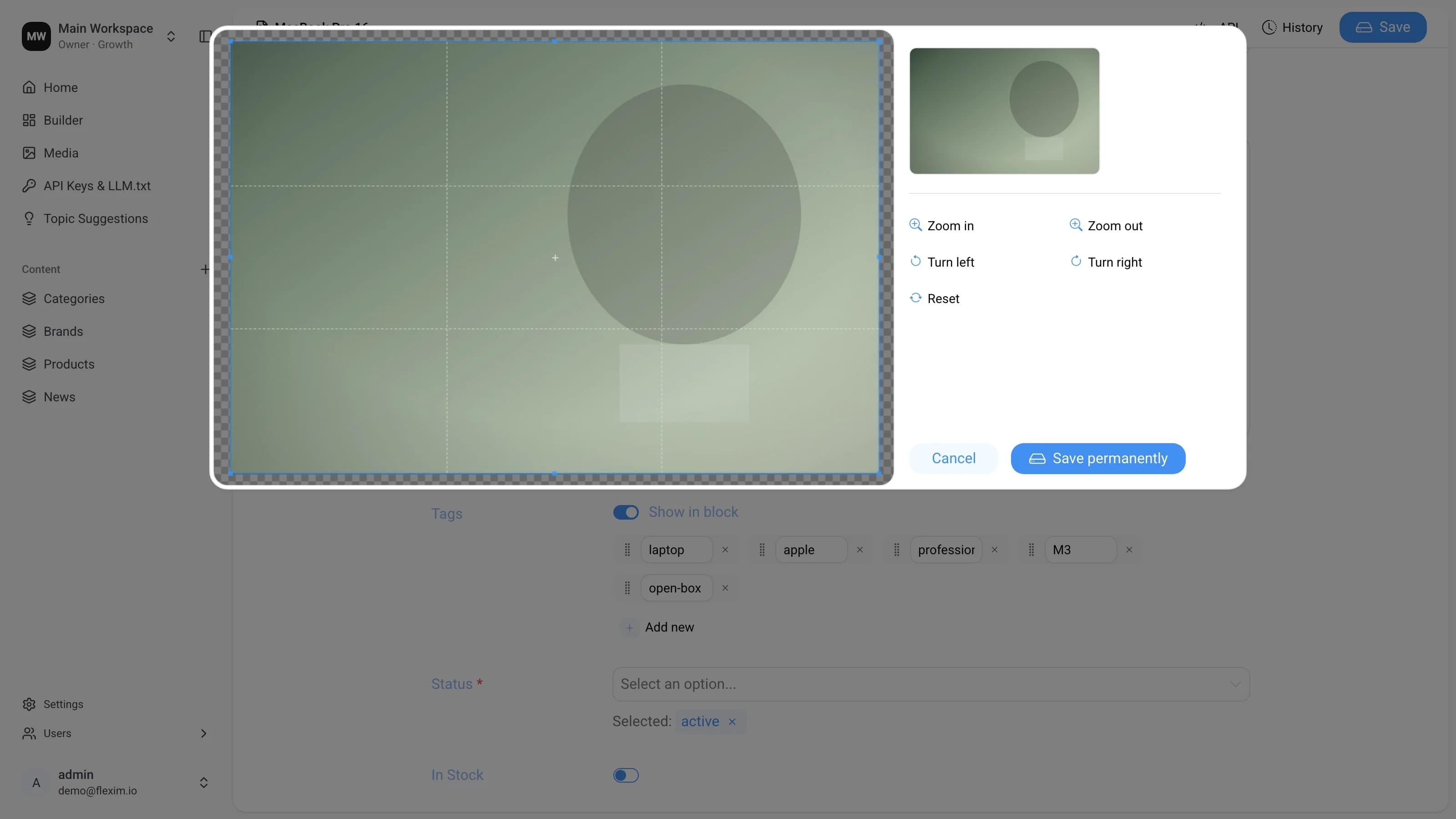
Flexim CMS includes a built-in image editor that lets you crop, rotate, and zoom an image right inside a record — no external tools required.
Opening the editor
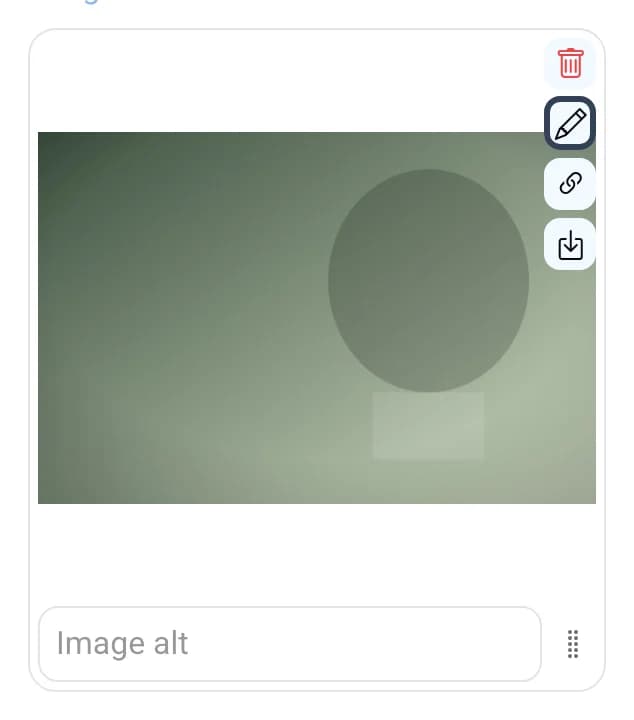
The editor opens from any image field on a record's Editor page. Open a record, then click the edit (pencil) icon on the image you want to change. The same icon appears on both single-image fields and multiple-image fields.
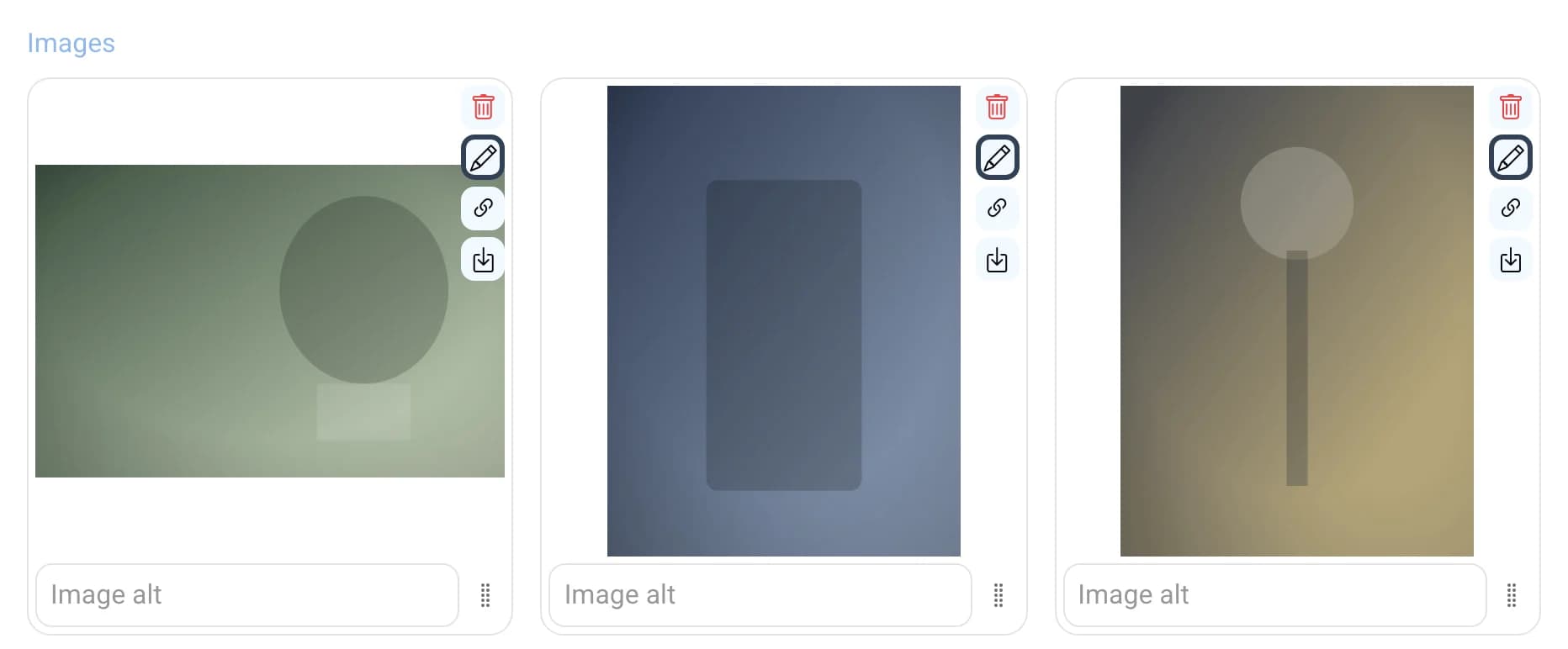
In a multiple-image field every image has its own edit icon, so you can crop each one independently.
Main elements
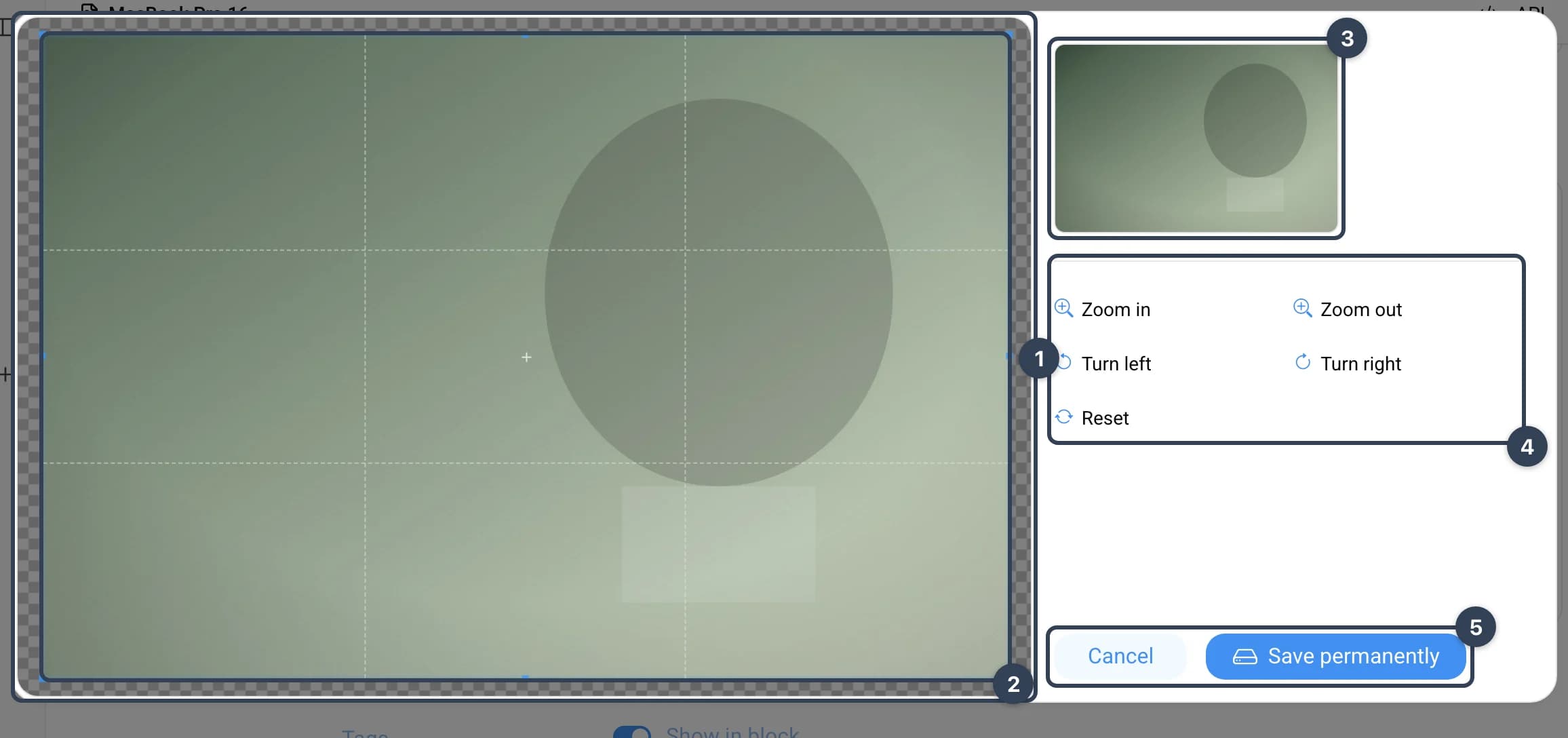
- Workspace
- Cropped part of the image It changes as you drag the borders or the corner points.
- Thumbnail of the cropped image It follows the proportions of the crop area, so it is not always a square.
- Image modification buttons
Zoom inZoom out— enlarge or shrink the image.Turn leftTurn right— rotate the image by 45 degrees.Reset— discards all changes and restores the original. Save permanentlyandCancelbuttonsSave permanentlyapplies the crop and closes the editor;Cancelcloses it without saving.
Cropping overwrites the file
Save permanently writes the cropped image back to the stored media file. Any record that uses the same image will show the cropped version.
Read more on this topic