Scheme managing
Rename, edit, extend, and delete existing Flexim collections, single pages, and components safely in the Builder.
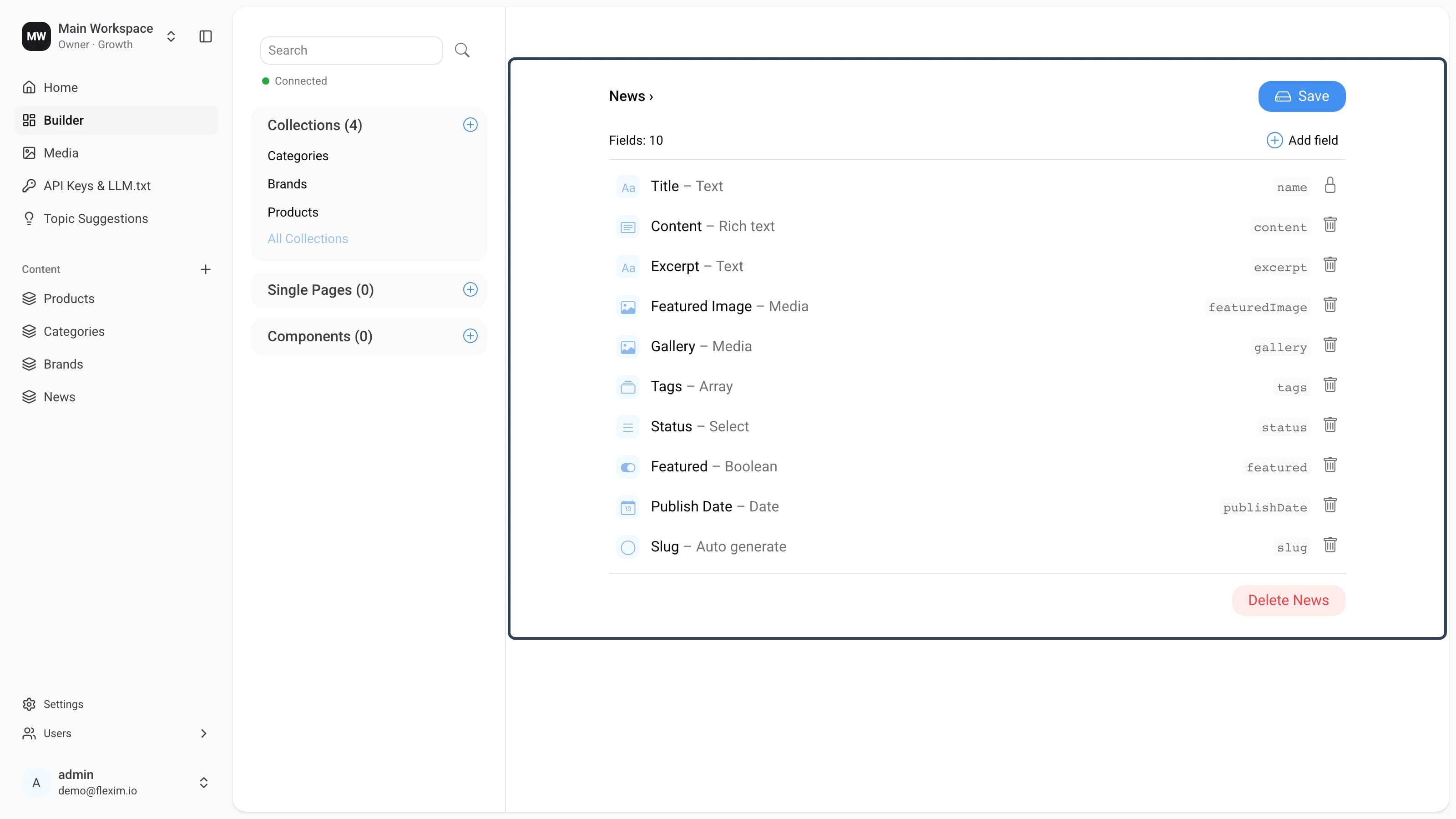
The Builder lets you manage any existing content-type (schema): collections, single pages and components. Open it from the sidebar, then pick a content-type in the middle panel — under Collections, Single Pages or Components, each with a + to create a new one. The schema of the selected content-type opens on the right: its name (for example News ›), a Save button, a Fields counter, the list of fields, an Add field button and, at the bottom, a Delete News button.
Each field is a single row that shows its type icon, its display name and type (for example Title – Text, Content – Rich text or Featured Image – Media), its DB name (the grey key stored in the database — click it to copy), and a bin icon to remove it. Protected fields such as the Title (name) field show a lock instead of a bin and cannot be removed.
Editing content-type
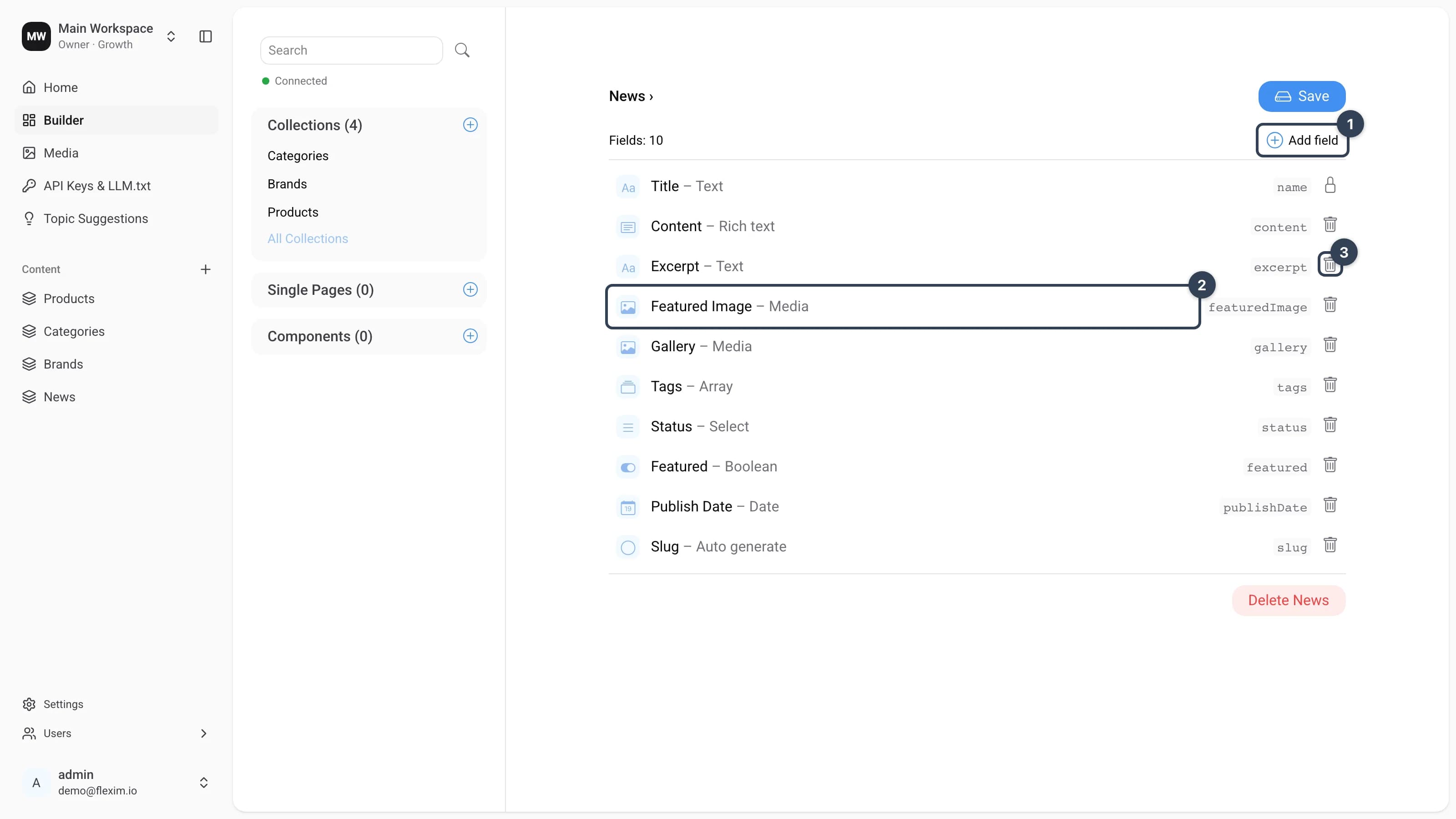
- The
Add fieldbutton adds a new field to the content-type (Setting up fields). - Click a field row to open its settings, where you can rename it, change its type and toggle options such as
Required field. - The bin icon on a field row removes that field. Locked fields like
Titlehave no bin and stay in place. - Drag a field row up or down to change its position in the schema (see Reordering fields).
Save your changes
Edits to a schema are applied locally first. While there are unsaved changes a Discard changes button appears next to Save. Press Save to write everything to the database, or Discard changes to roll it all back.
Reordering fields
Drag any field row — including component fields — up or down to rearrange the schema. The field order defines the order of inputs in the record editor, so put the most important fields on top.
- The system
Title(name) field is pinned to the top: it cannot be moved, and no other field can be placed above it. - Only top-level fields of the open schema are reordered. Fields inside a component keep their own order — open the component itself in the Builder to rearrange them.
- Like any other schema edit, the new order takes effect after you press
Save.
Deleting field
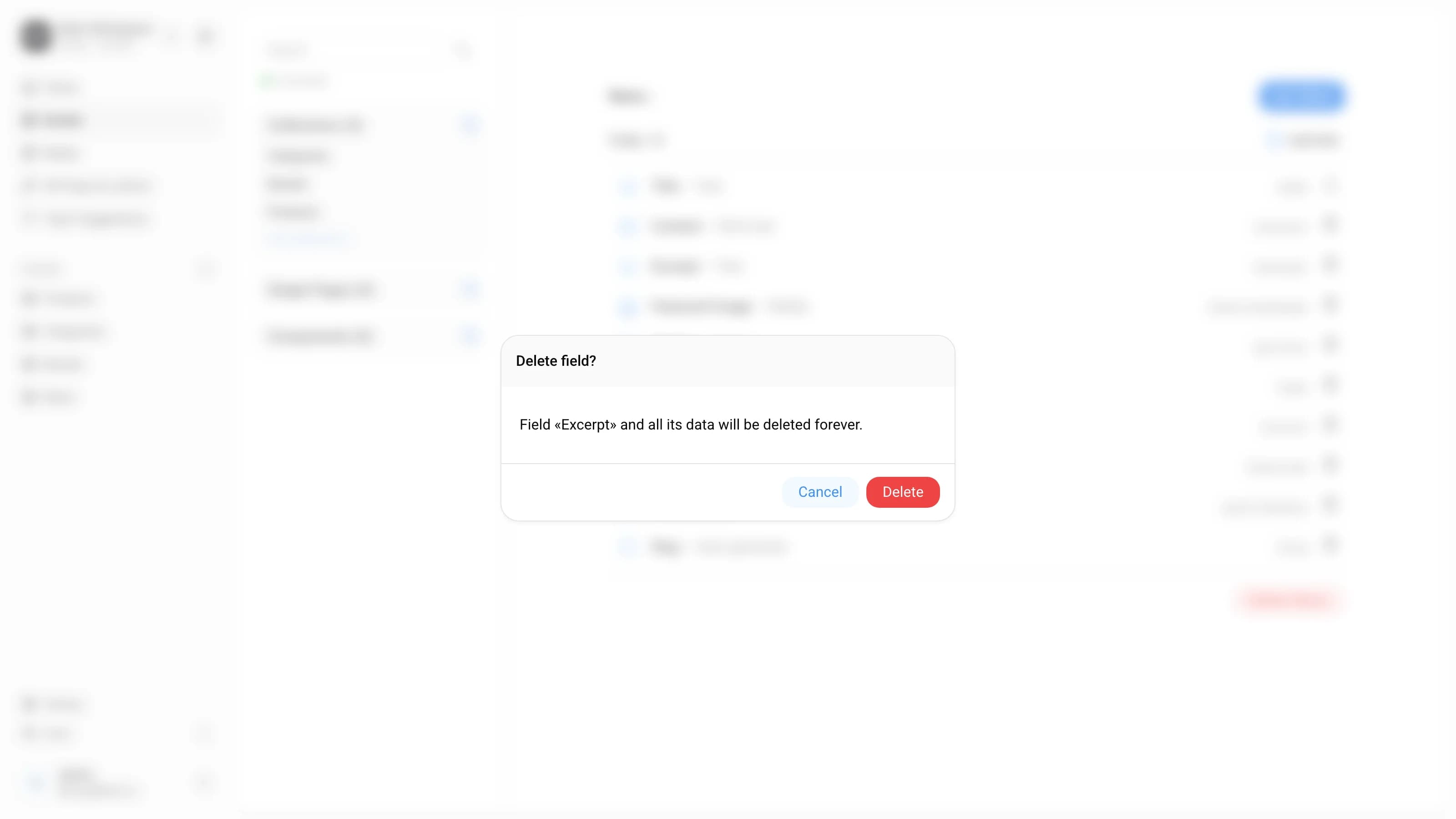
Click the bin icon on a field row. A Delete field? confirmation window opens, naming the field and warning that it and all its data will be removed.
Deletion is permanent
Once you confirm and save, the field and all the data it held are removed permanently and cannot be recovered.
Deleting content-types
Deleting a content-type also removes all of its records in the CMS. The same applies to a component: deleting it removes it from every content-type where it was used.
To delete a content-type:
-
Click
Delete Newsat the bottom of the panel.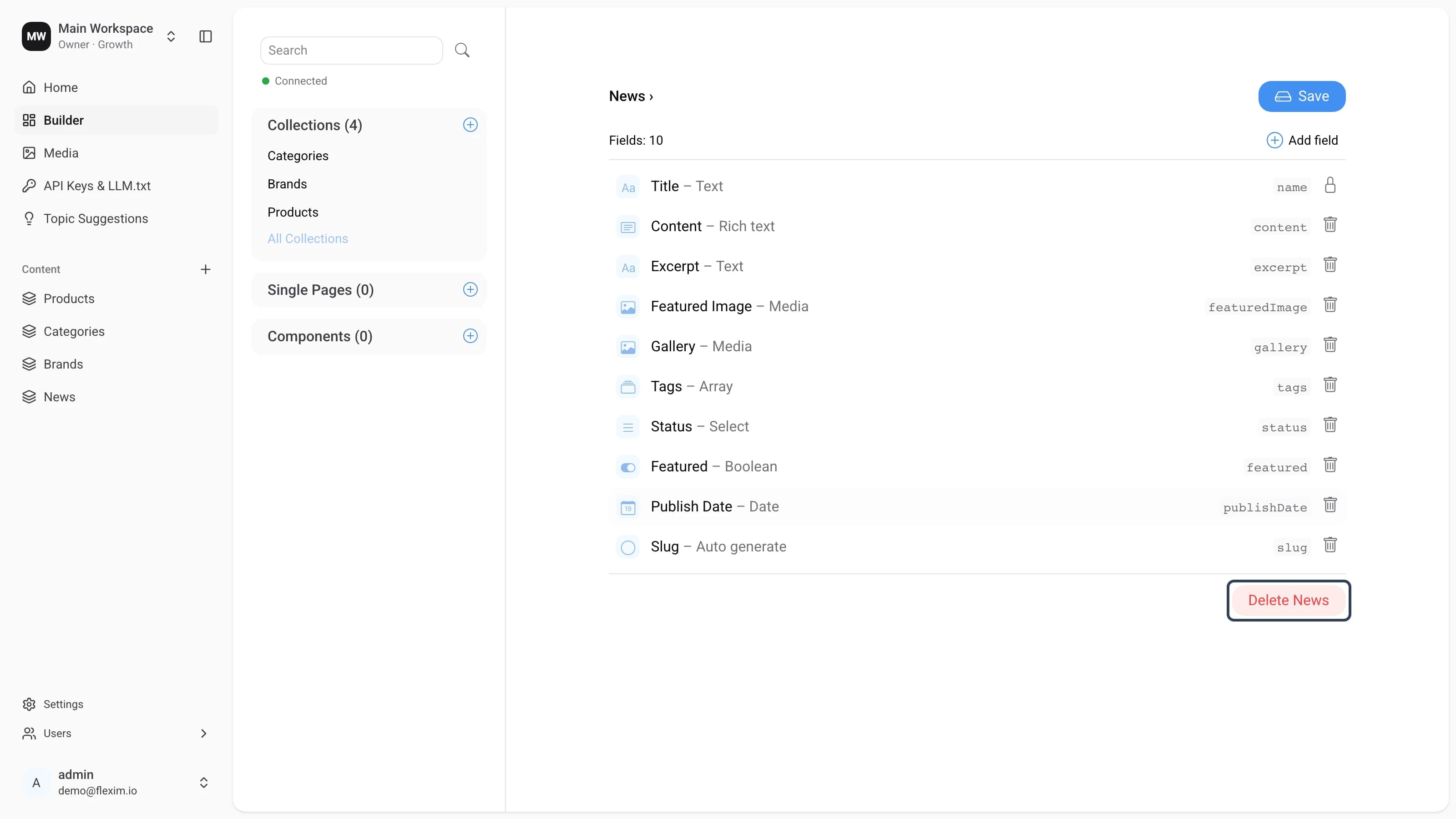
-
In the
Delete collection?window, clickDelete. This permanently deletes the schema and all its records — there is no undo.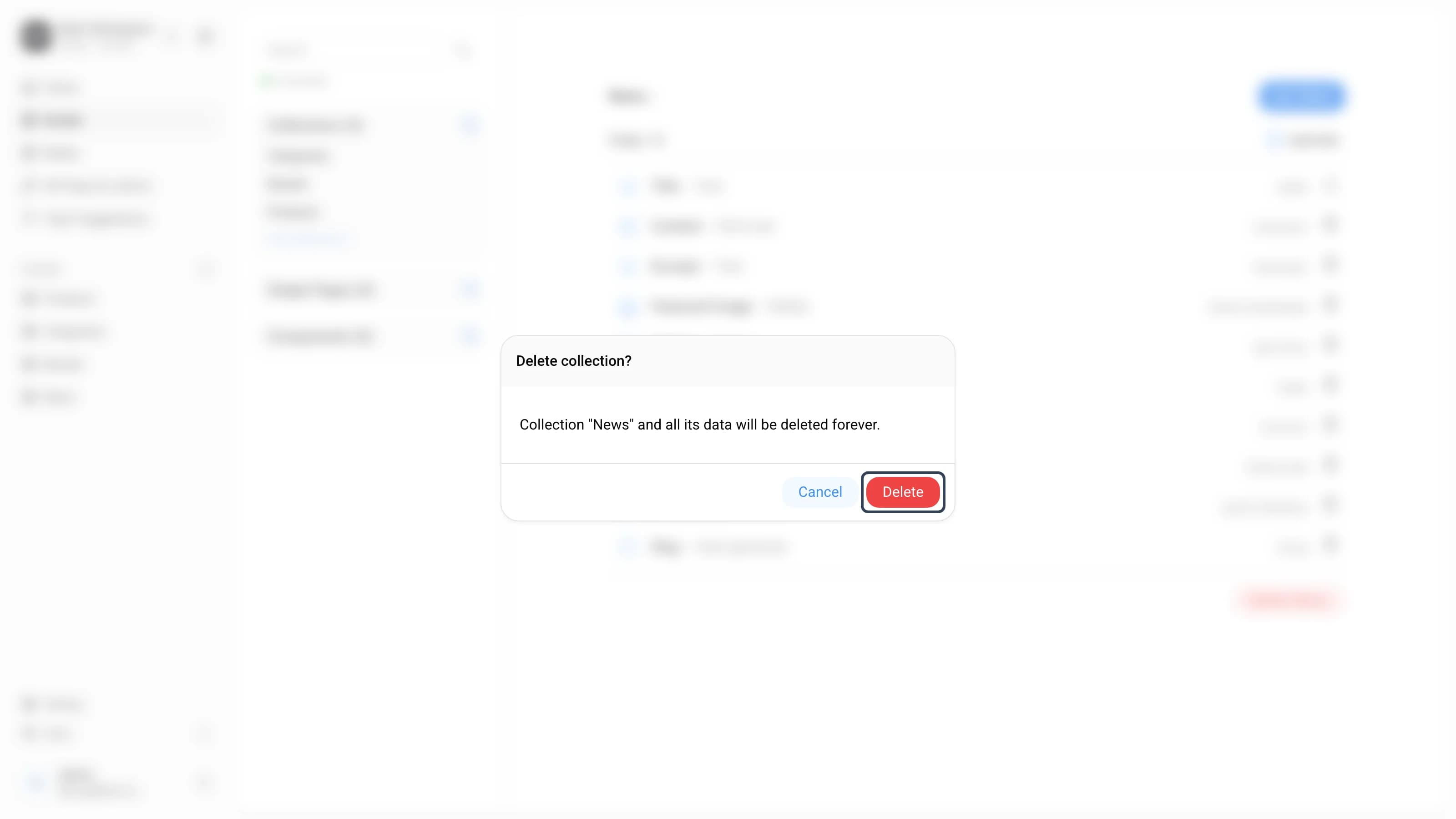
Referenced collections cannot be deleted yet
If another collection references this one, the CMS blocks the deletion and lists the collections you have to remove or detach first.
Read more on this topic