Users
Invite people to a Flexim workspace, review current members, edit their access, and remove accounts that no longer need entry.
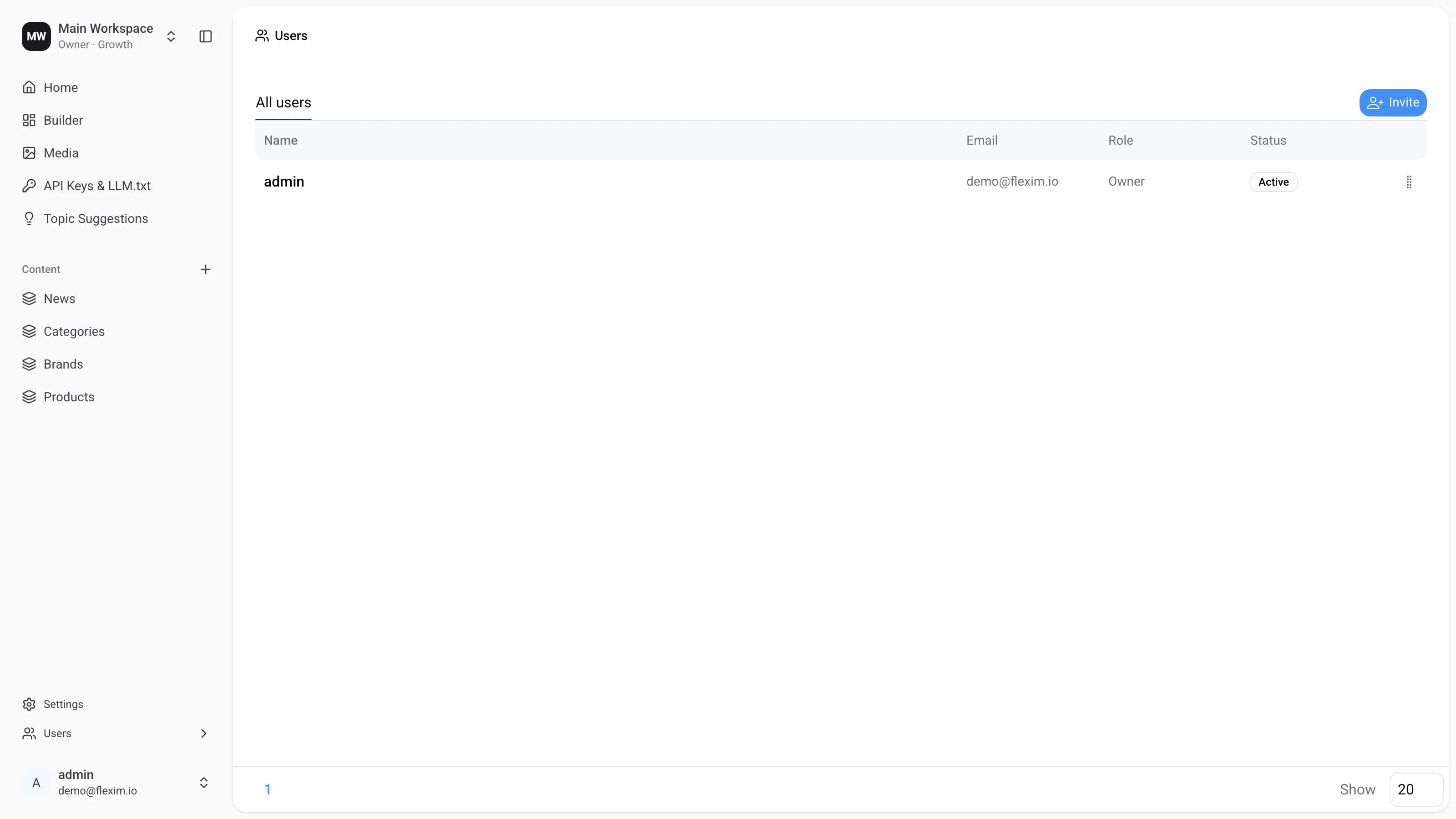
The Users page displays a list of everyone who has access to the workspace. Here you can invite new users, edit existing ones, and remove those who no longer need access. Open it from the left sidebar: Users › List.
The list shows four columns — Name, Email, Role, and Status.
Main Elements
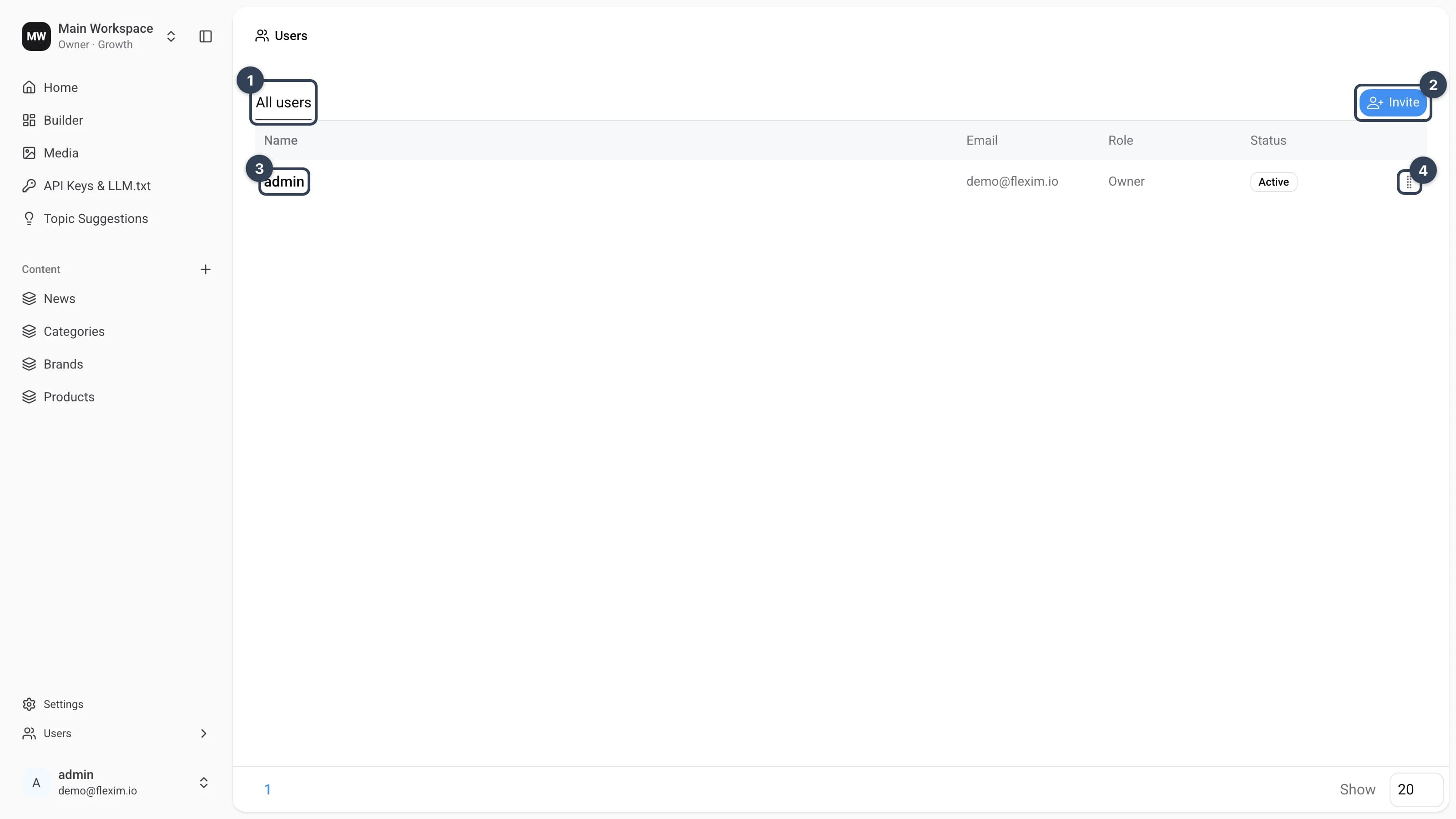
- All users A styled tab above the list. For now it is a decorative block and does not switch between saved views.
- Button
InviteOpens a small form where you enter an email address and pick a role for the person you want to invite. - Existing user Each row is a user who already has access. Their email, role, and status are shown next to the name.
- Context menu
The
⋮button at the end of a row opens actions for that user —EditandRemove.
Inviting a user
New users are added by invitation, so you no longer create a login and password for them yourself.
-
Click the
Invitebutton. A small form appears with an empty Email field and a Role selector (set toMember (System)by default).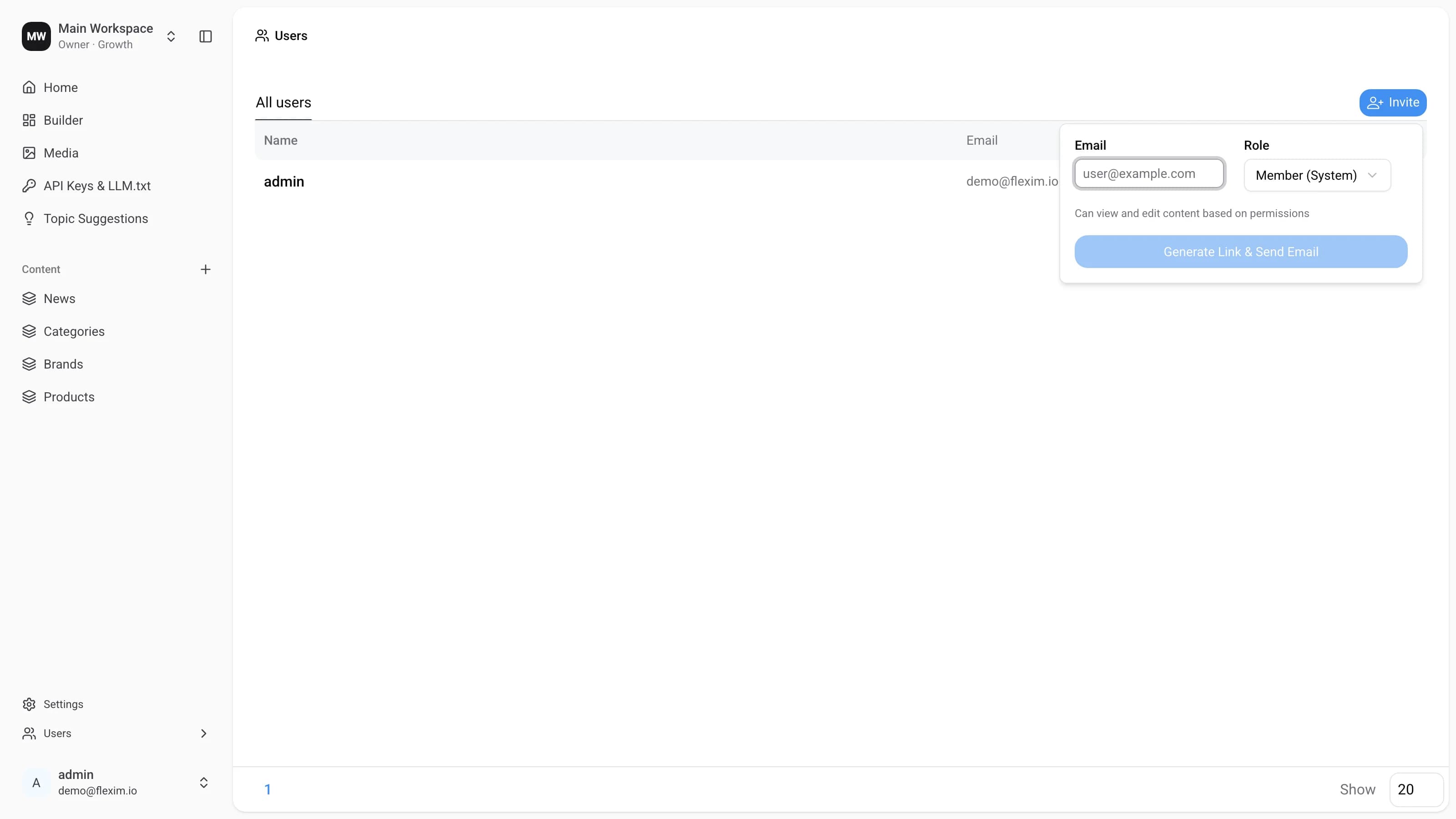
-
Enter the person's email and choose a role, then click
Generate Link & Send Email. The button stays inactive until a valid email is entered. The built-in system roles areAdmin (System)andMember (System), along with any custom roles created on the Roles page.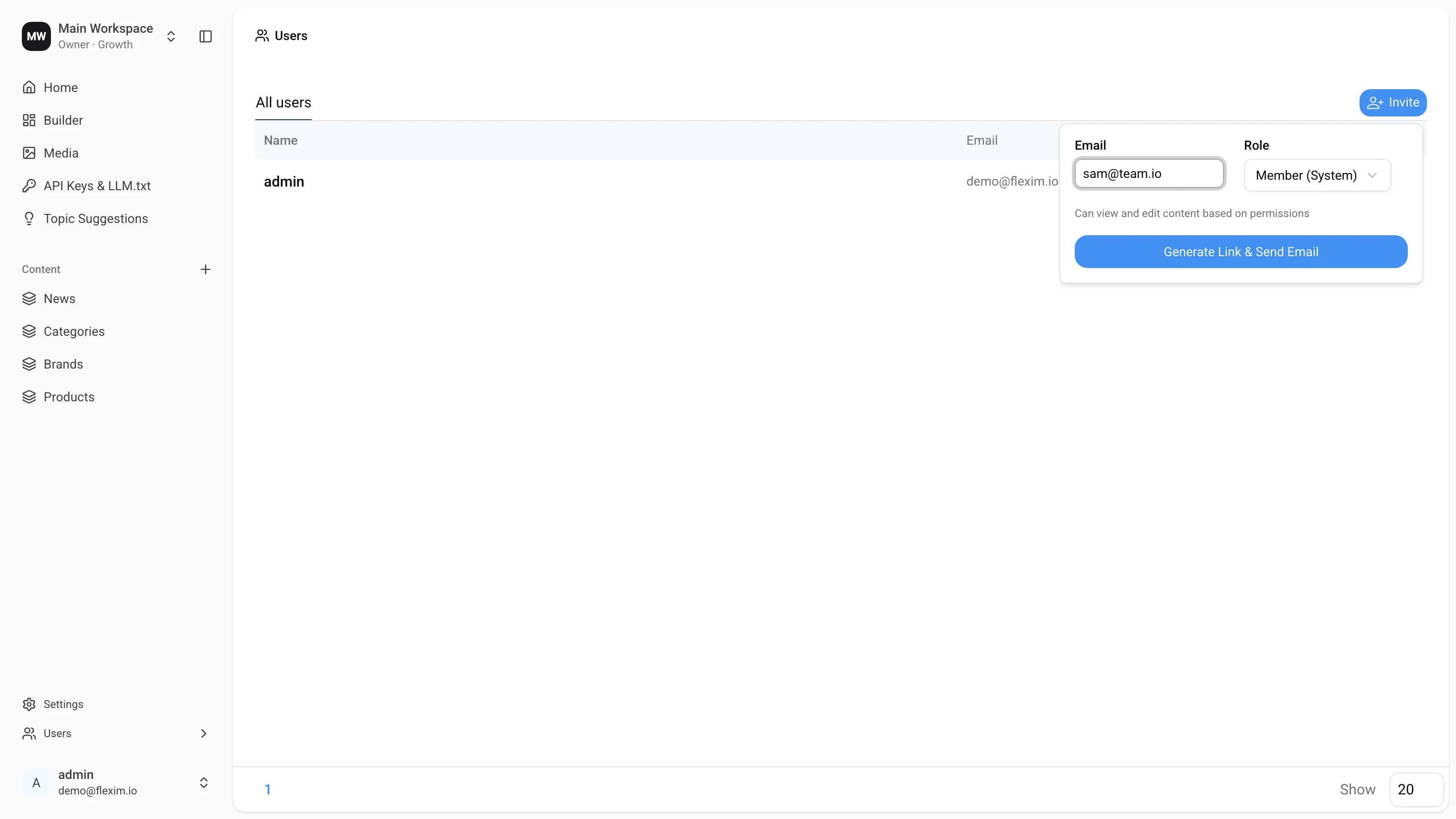
The invited person receives an email with a link where they set their own name and password and join the workspace.
Editing a user
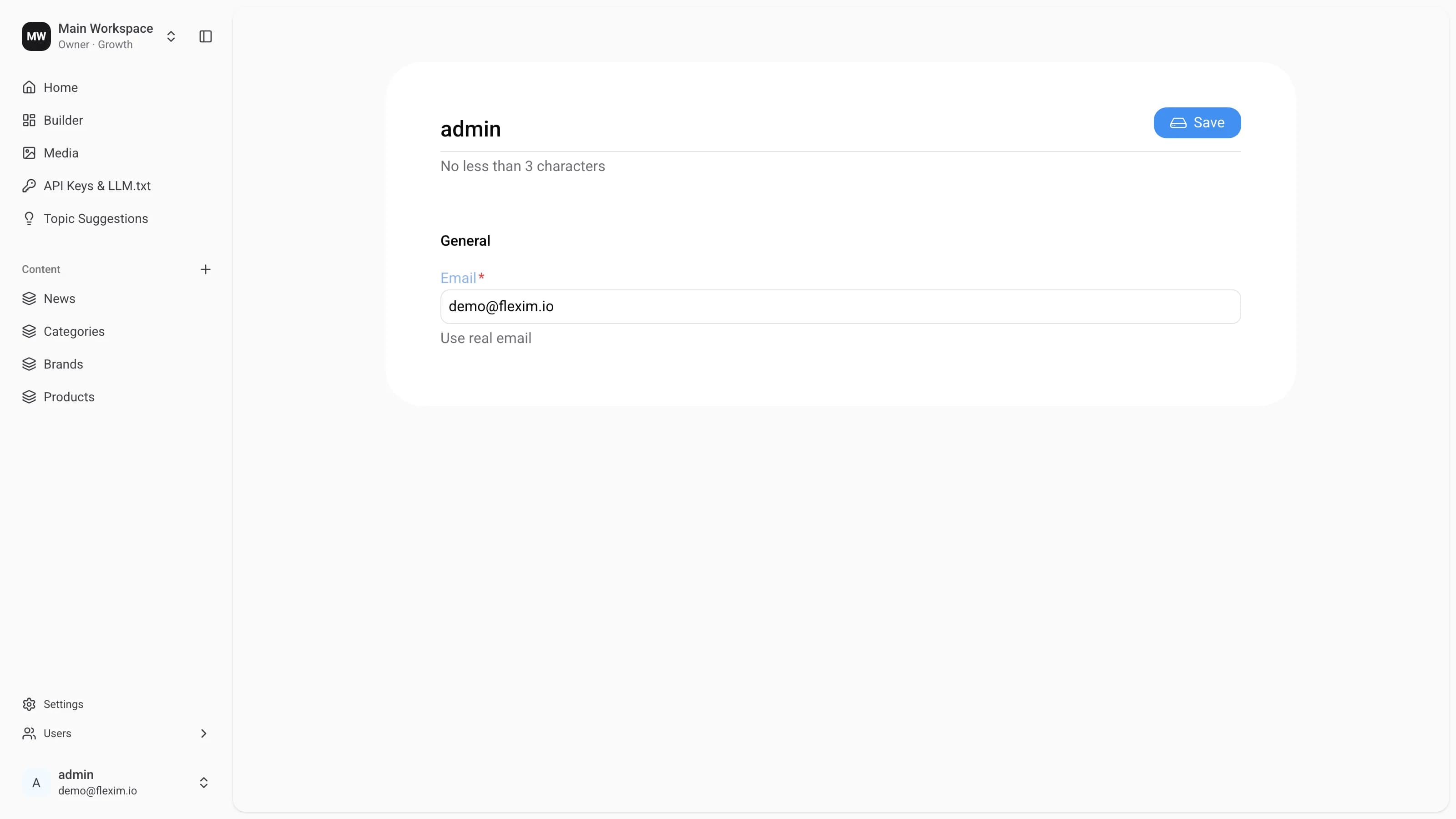
Open the context menu (⋮) on a user's row and choose Edit. A settings page opens where you can change the user's display name and email. Click Save to apply the changes.
Removing a user
Open the context menu (⋮) on a user's row and choose Remove to revoke that person's access to the workspace.
Owner role
The workspace creator is automatically assigned the Owner role with full access to the entire system. Roles for other users are chosen when they are invited and can be changed later by the Owner, or by users whose role grants the corresponding access. Read more about Roles.
Columns on the Users page
| Column | Meaning |
|---|---|
| Name | The user's display name |
| The email used to sign in and to receive the invitation | |
| Role | The role that defines what the user can access |
| Status | The current account status (for example, Active) |