Visibility
Choose which Flexim collection fields appear as columns, hide irrelevant data, and reorder the table for each workflow.
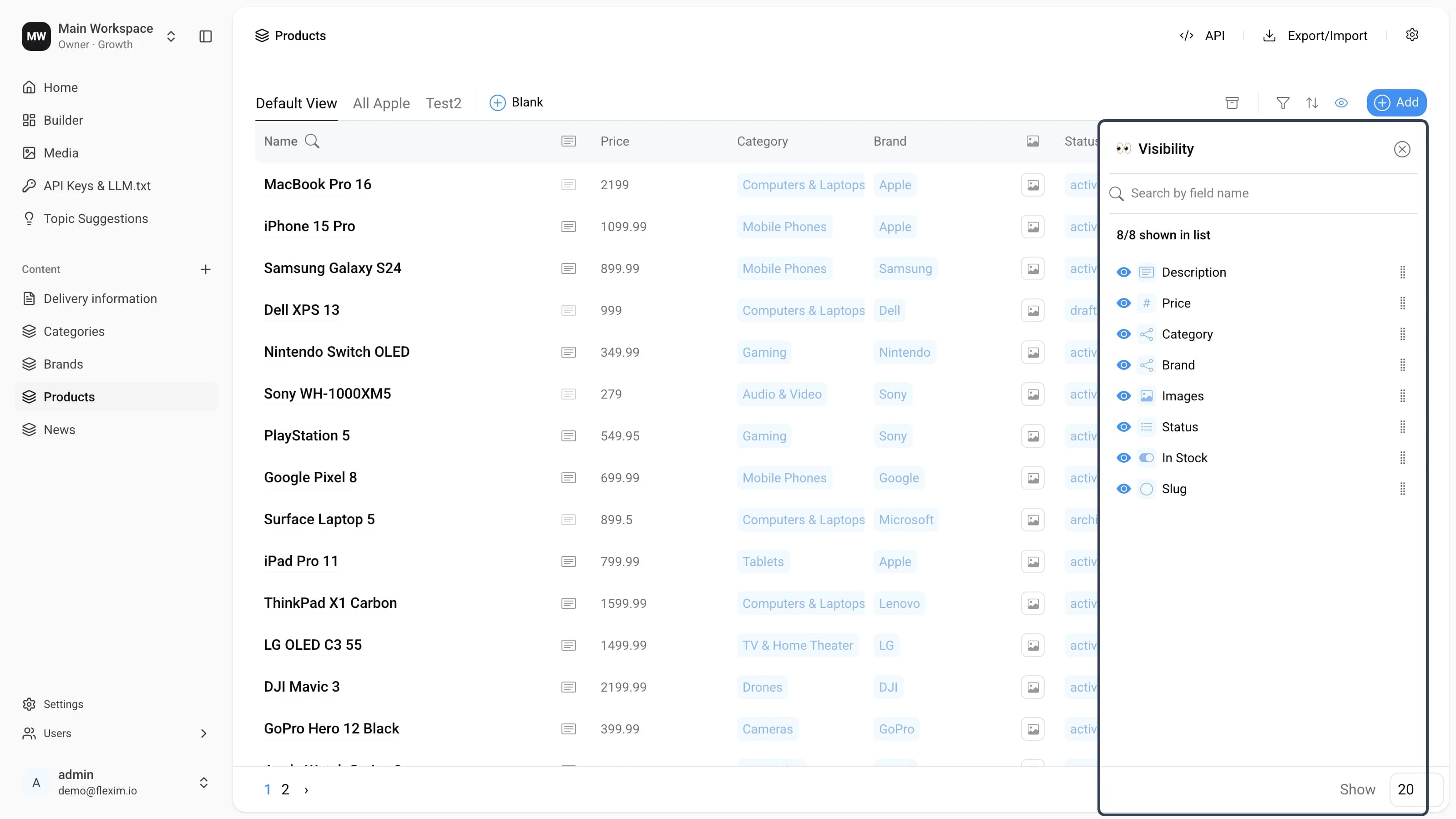
Visibility lets you choose which fields are shown as columns in the collection and which are hidden. You can also change the order in which they appear relative to each other.
Main Elements
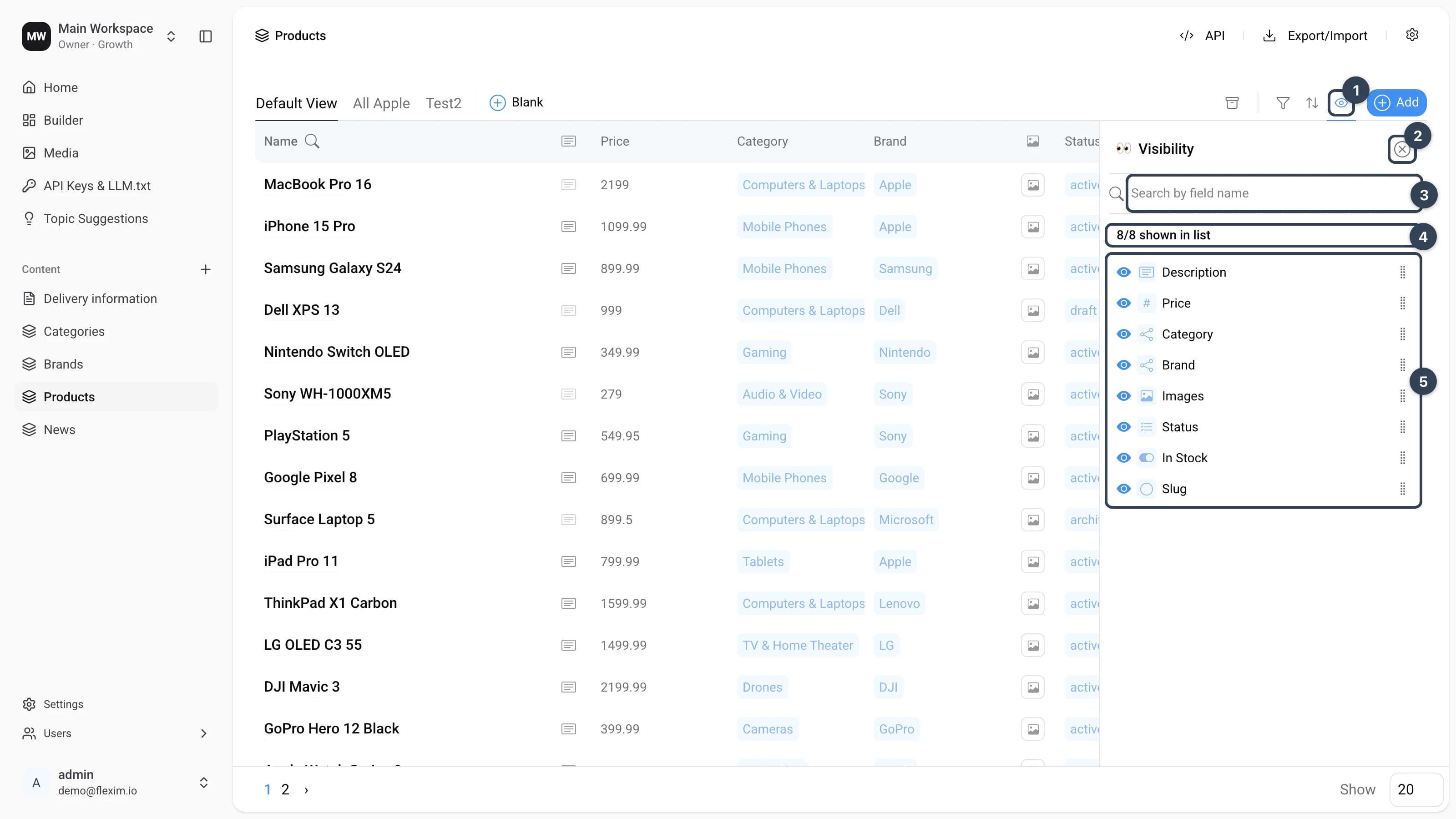
- Visibility icon The eye icon in the view toolbar. Clicking it opens the Visibility panel. If you have changed the visibility settings, the icon turns blue while the panel is closed, signalling that the settings differ from the default — but without a counter, unlike filtering and sorting.
- 'X' button Closes the panel.
- Field search Lets you find a field by its name.
- Counter of shown fields Shows how many fields are currently shown in the collection, out of a maximum of 8.
- Field list Lists every available field and shows its current state. Drag a field to reorder it.
Field limit
You can show up to 8 fields in the collection at a time. This keeps the workspace uncluttered and avoids horizontal scrolling (see Collection).
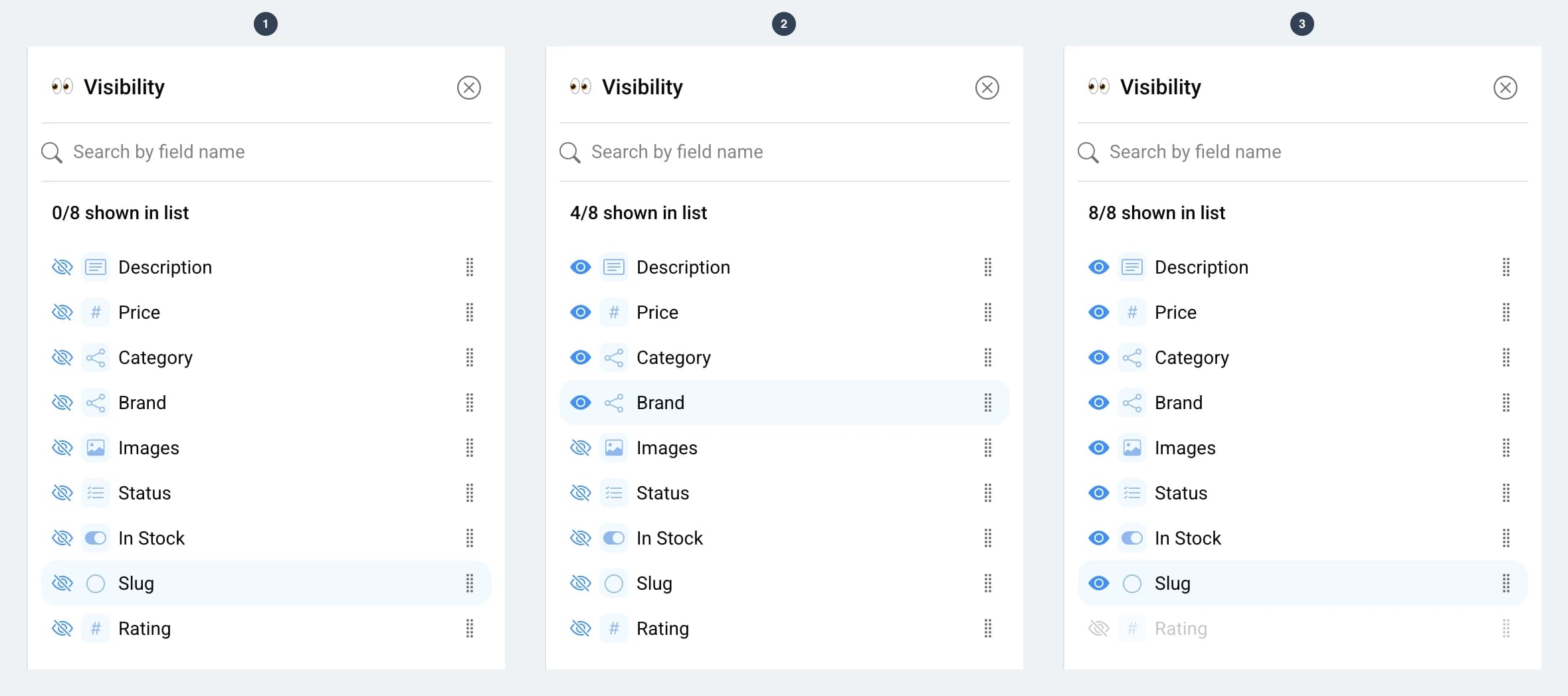
Here is how the panel looks with different numbers of fields shown:
- All fields are hidden, and the counter shows 0/8.
- Some fields are shown, and the counter shows 4/8.
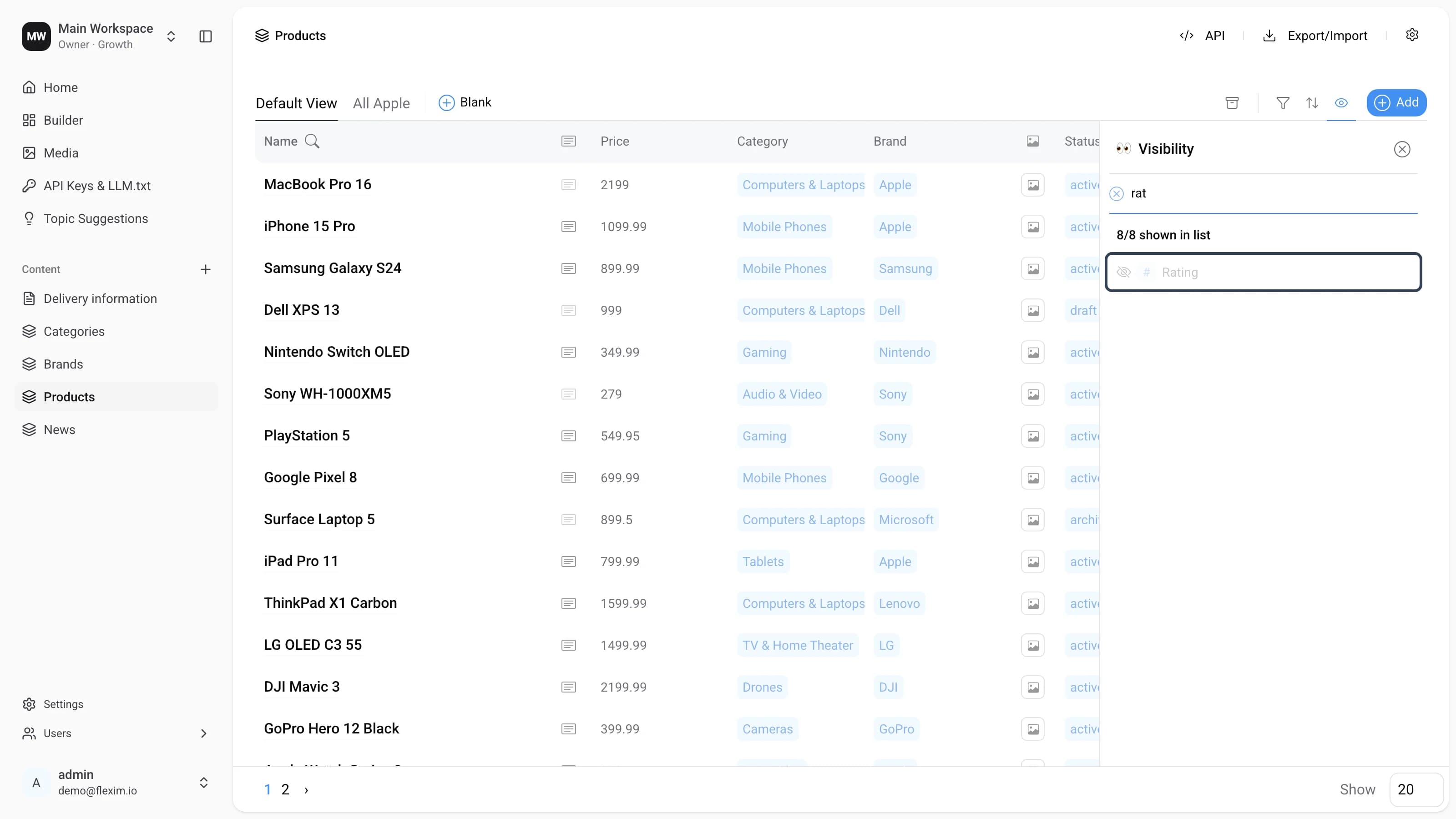
- The maximum of 8 fields is reached, as shown by the counter. Any remaining hidden field (here, Rating) is greyed out and cannot be turned on. To show it, you first need to hide one of the fields that are currently shown.
Field States
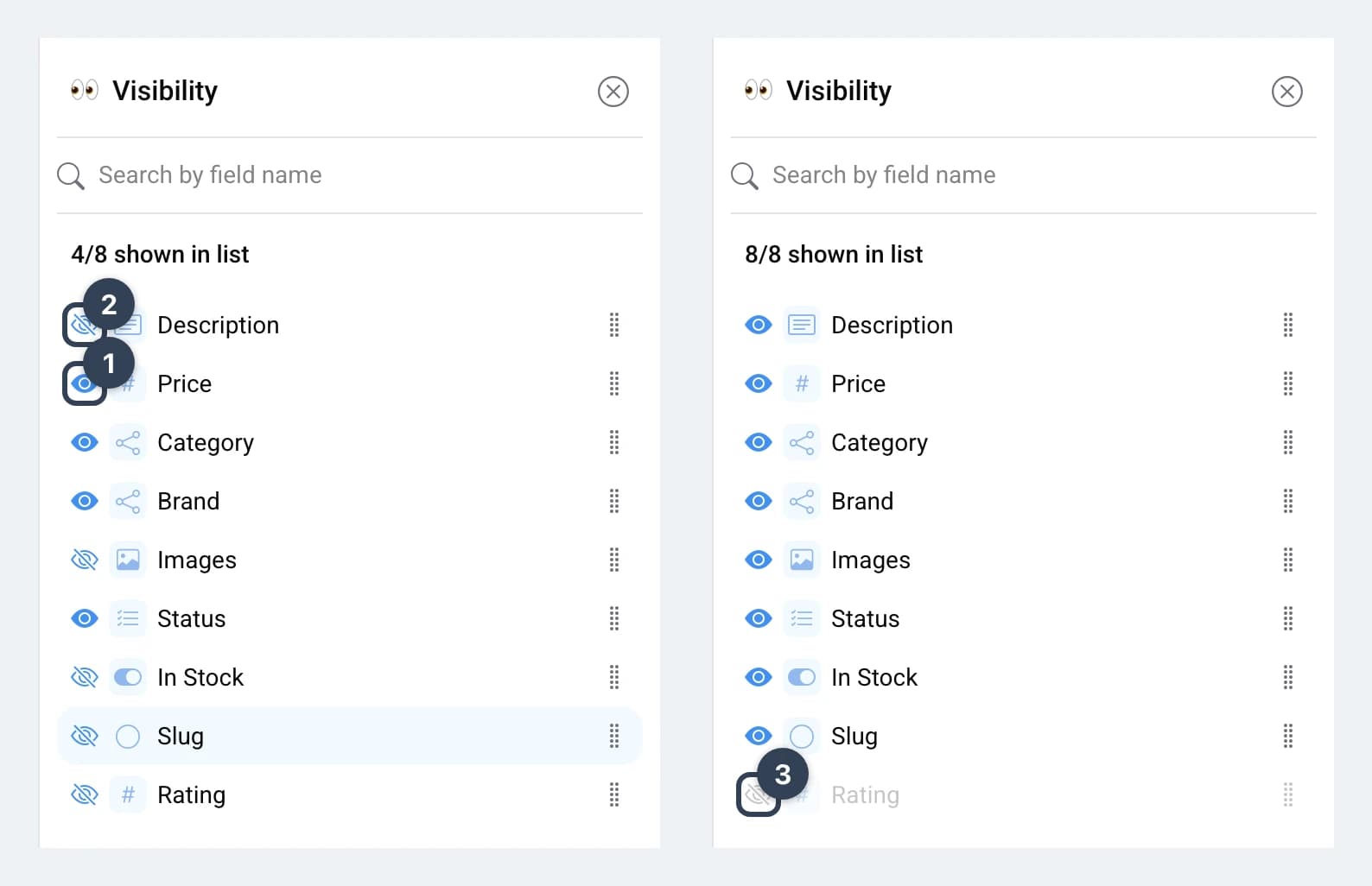
A field can be in one of three states:
- Active — the field is shown in the collection (filled blue eye).
- Hidden — the field is hidden but can be turned on (crossed-out eye).
- Disabled — the field is hidden and cannot be turned on, because 8 fields are already shown (greyed out).
You toggle the active and hidden states by clicking anywhere on the row. Changes are applied immediately.
Moving fields
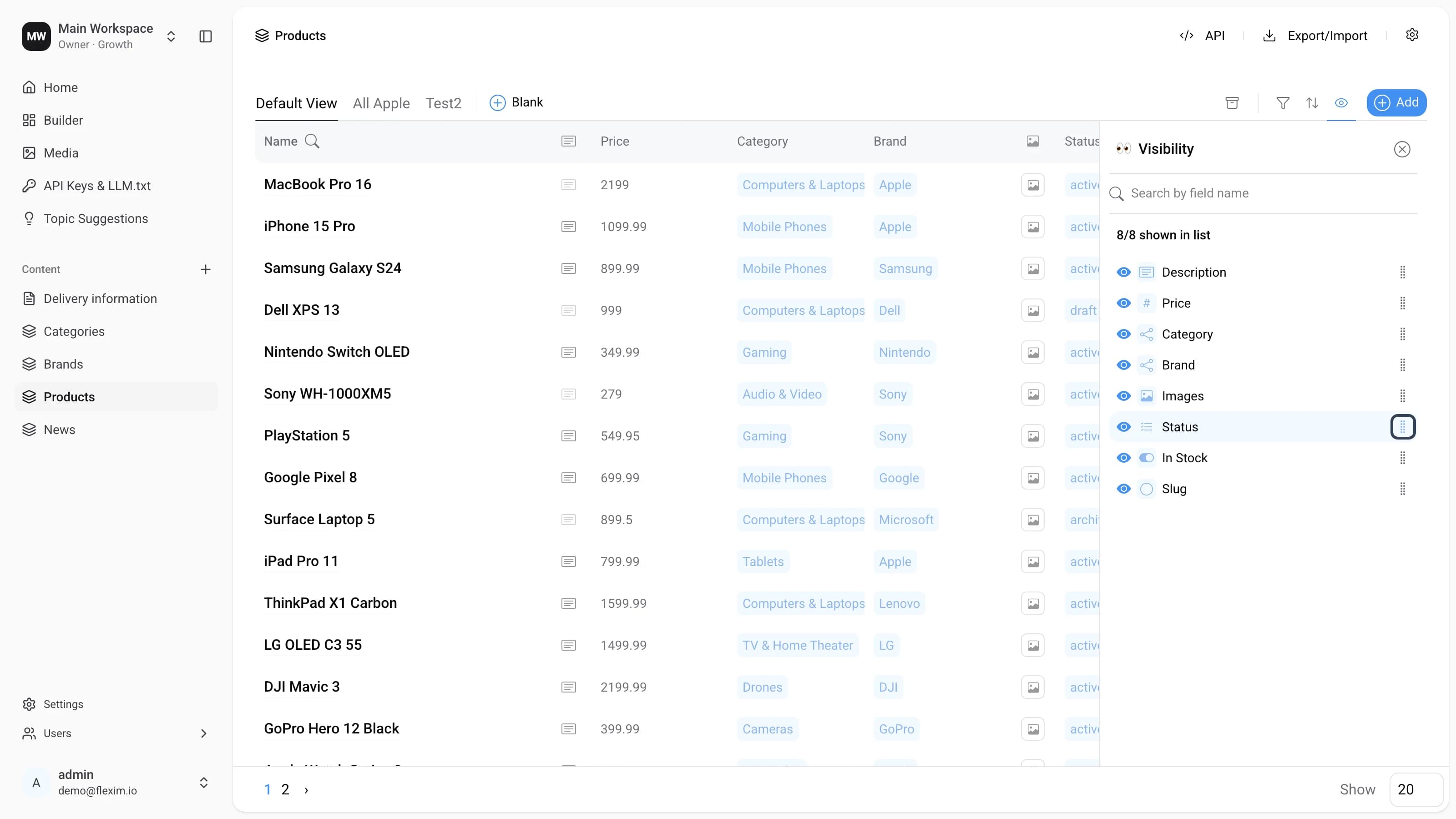
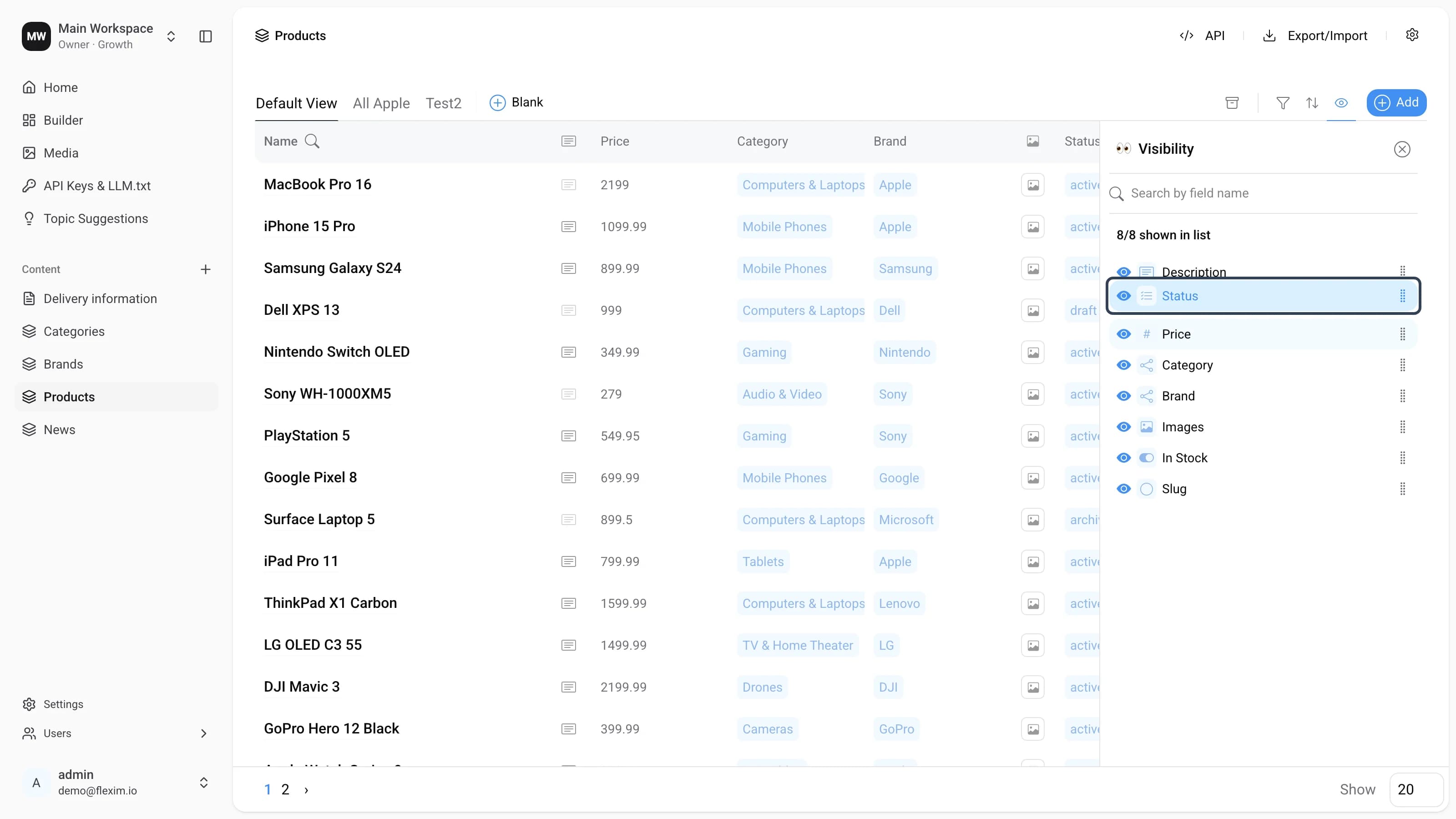
The Visibility panel supports drag and drop. Let's move the Status field to the top of the list.
-
Hover over the grip icon.
-
Click and drag the field upwards.
-
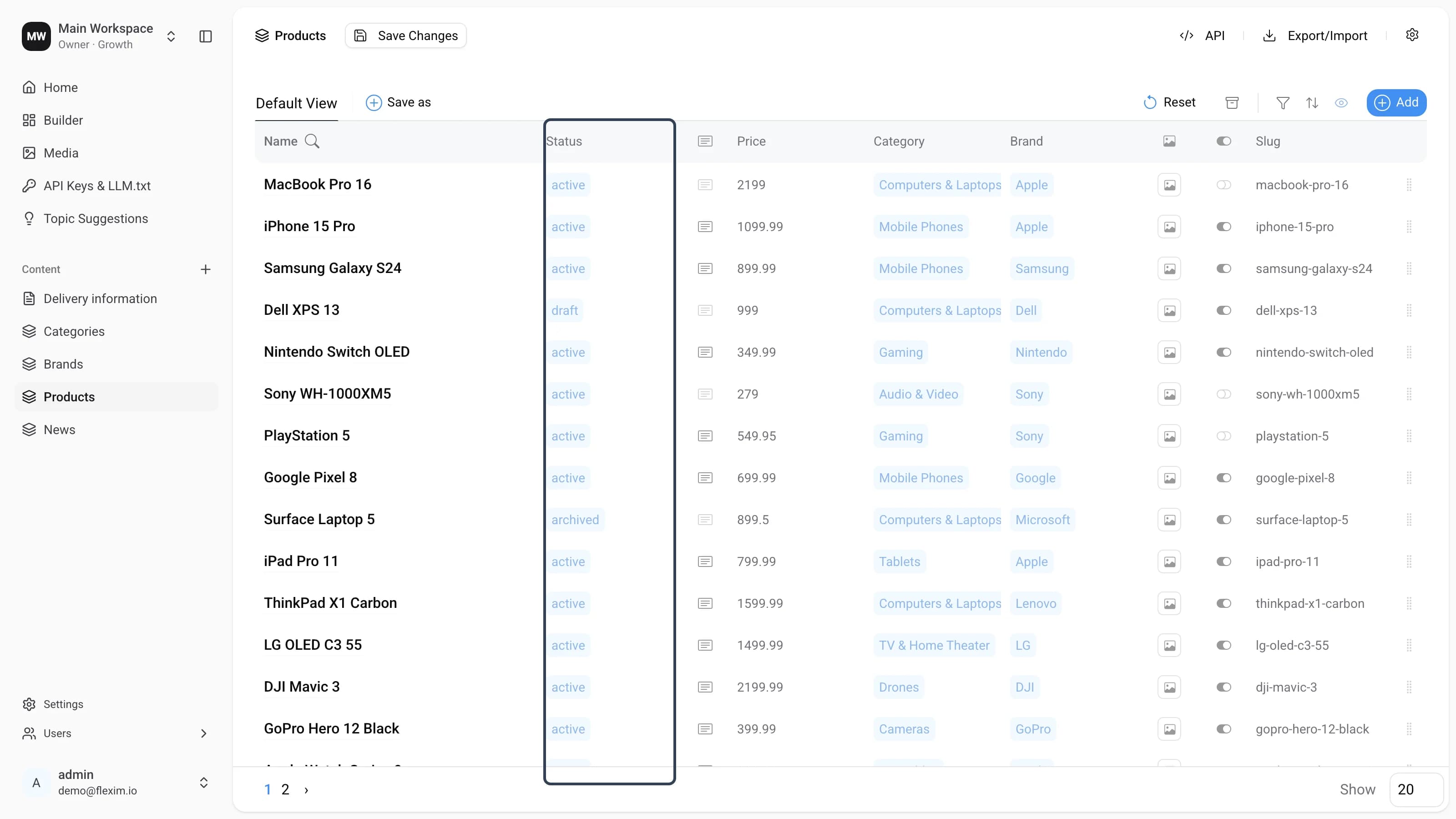
Done. The field has moved in the collection — Status now sits right after Name. A Save Changes button also appears, because you have changed the view settings (see Saving views).
Search bar
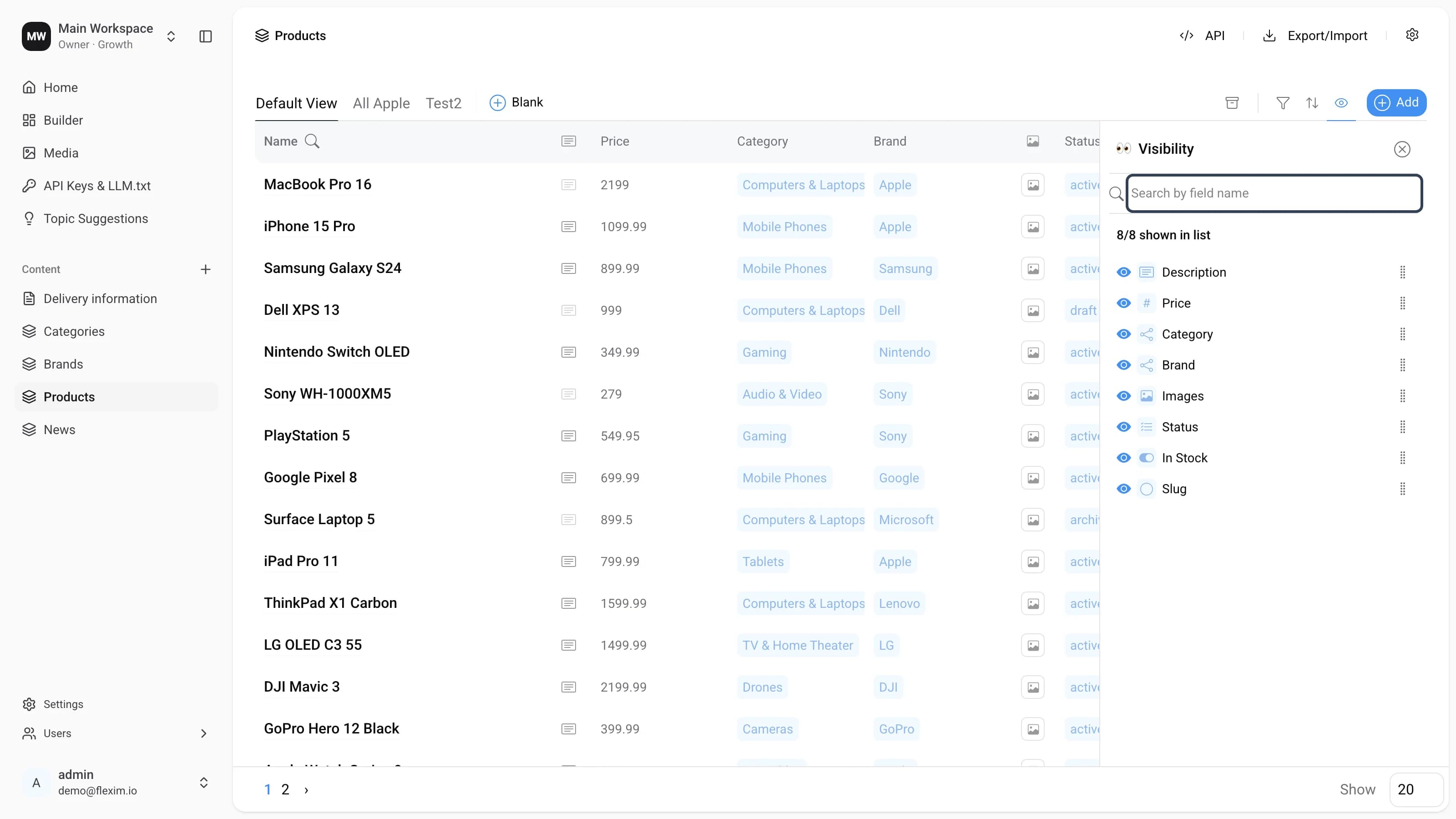
Let's find a field through the Visibility search bar.
-
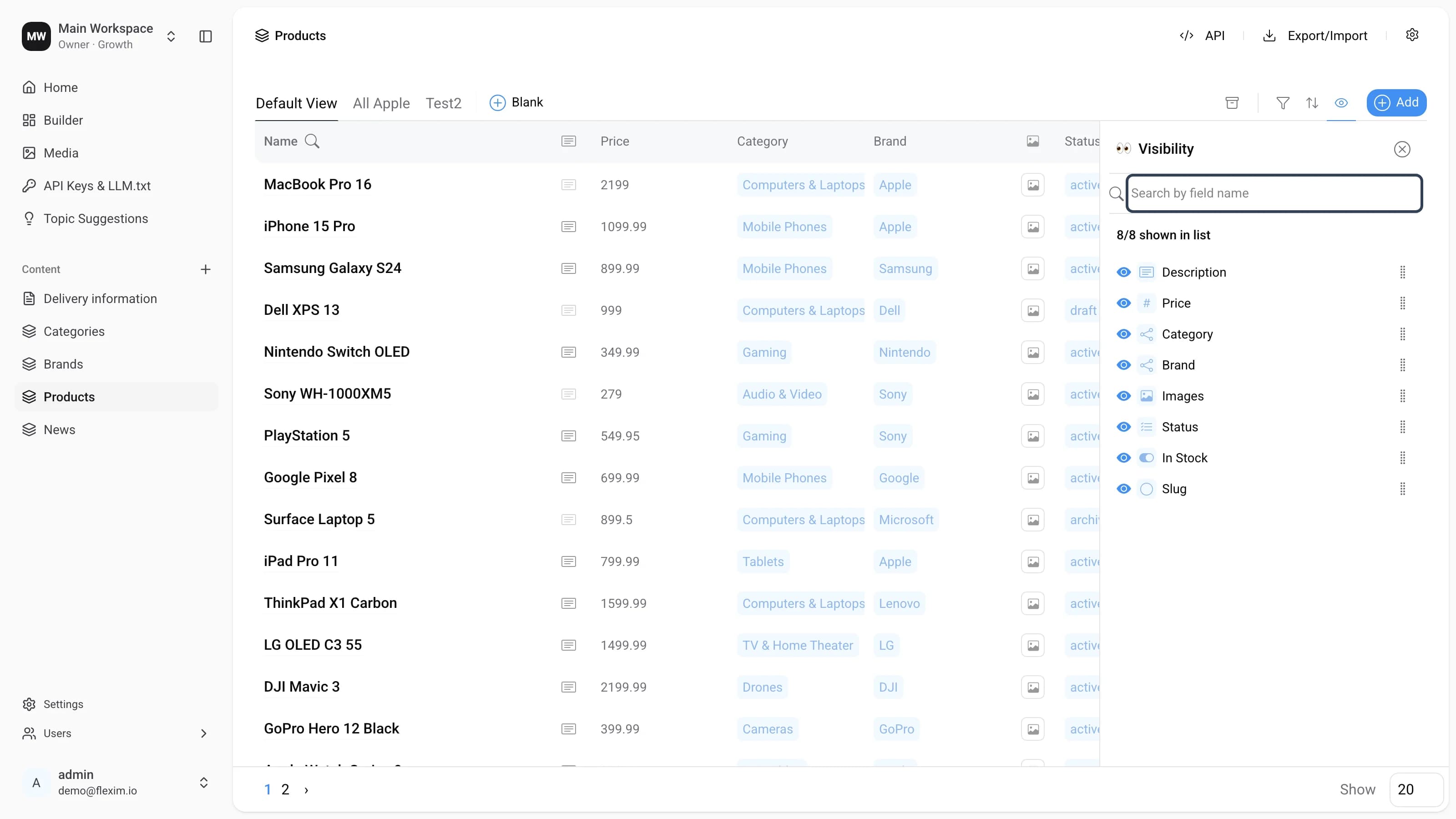
Click the Search by field name field.
-
The search field becomes active. Start typing a field name.
-
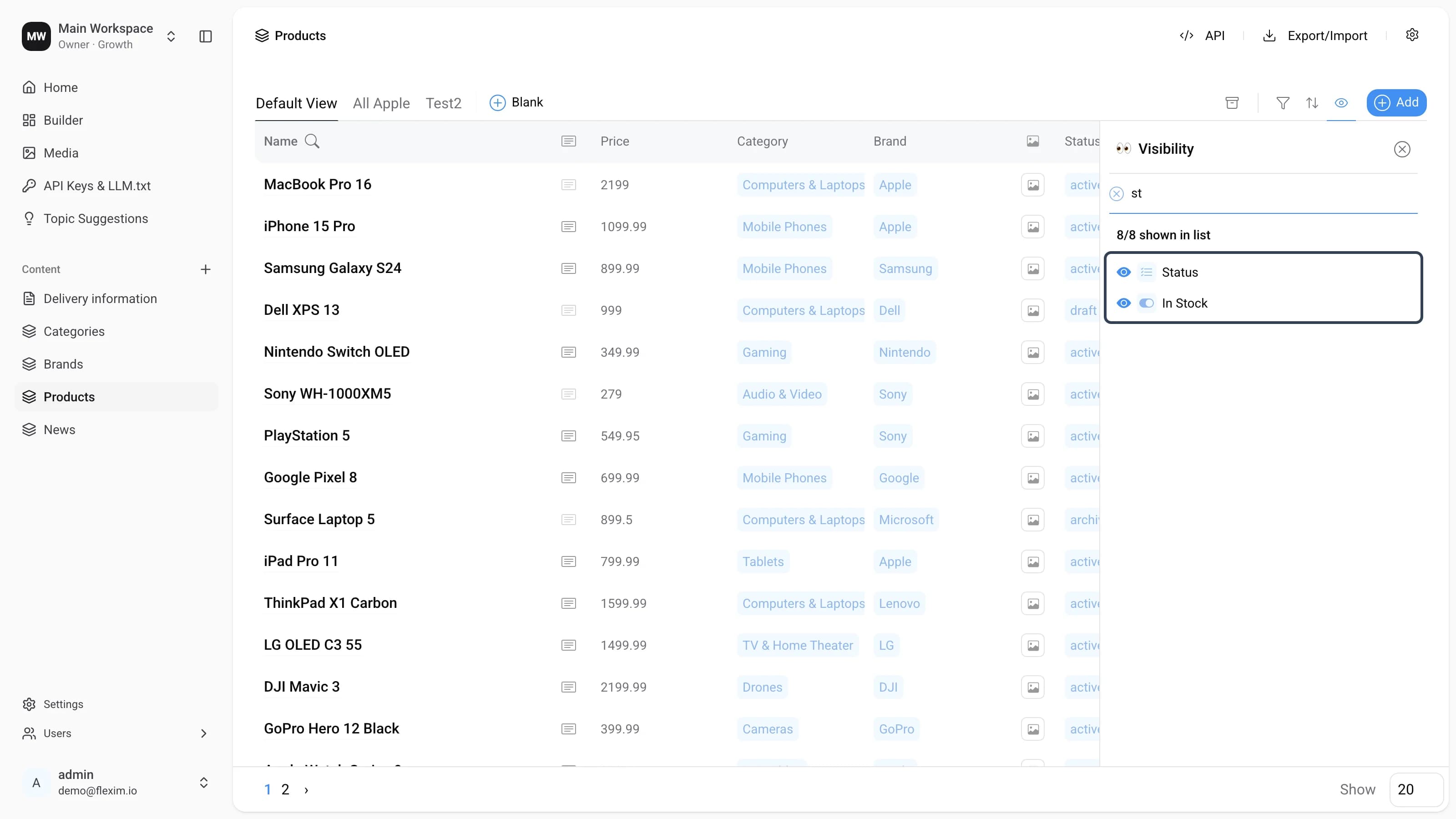
The list filters as you type. Type st and you get two fields — Status and In Stock. A clear (x) button appears on the left of the field.
Note
Search results can only be shown or hidden. They cannot be reordered relative to each other.
-
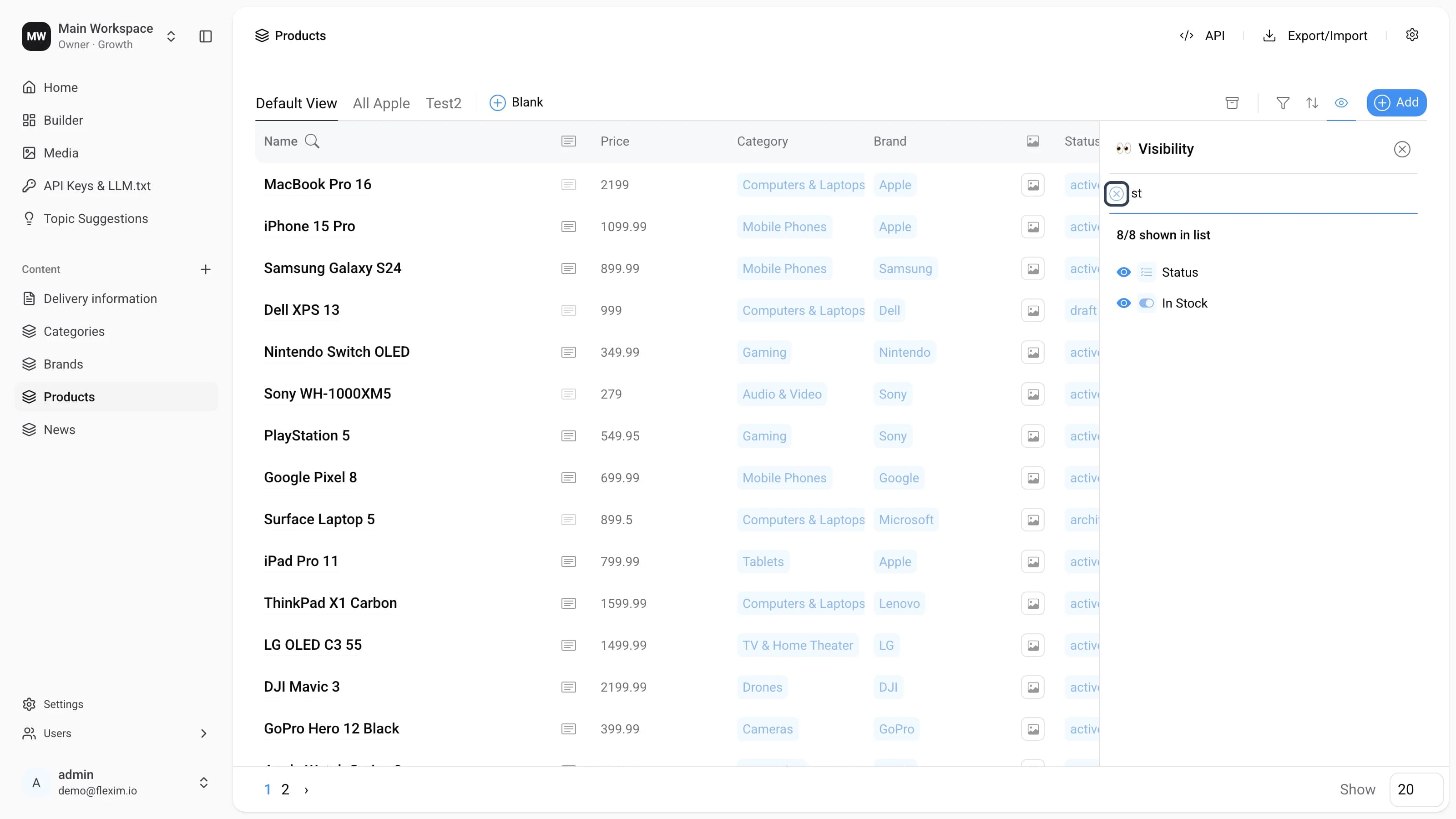
To clear the search, click the x button — the panel returns to the full list. You can also press Esc to reset the search.
Side Cases
-
If all 8 fields are already shown and you open a search, any hidden field in the results is disabled (greyed out). You cannot turn it on until you first hide one of the fields that are currently shown.
-
If you close the panel during a search, the search resets — when you reopen the panel, it returns to its default state.
Read more on this topic
Read next topic