Media
Manage every workspace image in the Flexim media library: upload, sort, edit, delete, restore, and reuse files in content.
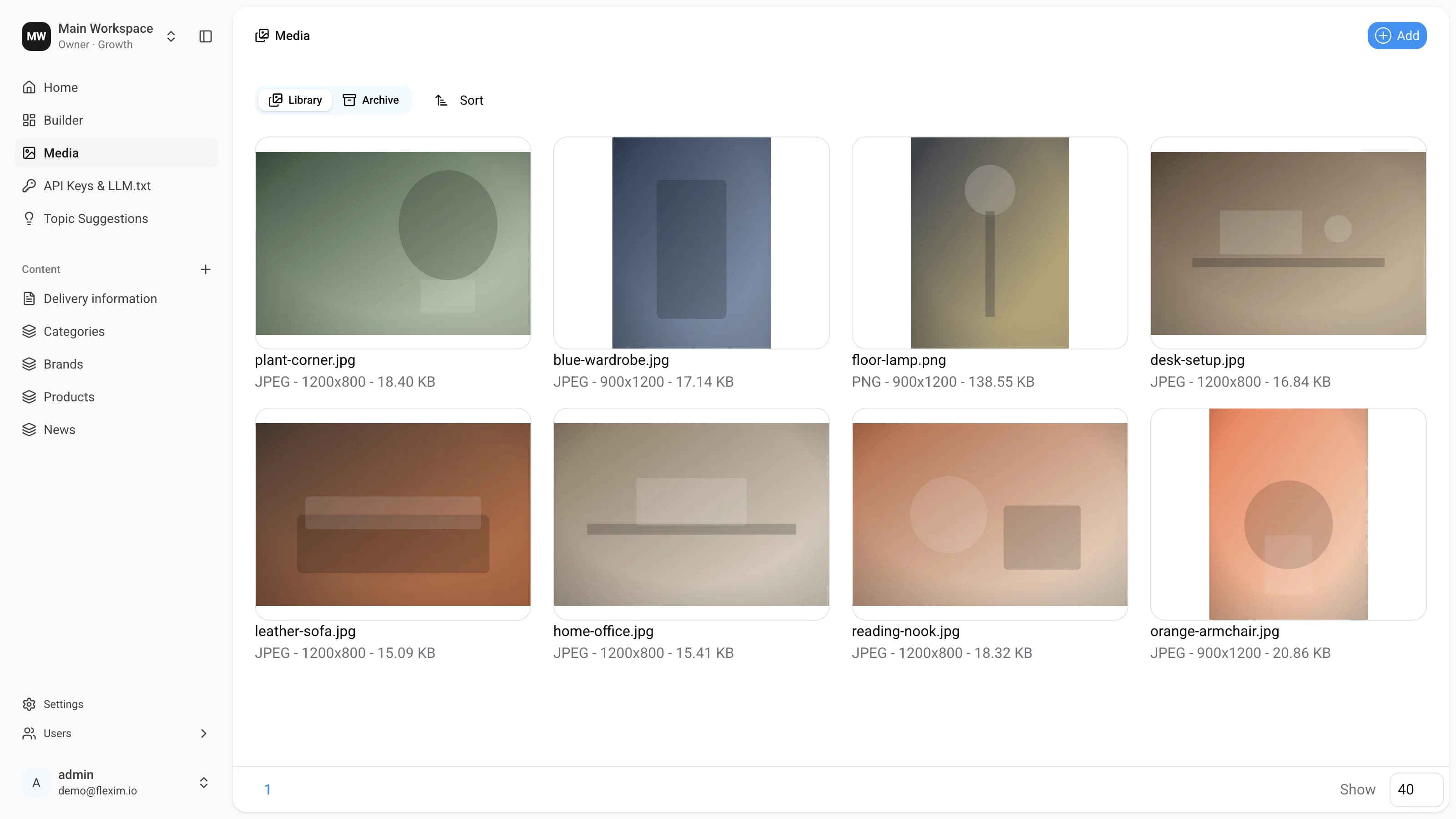
Media is the central library for every image used across your CMS. Files land here both when you add them while editing content and when you upload them directly on this page. From here you can upload new images, sort the library, select and delete images in bulk, crop them in the built-in editor, and restore anything you removed by accident.
Main elements
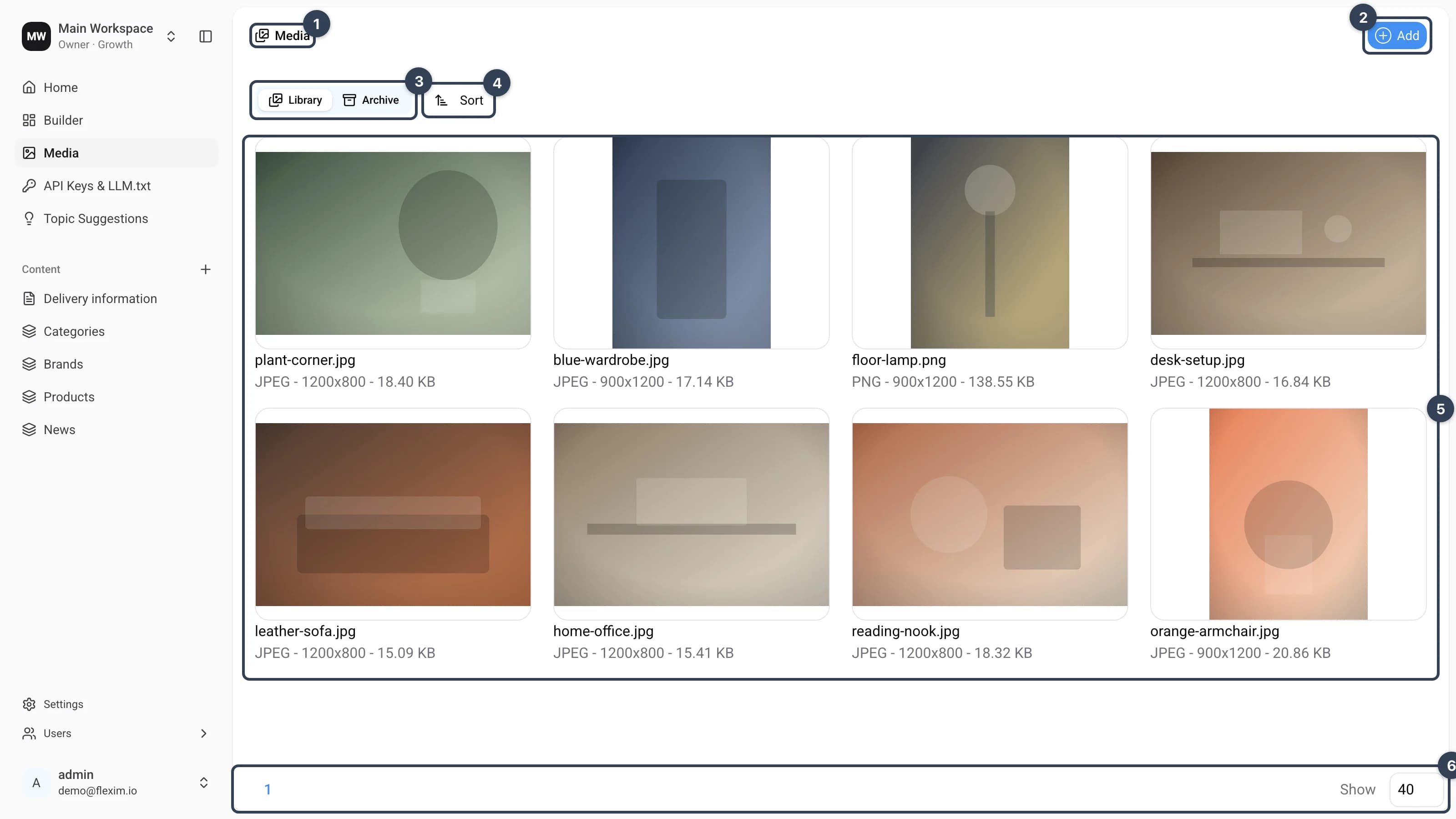
- Page name
- Add
Adduploads new images from your computer. You can select several files at once — they are processed and appear in the library automatically. - Library / Archive
Switch between
Library(your active images) andArchive(images you have deleted). Items in the archive can be restored for a limited time before they are removed permanently. - Sort
Sortlets you order the images in different ways. - Images All images uploaded to the workspace, shown as a grid of cards with the file name, format, dimensions and size.
- Pagination
Move between pages and choose how many images are shown per page with
Show.
Using Select
You can use select to quickly delete several images at once.
When you hover over an image, a checkbox appears in its top‑left corner. Click the images you want to select — the Delete button in the toolbar shows how many are currently selected.
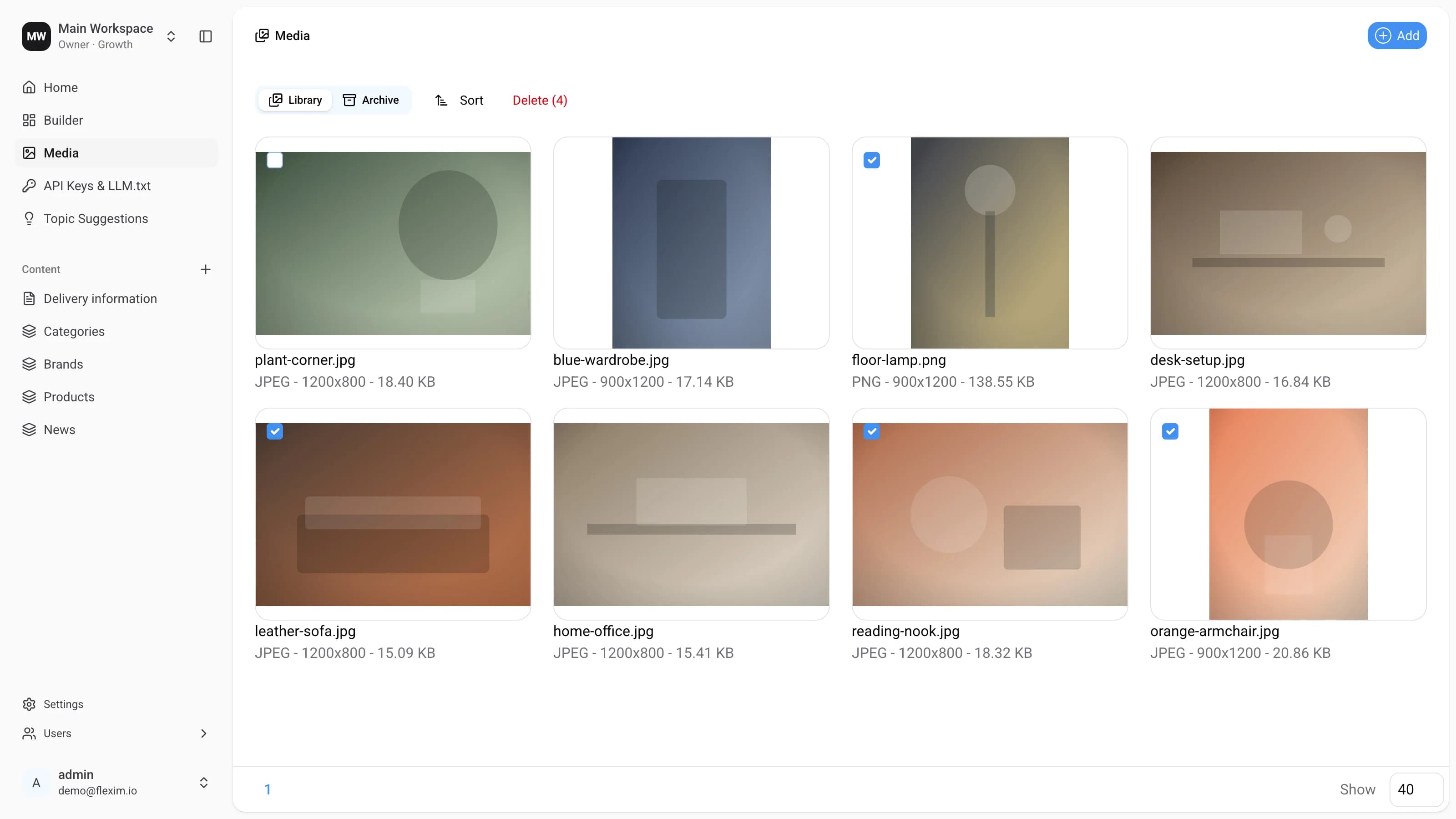
Select everything faster
Press Ctrl + A (or Cmd + A on macOS) to select or deselect all images on the current page.
Deleting Images
When you delete an image from Media, it is also removed from the collections and single pages where it was used. You can delete images in two ways:
-
Select one or more images, press the
Deletebutton, and confirm in the dialog that appears.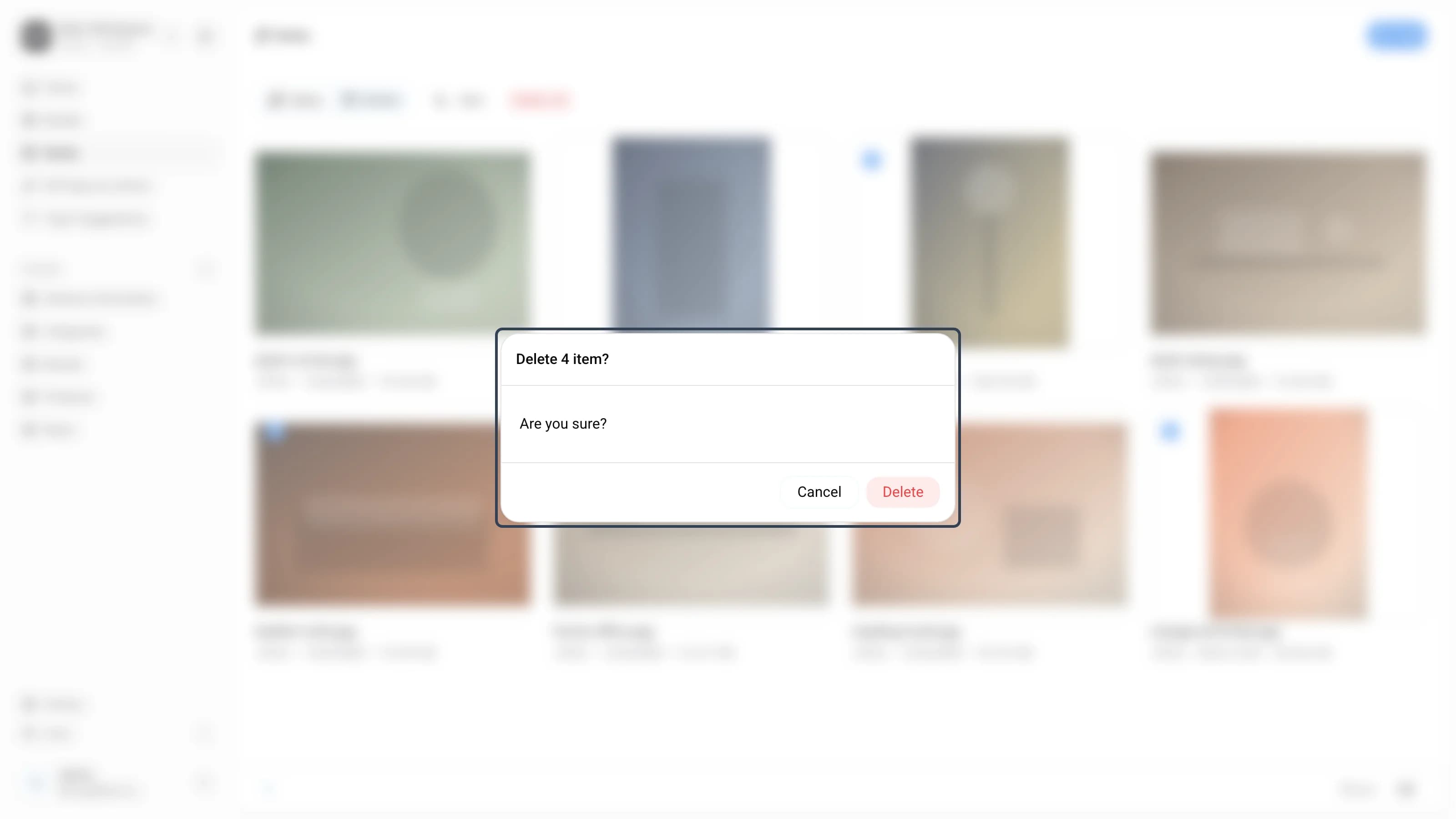
-
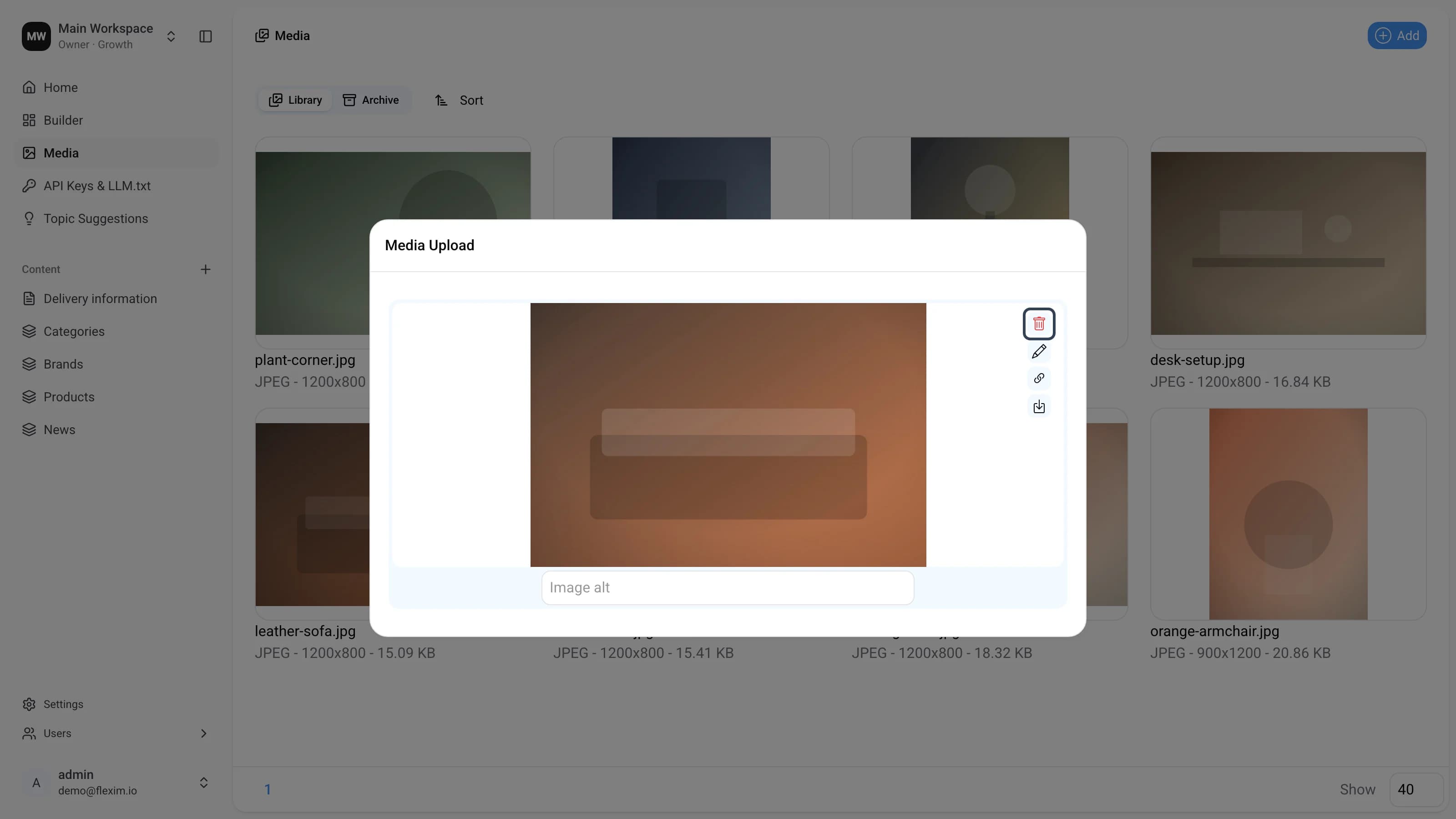
Click an image, then press the trash icon in the modal.
Deleted by mistake?
Deleted images move to the Archive tab, where you can restore them within the retention period before they are permanently removed.
Editing an image
Click an image to open its modal. Besides deleting, you can copy its link, download it, or open the built‑in editor with the pencil icon to crop and rotate the image.
Sorting images
Images can be sorted in the following ways:
- Recently uploaded
- Old uploaded
- Alphabetically (A‑Z)
- Alphabetically (Z‑A)
- Recently updated
- Old updated
Read more on this topic