Roles
Create and manage Flexim roles that control workspace access to content, tools, API actions, and administrative settings.
Roles control what members of your workspace can do. Open them from the sidebar under Users › Roles. On this page you can review every role, create new custom roles, edit them, and delete the ones you no longer need.
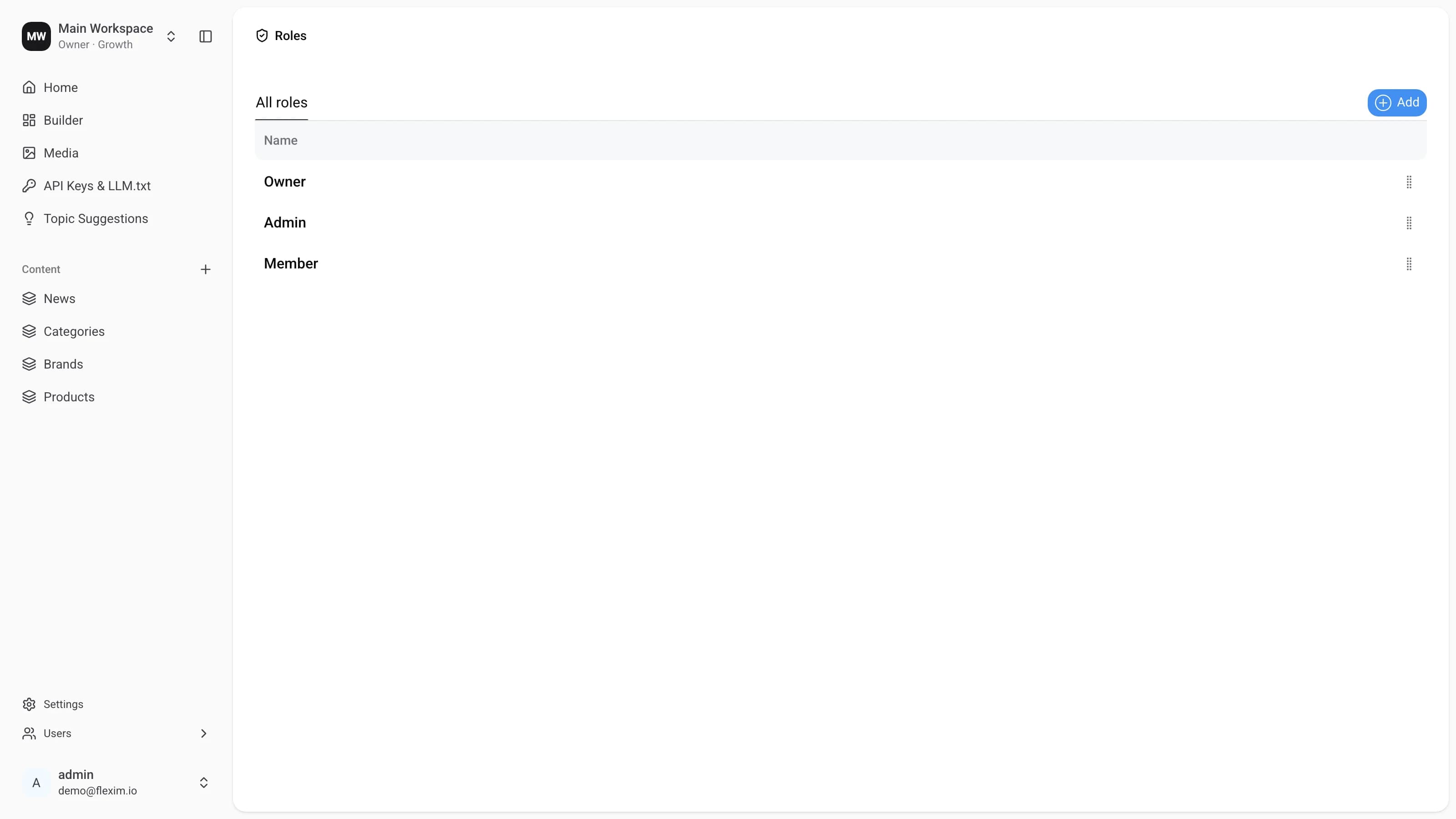
Every workspace ships with three built‑in system roles — Owner, Admin, and Member. These cannot be edited or deleted. Any additional roles you create are custom roles with permissions you define.
Main elements
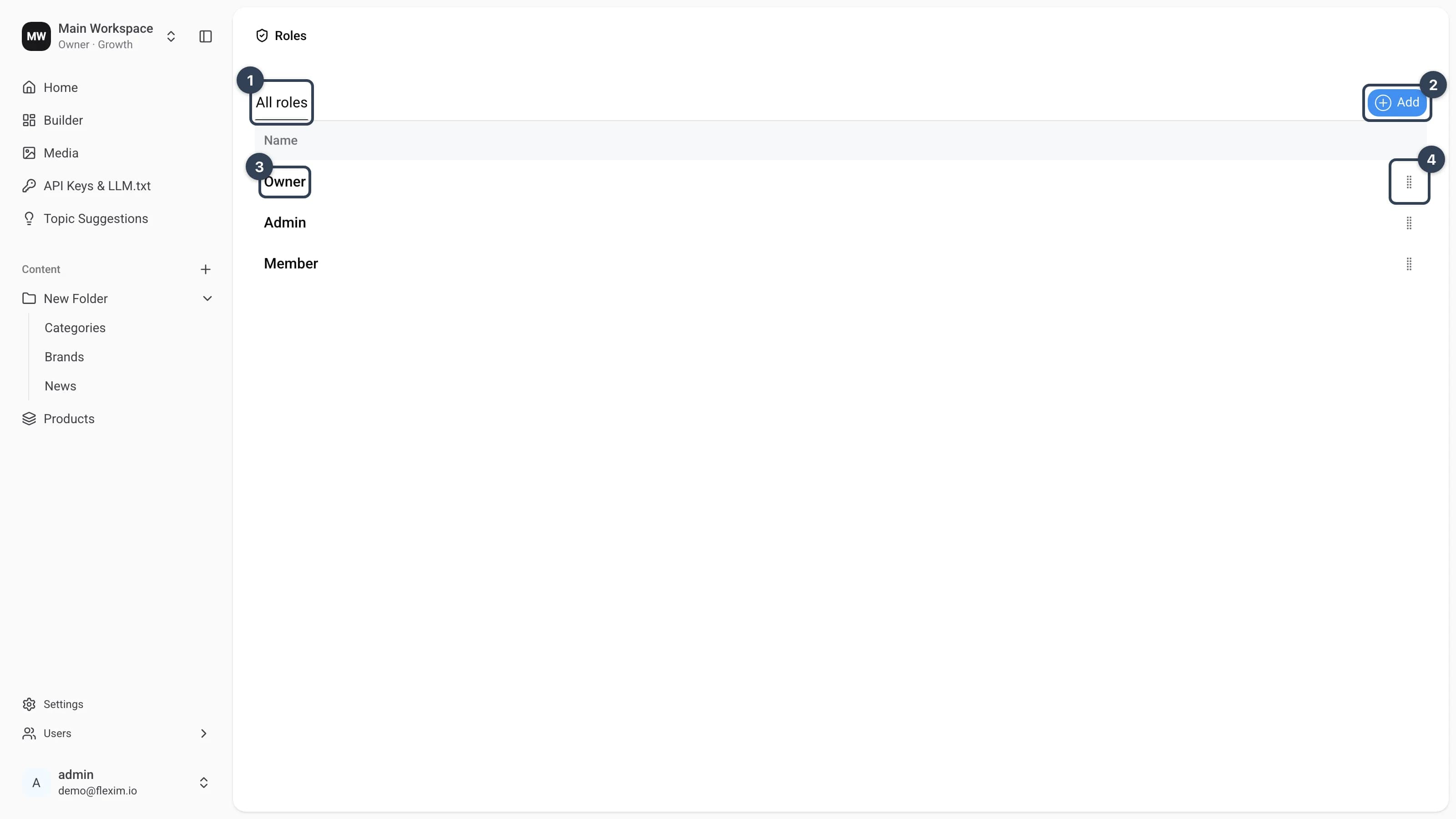
- All roles A tab above the table. It styles the list like a saved view, but for now there is a single default view without extra logic.
- Button
AddOpens the editor to create a new custom role. Availability depends on your plan and on theManage Rolespermission. - Role name Click a row to open the role and view or edit its permissions.
- Context menu button
The handle at the end of each row. It opens the actions for that role —
EditandDelete.
Adding a new role
-
Press the
Addbutton. The role editor opens with an empty name and default permissions. Permissions are grouped into four tabs — Team Space, Tools, Collections, and Pages — and the Access rules panel on the right explains each option.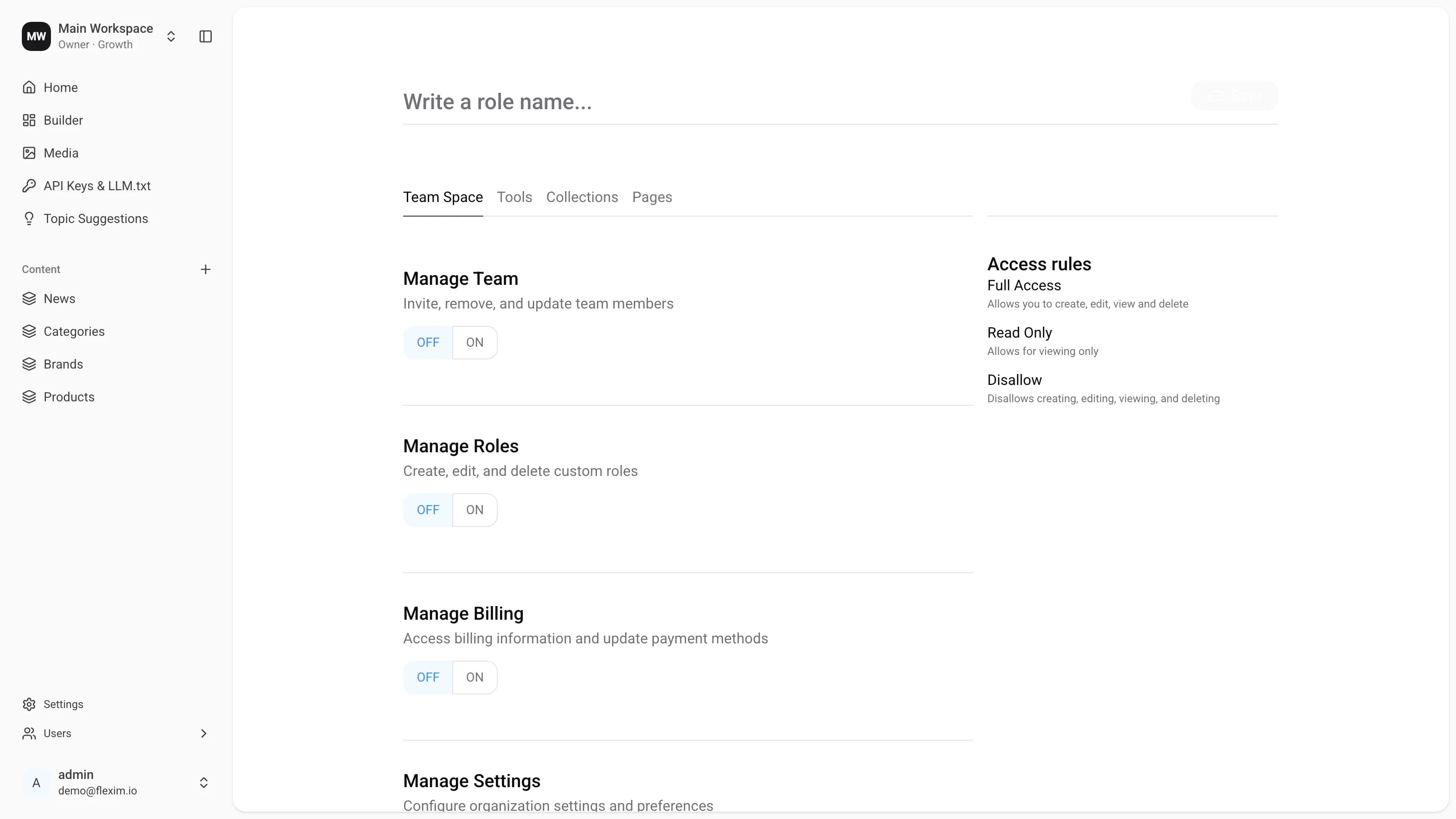
-
Enter a role name and configure its access. Team Space permissions are simple
OFF/ONtoggles, while Tools, Collections, and Pages use the presetsFull Access,Read Only, andDisallow(with a gear icon for fine‑grained create / read / update / delete control). TheSavebutton stays disabled until a name is entered, then turns blue.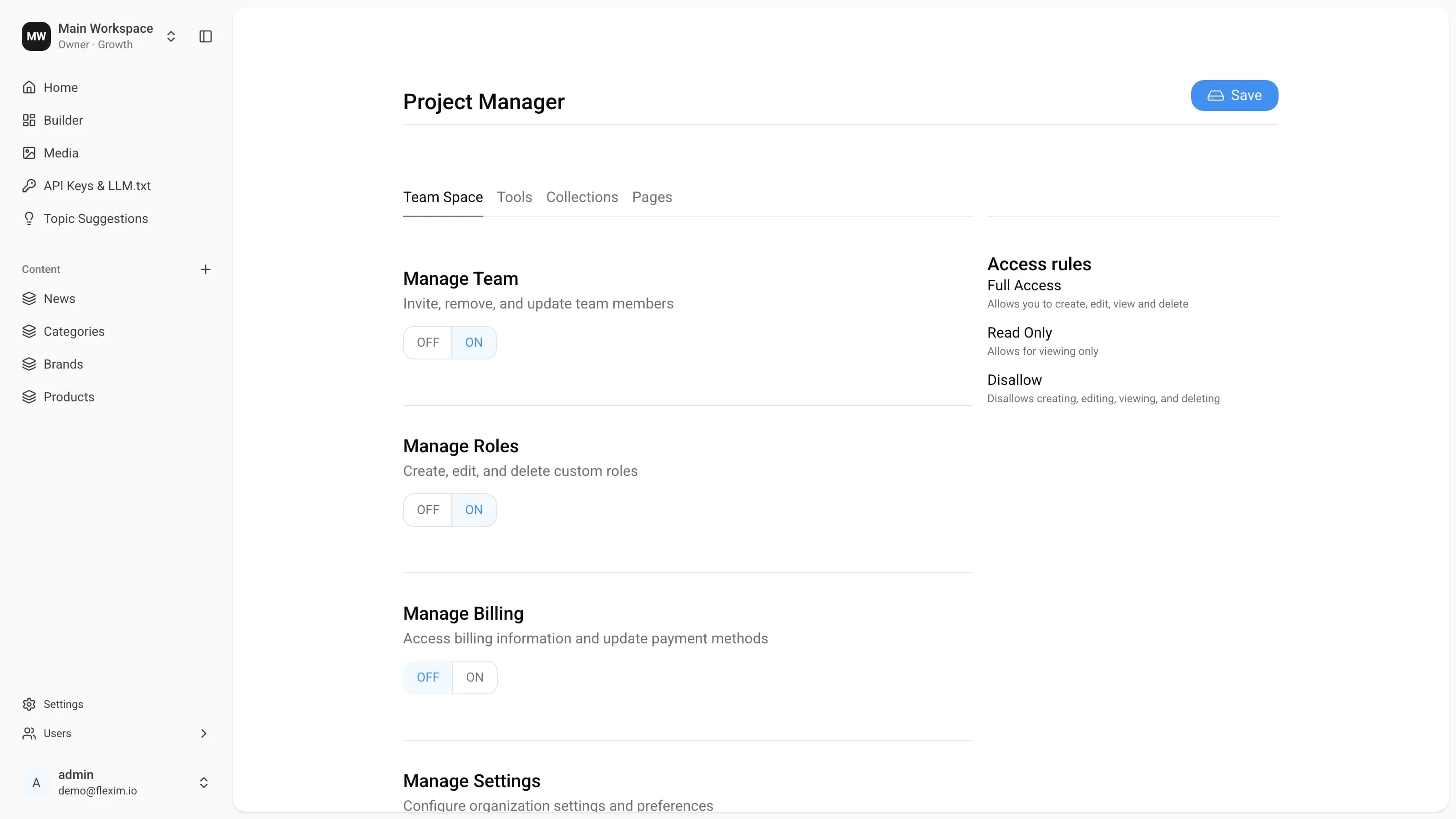
-
Press
Save. The new role now appears in the list.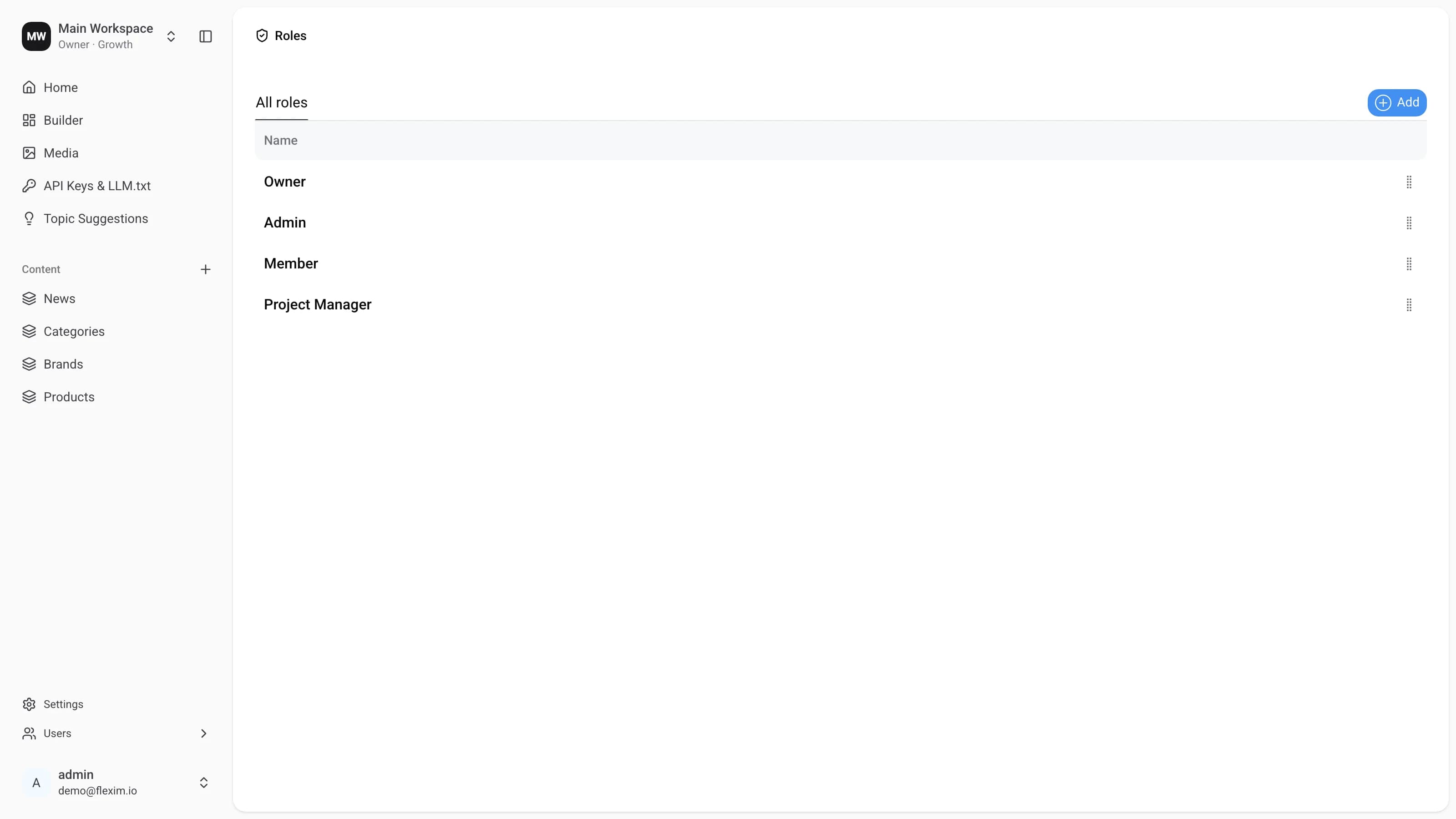
Editing and deleting a role
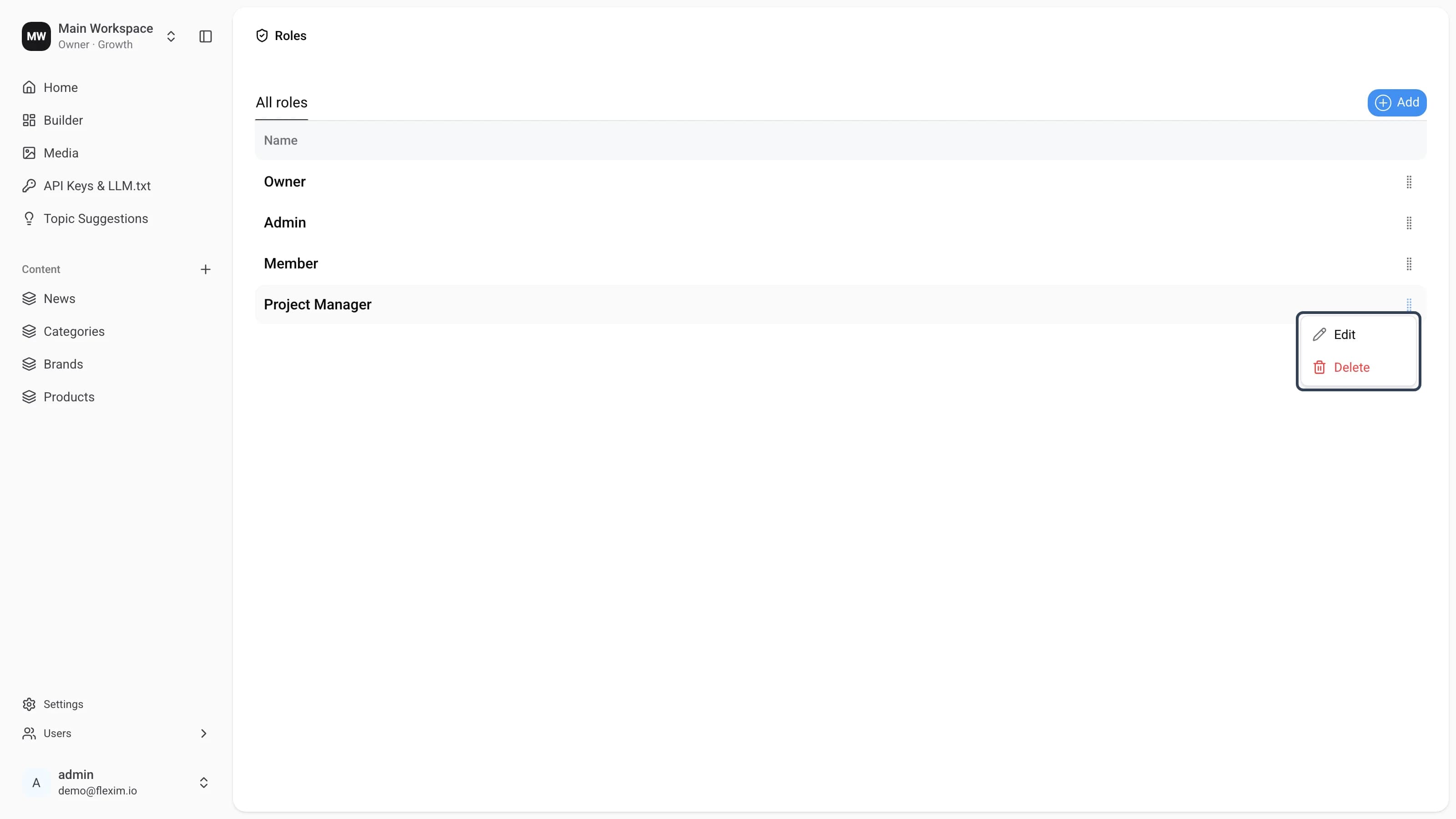
Open the context menu from the handle at the end of a row to Edit or Delete a custom role.
Delete is disabled for the built‑in Owner, Admin, and Member roles — system roles cannot be removed.
System roles
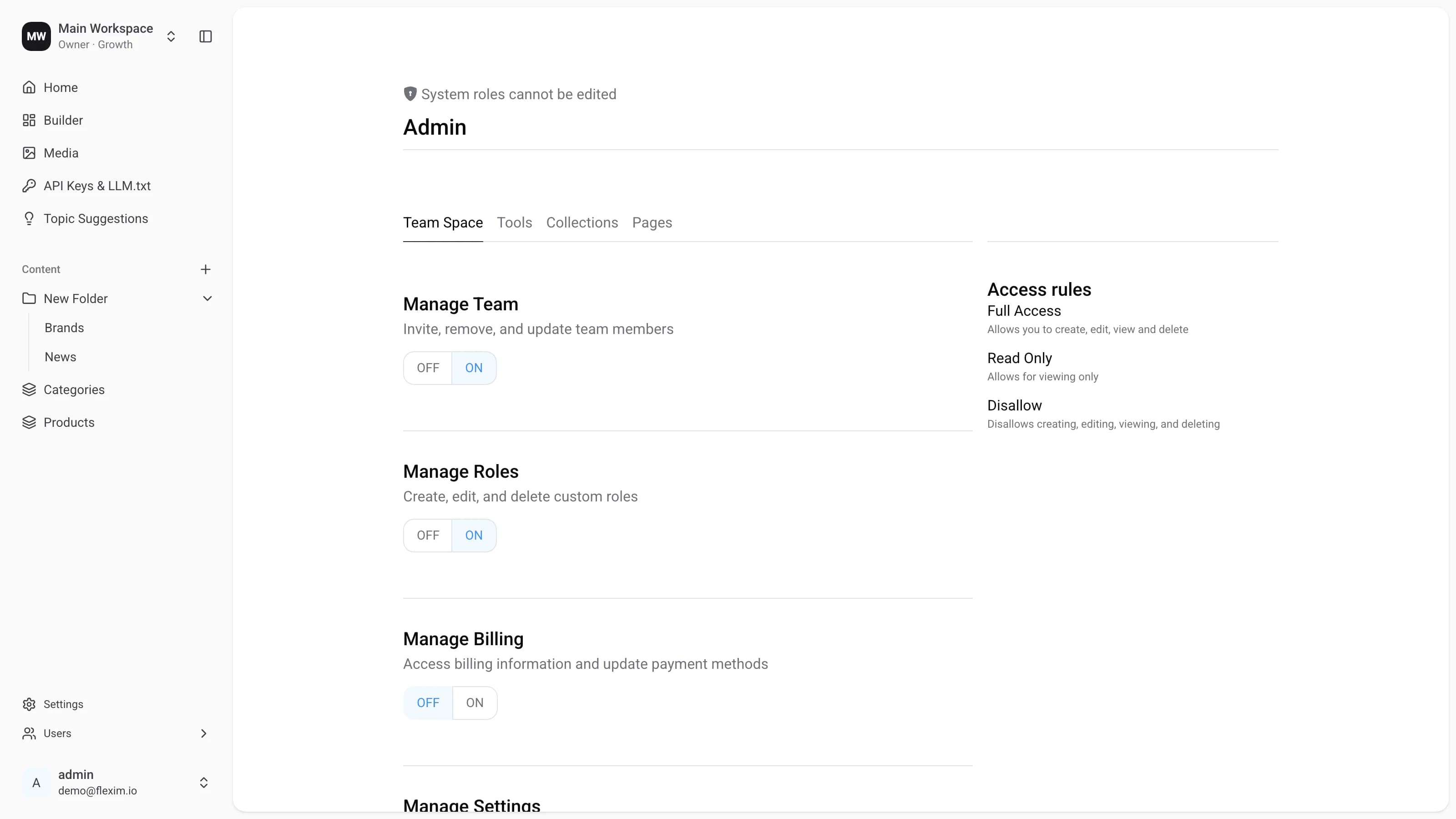
Owner, Admin, and Member are created automatically and open in a read‑only view — the header shows System roles cannot be edited and there is no Save button:
- Owner — full access to everything, including billing and workspace management.
- Admin — broad management access to the team, roles, and content.
- Member — a limited default set of permissions for regular contributors.
To grant a different mix of permissions, create a custom role instead.