MCP
Connect Claude, Cursor, Codex, and other MCP clients to a Flexim workspace with OAuth and role-based permissions.
MCP (Model Context Protocol) lets you connect an AI client — such as Claude, Cursor, or Codex — directly to your workspace. Once connected, the assistant can read and manage your content for you: browse content types, find and read entries, create or update records, upload images, and work with your SEO topic suggestions.
Connecting a client
If you are starting from the research chat, choose your agent tab and copy the writing prompt. It includes the workspace connection setup and SEO Writers installation instructions. The agent reuses existing connections, lists generated topics, and waits for you to choose one before loading its brief and writing.
Every workspace has its own MCP endpoint:
https://flexim.io/api/v1/{workspace}/mcpReplace {workspace} with your workspace slug (for example, main). The ready-to-paste command for each client — with your workspace already filled in — is also available in the CMS under Settings → MCP, so you can copy it directly.
The first time a client connects, your browser opens a Flexim consent page where you authorize it — no manual API key is required. When the client requests background access, Flexim can then renew its short-lived access token without reopening the browser. This authorization lasts for up to 30 days; you can revoke it sooner at any time. In the examples below the server is named flexim-{workspace}; you can use any name.
Some clients don't tell Flexim which workspace they are connecting to — Codex only does so when you pass --oauth-resource (see below). When the client stays silent, the consent page asks you to choose, and the connection is bound to the workspace you pick. If only one of your workspaces allows MCP, it is chosen automatically and nothing extra is asked.
Claude
Claude Code (CLI)
claude mcp add --transport http flexim-main https://flexim.io/api/v1/main/mcpThen run /mcp → select the connector → Authenticate.
Claude Desktop (claude.ai)
Open Settings → Connectors → Add custom connector, paste the endpoint URL, and authorize in the browser.
Codex
Codex CLI
With Codex 0.147.0 or newer, connect directly to Flexim as a Streamable HTTP MCP server:
codex mcp add flexim-main --url https://flexim.io/api/v1/main/mcp --oauth-resource https://flexim.io/api/v1/main/mcpThis adds a Streamable HTTP MCP server. --oauth-resource tells Flexim which workspace the connection is for. Leave it out and the consent page will ask you to pick the workspace instead.
If Codex marks the server as requiring OAuth but does not open the browser automatically, run:
codex mcp login flexim-mainAfter authorizing, restart Codex so it picks up the new tools.
Using an older Codex version?
Update Codex before connecting. mcp-remote is not recommended as the normal Flexim setup. If an existing bridge is your only temporary path, keep it only until you can update, then remove that server definition and add the native connection above. Do not delete shared authentication data during the migration.
References: Codex MCP documentation and the upstream OAuth fix included in Codex 0.147.0.
Codex Desktop
Open Settings → MCP Servers → Add server, switch the transport to Streamable HTTP, give it a name, and paste the endpoint URL.
Cursor
Add the server to ~/.cursor/mcp.json:
{
  "mcpServers": {
    "flexim-main": {
      "url": "https://flexim.io/api/v1/main/mcp"
    }
  }
}
Secure by design
Each connection is authorized through your Flexim account (OAuth) and its access token is scoped to the MCP endpoint only — it can't be reused against the rest of the API. What an assistant may do is governed by the MCP permission on the connecting member's role.
What the assistant can do
Once connected, the assistant has these tools available:
Explore your structure
- List content types — all collections and pages in the workspace, with field counts.
- Content type schema — the fields of a specific content type.
Set up a blog
- Get workspace schema — inspect the existing structure and supported templates.
- Preview schema change — preview missing collections and fields, including the built-in blog template, without changing data.
- Deploy schema change — apply the reviewed additions while keeping existing collections and fields. This requires schema write access and Constructor create/edit permission.
An agent can use these tools to prepare the missing blog structure, then read it back before saving a draft. Schema setup does not create or publish article entries.
Read content
- List entries — records of a collection or page.
- Get an entry — a single record with all its fields (rich text is returned as Markdown).
- Search entries — find records by conditions.
Manage content
- Create an entry — add a new record.
- Update an entry — change specific fields of a record.
- Delete an entry — remove a record (moved to the trash when your plan enables it).
- Upload an image — add an image to a media field.
If a collection has an Auto Generate slug field, send its source field (usually
name). Flexim generates the slug on the server when creating the entry and
recomputes it when you update the source. Automatic fields are read-only through
MCP. Unrelated partial updates preserve an existing slug; saving an entry with a
missing slug fills it from the available source. Changing a title can therefore
change its URL slug, so check published links when renaming articles.
Rich-text fields accept Markdown. Inline code, fenced HTML examples, nested lists, ordered-list starting numbers and task checkboxes survive reading and saving the entry again. Markdown spelling may normalize. Use the New editor in the CMS for documents with nested lists, custom numbering or checkboxes; Legacy is unavailable when it would lose those features. Already-lost formatting requires the original source to restore it.
SEO topics
- List topics — compact summaries of the generated SEO topic suggestions, including their IDs and the same estimated
volumeand numerickdshown on the Topic Suggestions page. Missing estimates are returned asnull; in the UI, KD below 30 is Easy, 30–59 is Medium, and 60 or higher is Hard. - Get a topic prompt — the full Article Brief for one selected topic. The assistant lists compact summaries first, asks you to choose, and then loads that topic's brief, so a large topic list is not truncated by repeated prompts.
- Update topic status — move a topic through its workflow.
For the writing workflow, call list_topics with {"status":"generated"} and follow pagination as needed. After the user chooses a topic, pass its returned ID as topicId to get_topic_prompt. Continue in SEO Writers using that brief. A completed topic is separate from a saved article entry; see After the article is ready.
Using MCP from Topic Suggestions
The Topic Suggestions detail page shows the workspace connection state below the topic statuses:
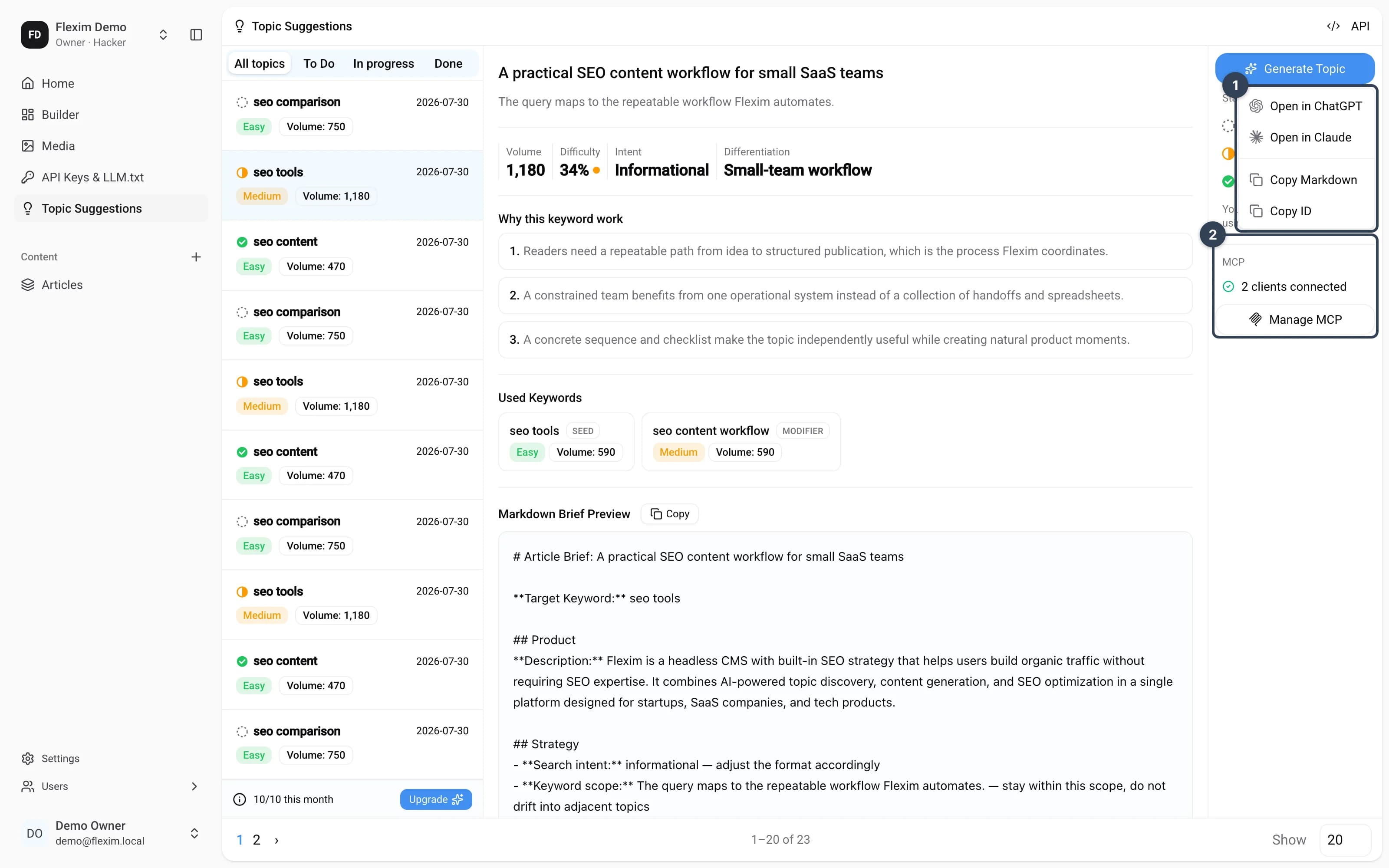
- Not connected — select Connect MCP to open Settings → MCP and authorize a client;
- Connected — the rail shows how many clients are connected, and Manage MCP opens the same settings section;
- Checking connections or Connection status unavailable — use Open MCP settings; Flexim does not report a client as connected until the connection query confirms it.
For a connected workspace, Open in ChatGPT and Open in Claude pass only the selected topic ID with an instruction to call the Flexim MCP Get a topic prompt tool. The client loads the current Article Brief from Flexim instead of receiving the whole prompt in the URL. If MCP is not connected, those two actions keep the public prompt handoff so they still work without a client connection.
Use Copy ID when you want to refer to the same topic from another connected MCP client, or Copy Markdown when you need the complete brief on the clipboard.
Managing connections
Open Settings → MCP to see every AI client connected to the workspace. A client that requested background access can renew its hourly access token silently for up to 30 days from the original authorization, so it does not ask you to sign in every hour or every day. The 30-day limit is fixed; refreshing does not extend it.
Each refresh token is replaced after one successful use. If the client loses the server response because of a network interruption, it can repeat that exact token request for 10 seconds and receive the same replacement tokens. Reusing the old token later — or changing the request during that retry window — is treated as a possible credential theft: Flexim closes the connection and the client must be authorized again. This short retry window trades a small, bounded replay opportunity for recovery from real network failures; the token is not reusable after the window.
Flexim also limits unusually frequent refresh attempts. If a client receives temporarily_unavailable, it should wait briefly and retry instead of starting a second authorization.
From Settings → MCP you can revoke any connection at any time. Revocation immediately invalidates its access token, refresh token, and any pending retry result, so the client must be authorized again to reconnect.
For the policies that apply when you connect an external client, see the Flexim Privacy Policy and Terms of Service.
If tools disappear after the token expires
Flexim reports an expired, malformed, wrong-workspace, or otherwise unverifiable access token with the standard OAuth invalid_token challenge while preserving workspace discovery metadata. An OAuth-capable client can use that signal to refresh the token or ask you to authorize again, but automatic refresh depends on the client. If it does not recover, reconnect Flexim from the client's MCP settings.