Navigation
Understand the Flexim sidebar and use its workspace, content, account, and support areas to reach key tools.
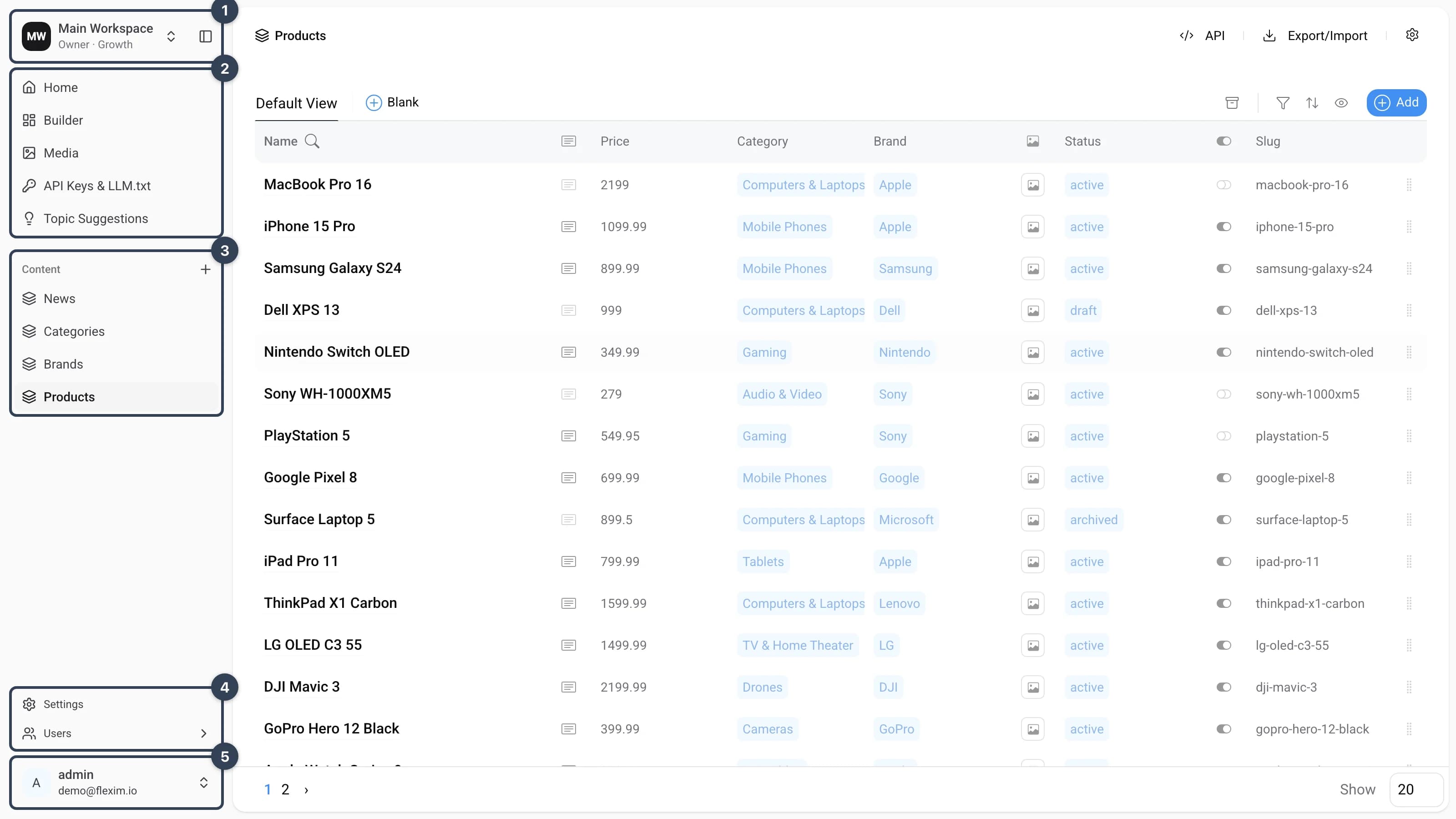
The navigation sidebar is split into five main parts:
- Workspace switcher The card at the top shows your current workspace with its name and plan. Click it to switch between workspaces; the icon to its right collapses and expands the sidebar.
- Main menu The core sections of the CMS: Home (your dashboard), Builder (create and edit content types in the constructor), Media, API Keys & LLM.txt and Topic Suggestions.
- Content Every collection and single page you have created, grouped under the Content heading. Use the + button next to it to add a folder and keep things organized.
- Settings and Users CMS-wide Settings and team management — Users and their roles.
- Account Your profile avatar at the bottom. Click it to open the account menu with your Profile and Log out, which returns you to the authorization screen.
Folders
Folders let you group collections and pages inside the Content section. To create one, click the + button next to Content — a folder named New Folder appears. Type a name and press Enter, then drag collections or pages onto the folder to move them inside. A folder has no screen of its own; it only organizes the items it contains.
You can rename or delete a folder from its ... (More) menu. Deleting a folder keeps its items and moves them back to the main Content list. For a full drag-and-drop editor of the whole menu, see the navigation constructor.
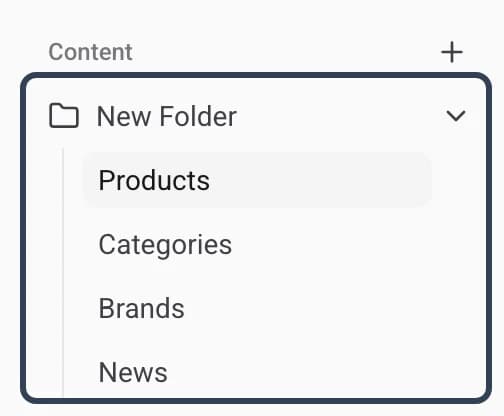
Opening a folder
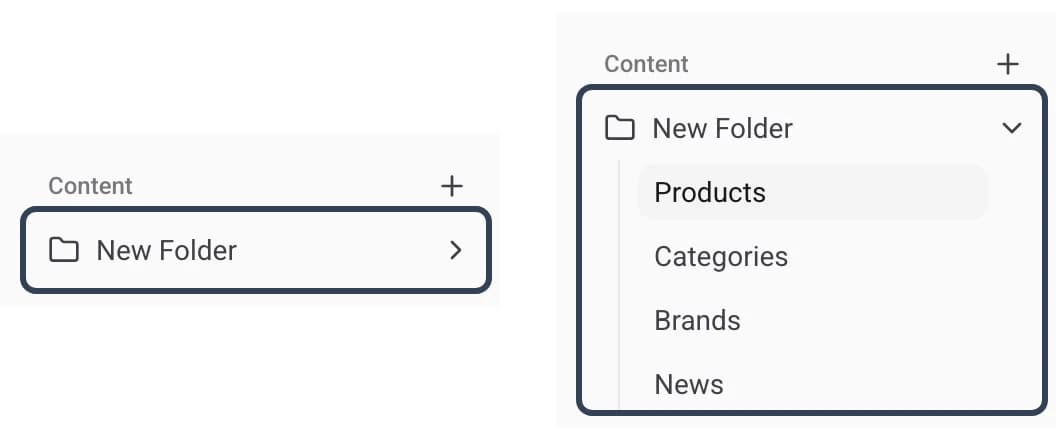
Click a folder — or the chevron on its right — to expand or collapse its contents. Folders never open a screen on the right side; they simply reveal or hide the items nested inside them.
Read more on this topic